Documentation Index

Fetch the complete documentation index at: https://resend.com/docs/llms.txt

Use this file to discover all available pages before exploring further.

With React Email, write email templates as React components, with full TypeScript and Tailwind support, and a local preview server. Preview your emails in real time with hot reloading, and render to email-friendly HTML or plain text when you’re ready to send. This guide walks through setting up a React Email project, writing a template, and uploading it to Resend Templates with the Resend CLI so the rest of your team can collaborate on it in the dashboard.
1

Set up a React Email project

Use create-email to scaffold a project with a starter template, a preview server, and the @react-email/components package.
npx create-email@latest
This creates a new react-email-starter folder with an emails/ directory and a few example templates. Install dependencies:
cd react-email-starter
npm install
Already have a project? See the React Email docs for the manual setup and then create an emails/ directory in your preferred location.
2

Write your template

Create emails/welcome.tsx. Each component can be imported from react-email (view all components). Optionally add props to the component to be used as variables when sending.
emails/welcome.tsx
import {
  Body,
  Button,
  Container,
  Head,
  Heading,
  Html,
  Preview,
  Section,
  pixelBasedPreset,
  Tailwind,
  Text,
} from 'react-email';
import * as React from 'react';

interface WelcomeEmailProps {
  firstName?: string;
  productName?: string;
}

export default function WelcomeEmail({
  firstName = 'there',
  productName = 'Acme',
}: WelcomeEmailProps) {
  return (
    <Html>
      <Head />
      <Tailwind config={{ presets: [pixelBasedPreset] }}>
        <Preview>Welcome to {productName}</Preview>
        <Body className="bg-white font-sans">
          <Container className="mx-auto py-12">
            <Heading className="text-2xl font-semibold text-black">
              Welcome, {firstName}
            </Heading>
            <Text className="text-base text-zinc-700">
              Thanks for signing up for {productName}. Let's get you started.
            </Text>
            <Section className="mt-6">
              <Button
                className="rounded-md bg-black px-5 py-3 text-sm font-medium text-white"
                href="https://example.com/get-started"
              >
                Get started
              </Button>
            </Section>
          </Container>
        </Body>
      </Tailwind>
    </Html>
  );
}
3

Add email script

package.json
{
  "scripts": {
    "email:dev": "email dev"
  }
}
The email:dev script will start the preview server. If your email directory is not in the root of your project, you can specify the path to it.
package.json
{
  "scripts": {
    "email:dev": "email dev --dir src/emails"
  }
}
4

Preview locally

Run the preview server to see your email render in real time as you edit. Hot reload picks up changes automatically.
npm run email:dev
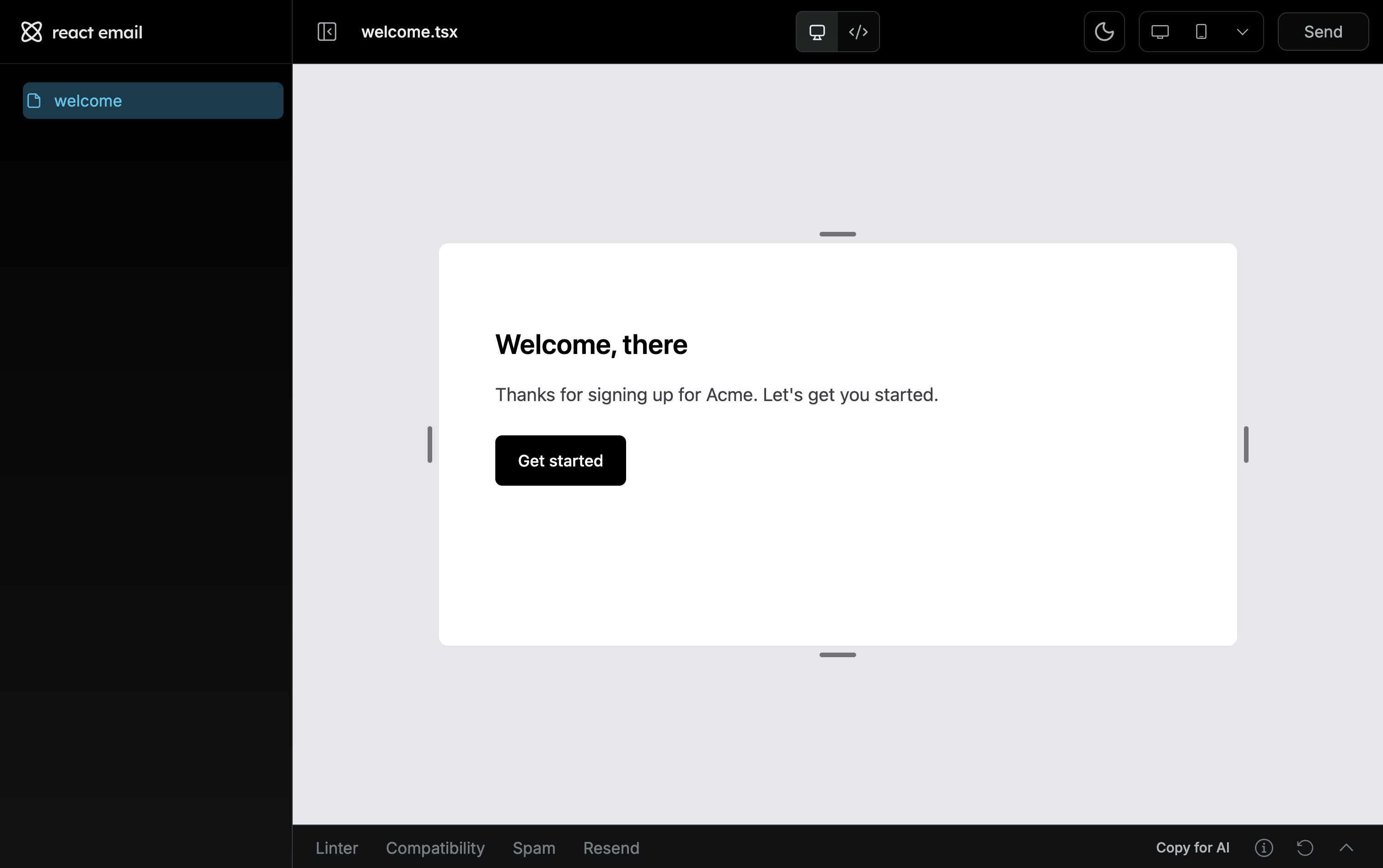
Open localhost:3000 and select welcome.tsx from the sidebar.React Email Preview serverThe preview shows the rendered email and offers desktop/mobile toggles, the source HTML, and plain-text output. Changes you make to welcome.tsx show in real-time and dedicated email tools show in the toolbars.
  • Linter: lint your email content, links, and more.
  • Compatibility: check your email’s HTML/CSS with caniemail.
  • Spam: see how spam checkers view your email.
5

Send your email template

You can pass your React Email template in the email call using the Resend Node SDK.
sendEmail.tsx
import { Resend } from 'resend';
import { Email } from './email';

const resend = new Resend('re_123456789');

await resend.emails.send({
  from: 'you@example.com',
  to: 'delivered@resend.com',
  subject: 'hello world',
  react: <Email url="https://example.com" />,
});
6

Upload your template to Resend

Templates are stored on Resend and can be referenced when you send transactional emails. With Templates, define the structure and layout of a message and optionally include custom variables which will be replaced with the actual values when sending the email.Set up the Resend integration using the React Email CLI:
npx react-email@latest resend setup
This will prompt you to enter your Resend API Key. To get one, navigate to API Keys in your Resend dashboard, click Create API key, and ensure that the API Key is scoped to Full Access.Paste the API Key into the terminal and press enter.Run the React Email preview server and visit the Resend tab of the toolbar. Choose Upload or Bulk Upload to import your Template to Resend.If you want to remove the Resend integration, run npx react-email@latest resend reset.

React Email components

Browse every available component — Button, Container, Tailwind, and more.

Resend CLI reference

See every CLI command and flag, including templates, automations, and webhooks.

Templates introduction

Learn how Templates, variables, and version history work in Resend.

Embed the React Email editor

Add the open-source visual editor to your own app.