

Create a Topic
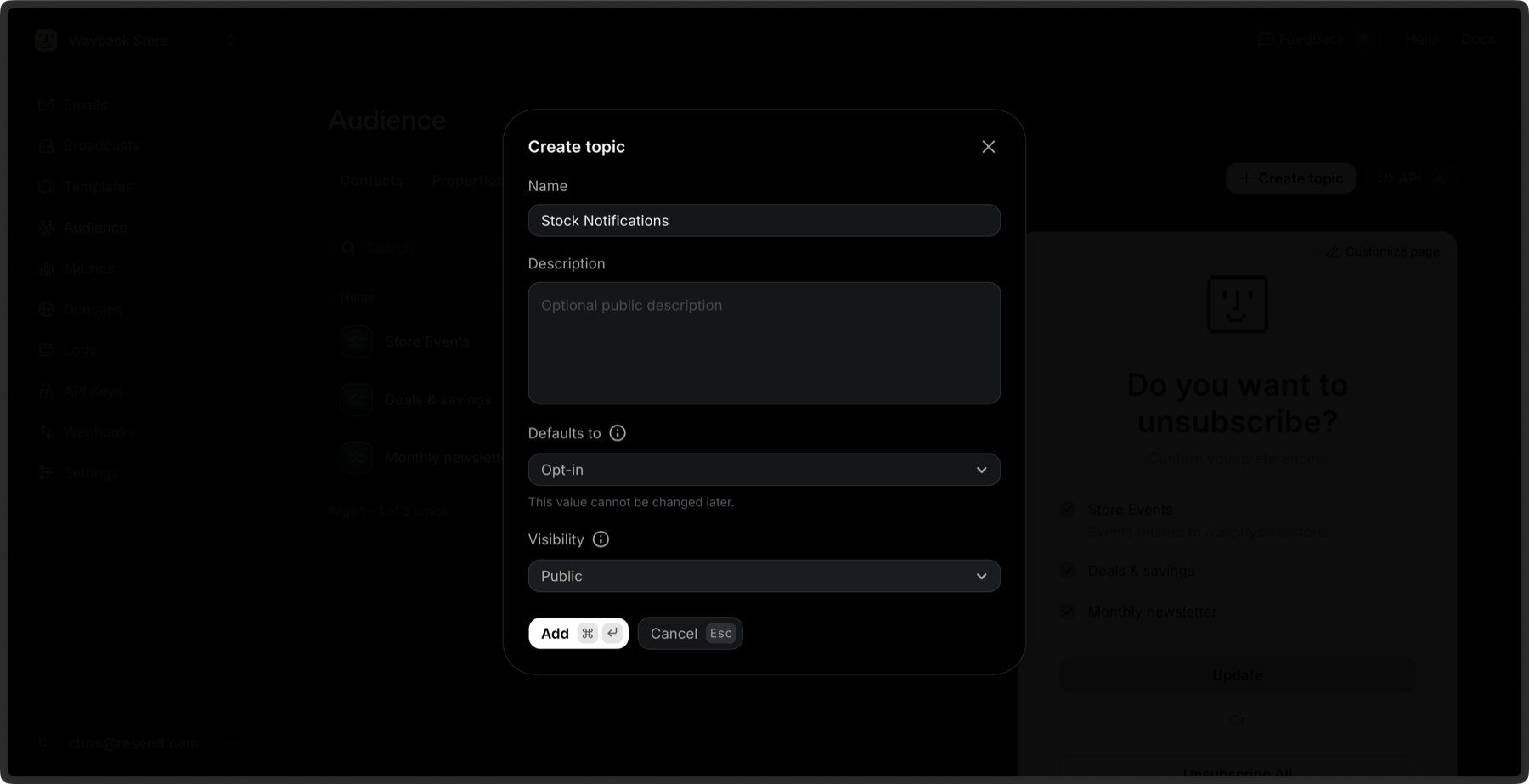
You can create a new Topic in the Dashboard or programmatically from the Topics API, with a Topics CLI command, or with MCP. To create a Topic in the Dashboard:1
Go to the Topics Dashboard view and click Create Topic.
2
Enter a name for your Topic.
Choose something that will help your recipients decide whether they are
interested in receiving these emails, like “announcements” or “product
reviews.”
3
Optionally give your Topic a description.
4
Select Opt-in or Opt-out as the default subscription. This value cannot be changed later.
- Opt-in: All Contacts will receive the email unless they have explicitly unsubscribed from that Topic.
- Opt-out: Subscribers will not receive the email unless they have explicitly subscribed to that Topic.
5
Select Public or Private as the visibility.
- Private: Only Contacts who are opted in to the Topic can see it on the unsubscribe page.
- Public: All Contacts can see the Topic on the unsubscribe page.
View all Topics
The Topics tab of the Audience Dashboard page shows you all the Topics you have created along with their details.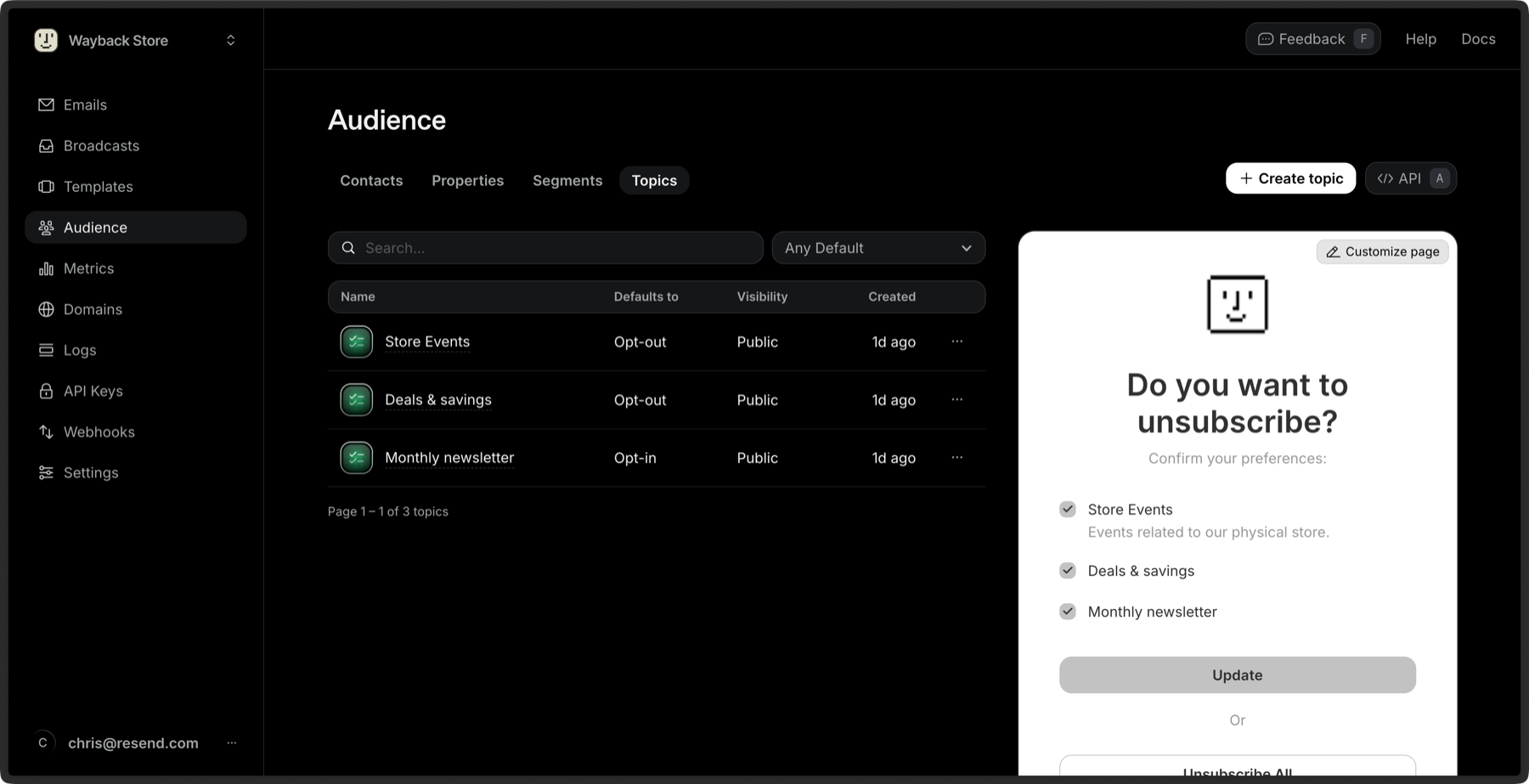
Edit Topic details
After creating a Topic, you can edit the following details:- Name
- Description
- Visibility
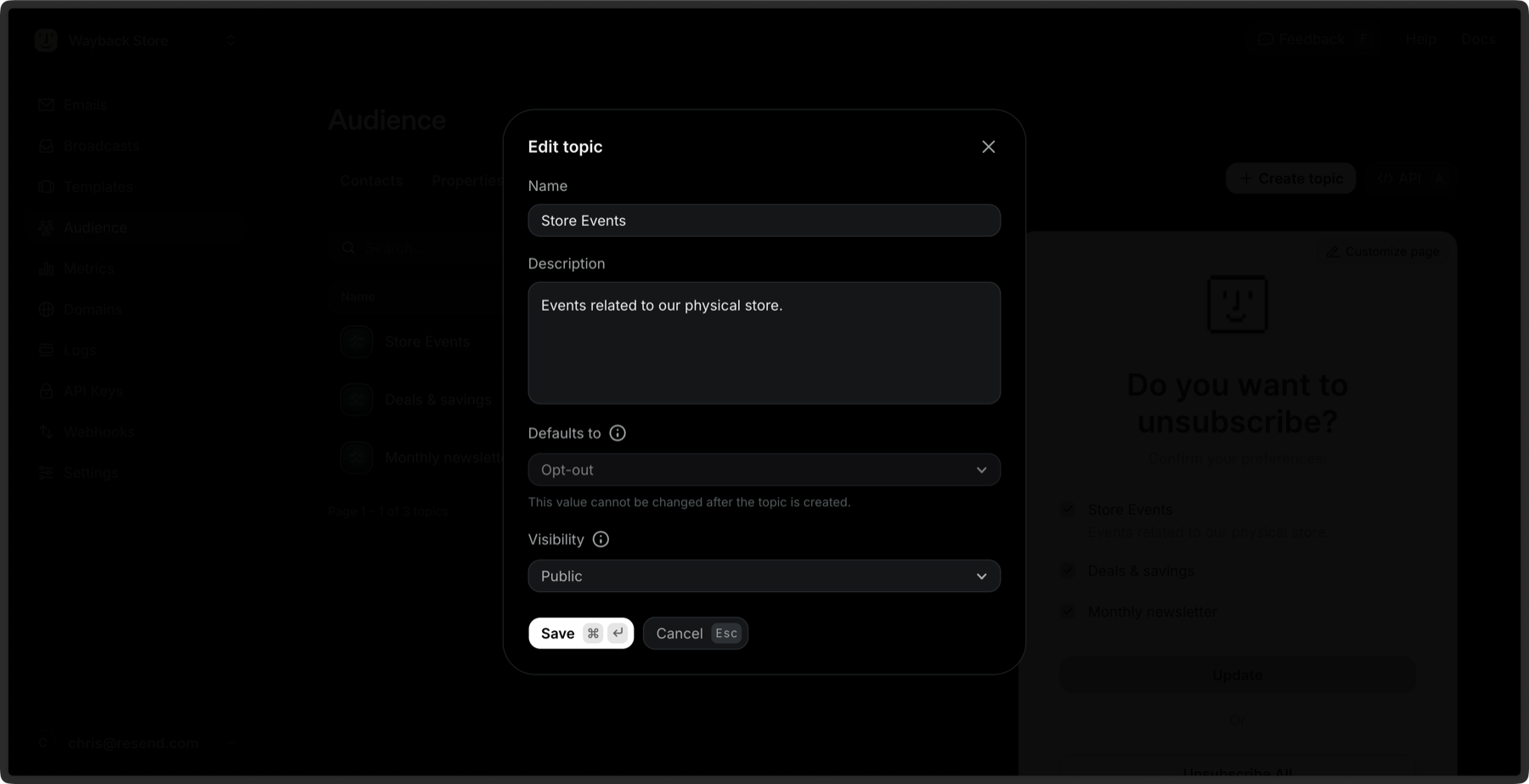
You cannot edit the default subscription value after it has been created.
Delete a Topic
You can delete a Topic by clicking the More options button and then Remove Topic.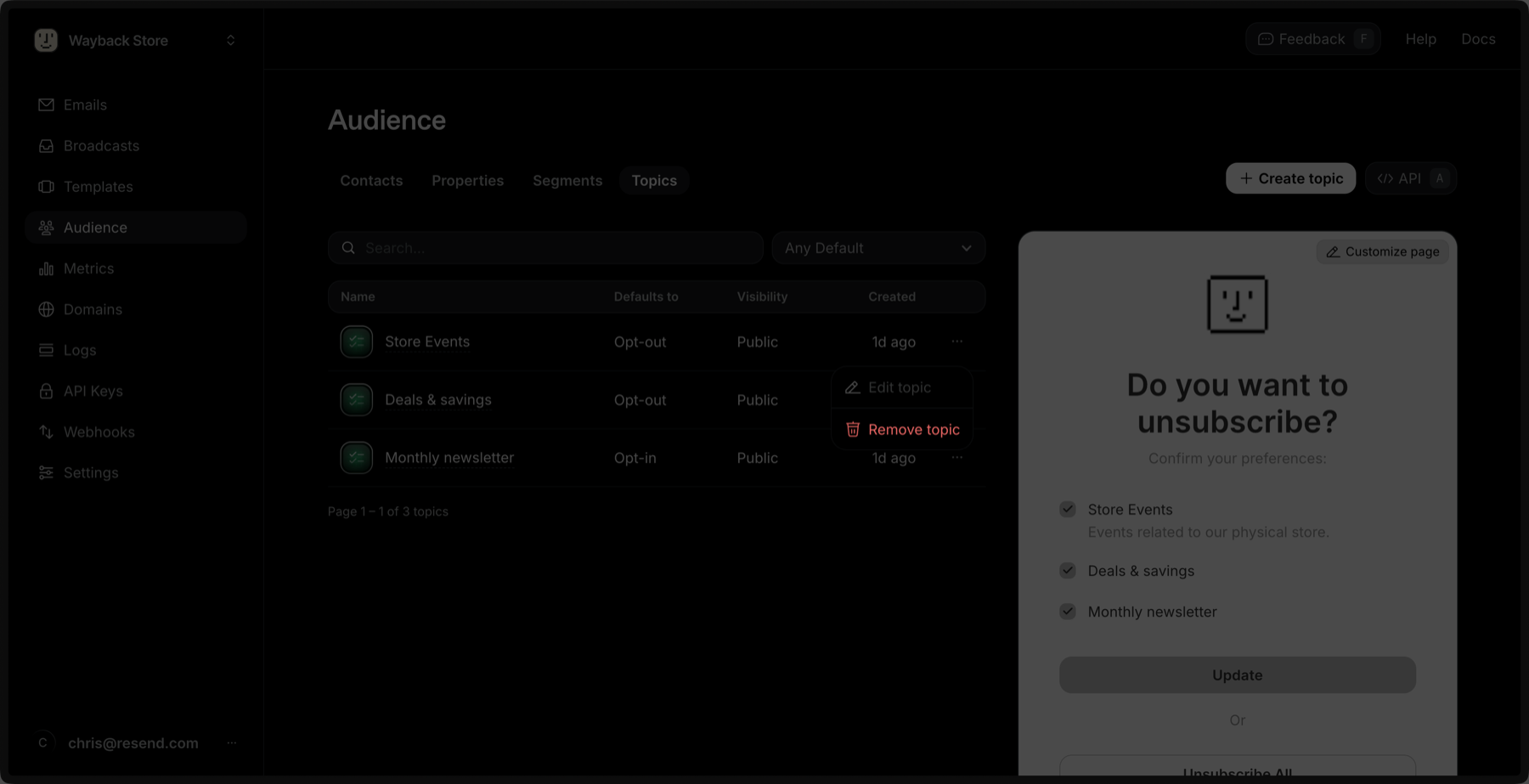
Send a Broadcast with a Topic
You can send with a Topic in the Broadcast editor from the Topics dropdown menu.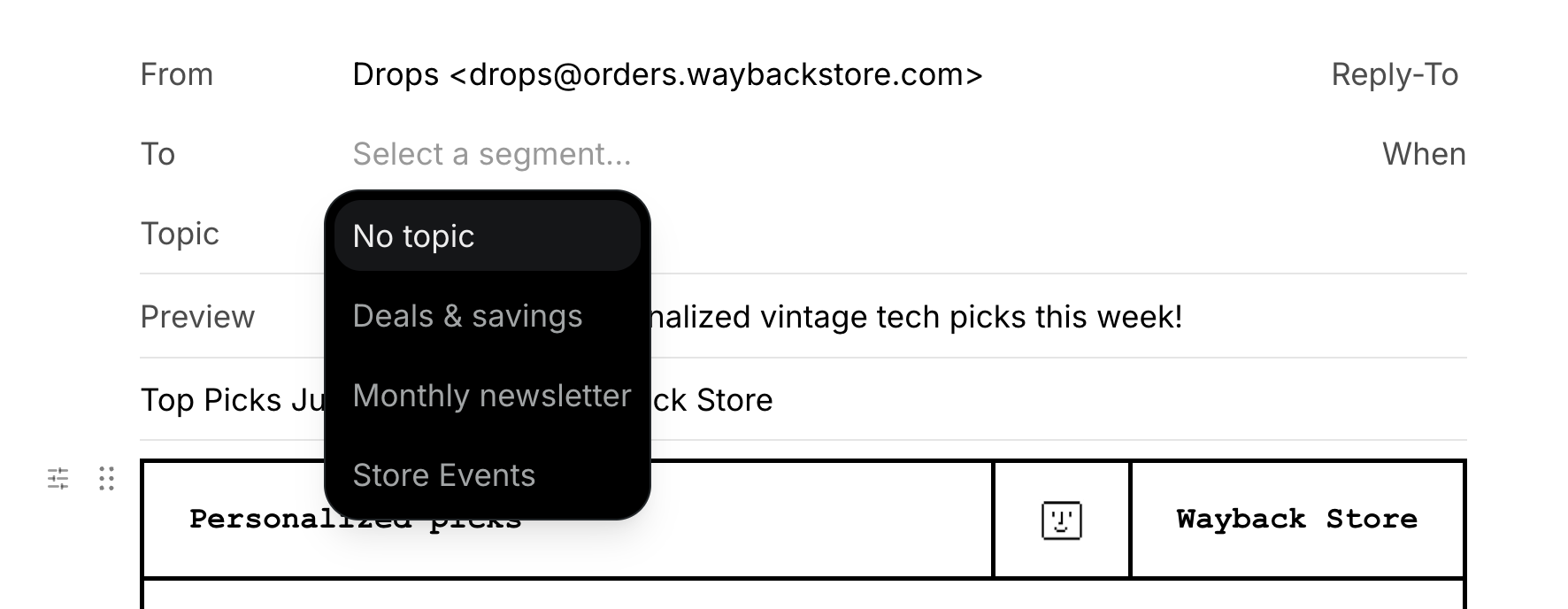
Topic Subscription Statuses
When you view a Contact’s details, you can see the list of Topics that they are subscribed to.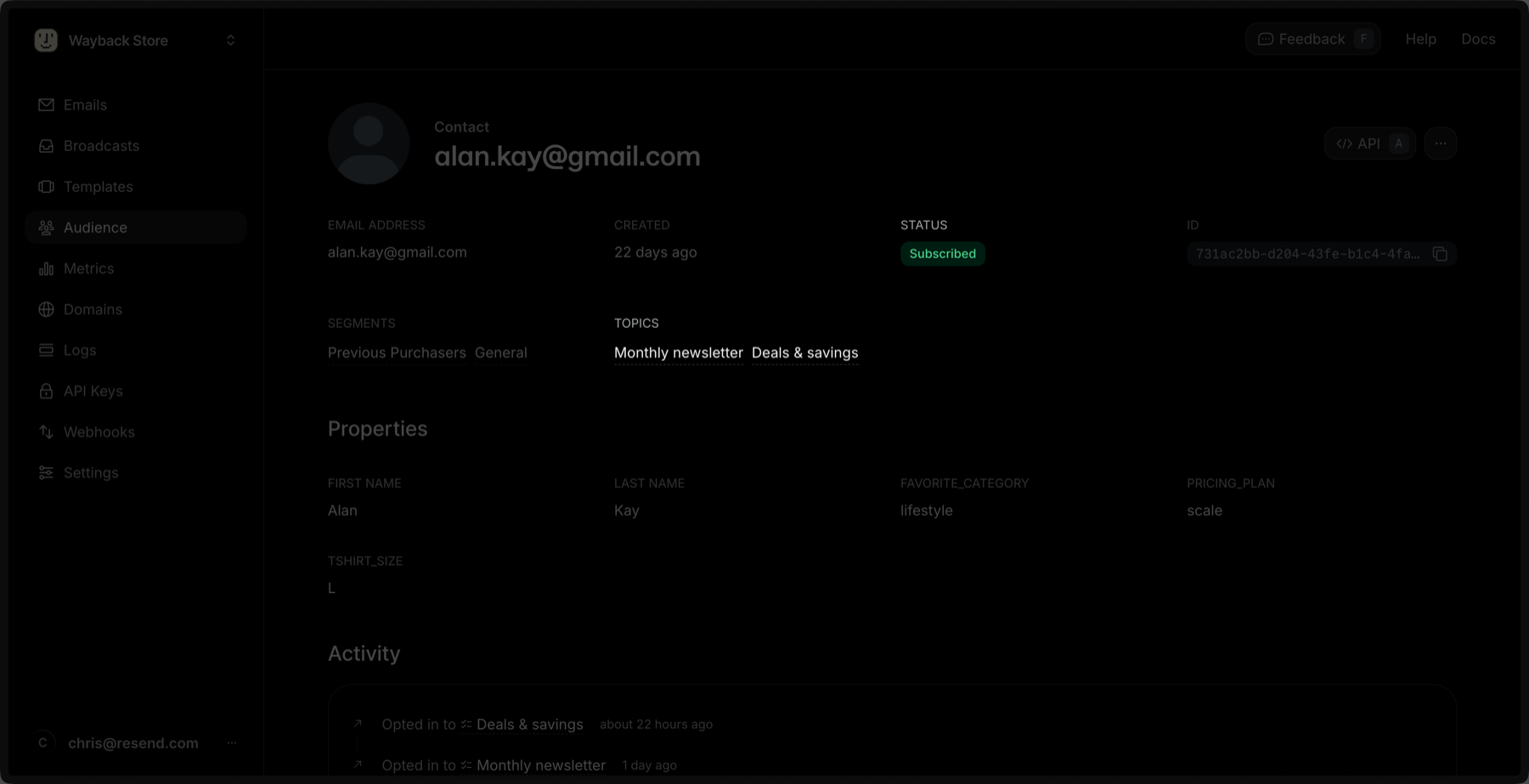
Updating a Topic Subscription for a Contact
When you create new Topics, you can update the subscription preferences of your Contacts to include these Topics. A Contact can belong to multiple Topics, and Resend automatically provides an unsubscribe flow for users who decide to opt out of receiving these emails. You can add a Contact to a Topic via the Dashboard by expanding the More options and then Edit Contact. Add or remove Topics for a given Contact.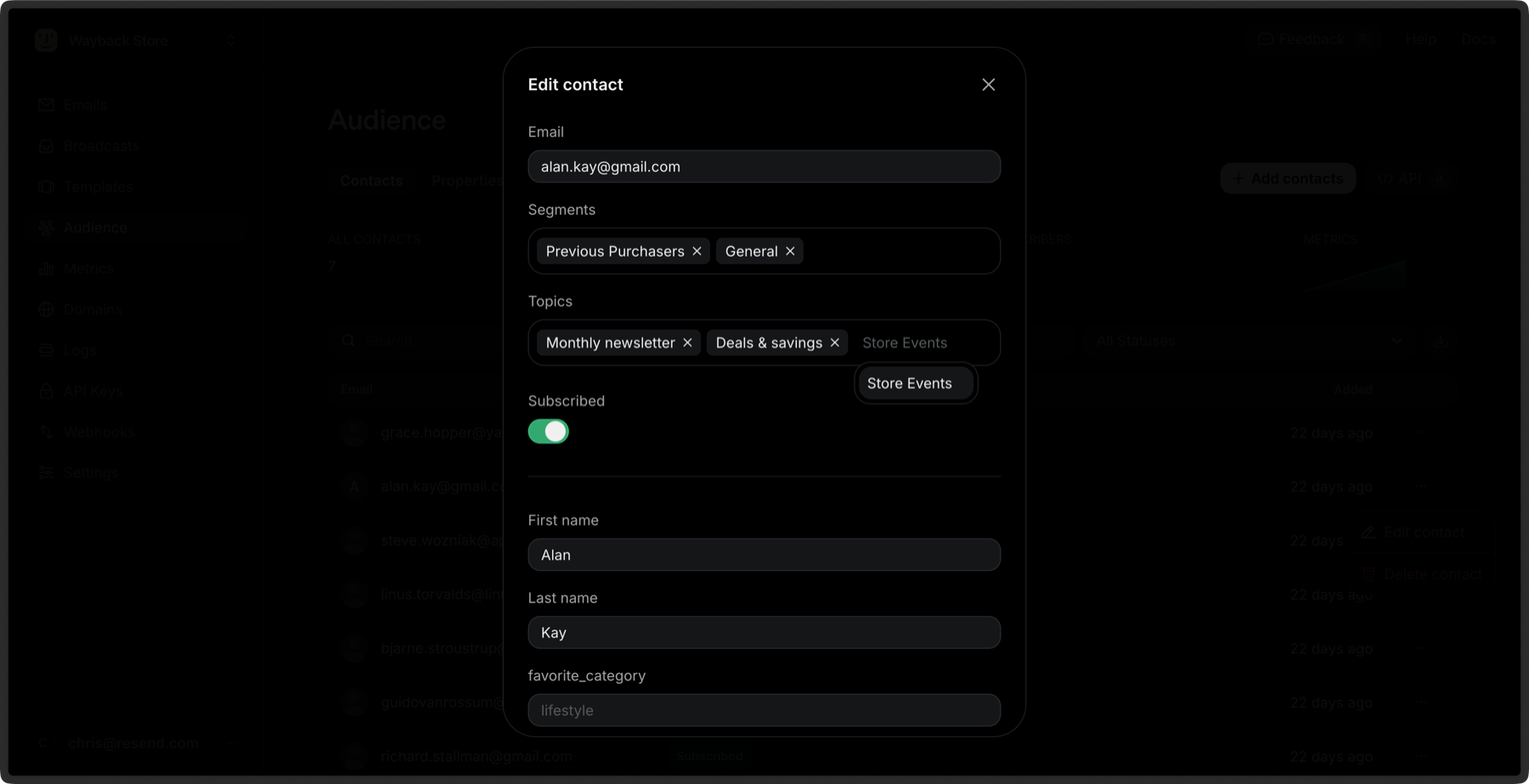
Bulk Subscribe to Topics
You can subscribe multiple Contacts to Topics in the Dashboard at once:1
Go to the Contacts Dashboard view.
2
Select multiple Contacts by clicking the checkbox next to each Contact.
3
Click the Edit button in the bulk actions bar.
4
Select Subscribe to Topics
5
Choose the Topics you want to subscribe the Contacts to.
6
Click Subscribe