

Dashboard Views
The Resend Dashboard includes four different views of your Contacts:- Contacts: individual email addresses
- Properties: custom properties for your Contacts
- Segments: groups of Contacts for your organization
- Topics: user-facing tools for managing email preferences
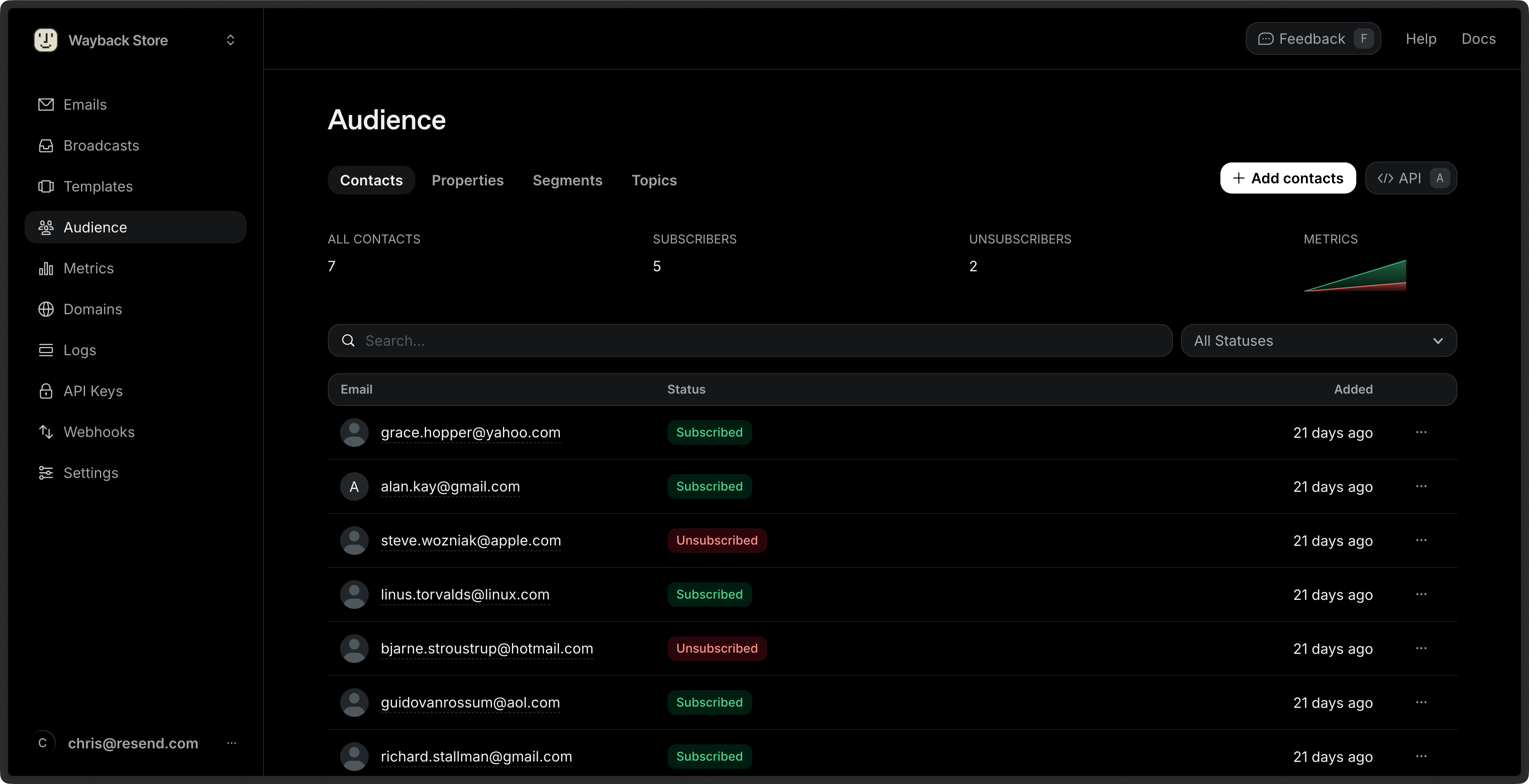
View Contacts
See the name, Segments, status, and added date of all your Contacts from the Contacts Dashboard view. You can additionally see filtered views of your Contacts by Segment and Topic, and manage your custom properties.1
Go to the Contacts Dashboard view.
2
Click on the Contact you want to view.
3
View the Contact details.
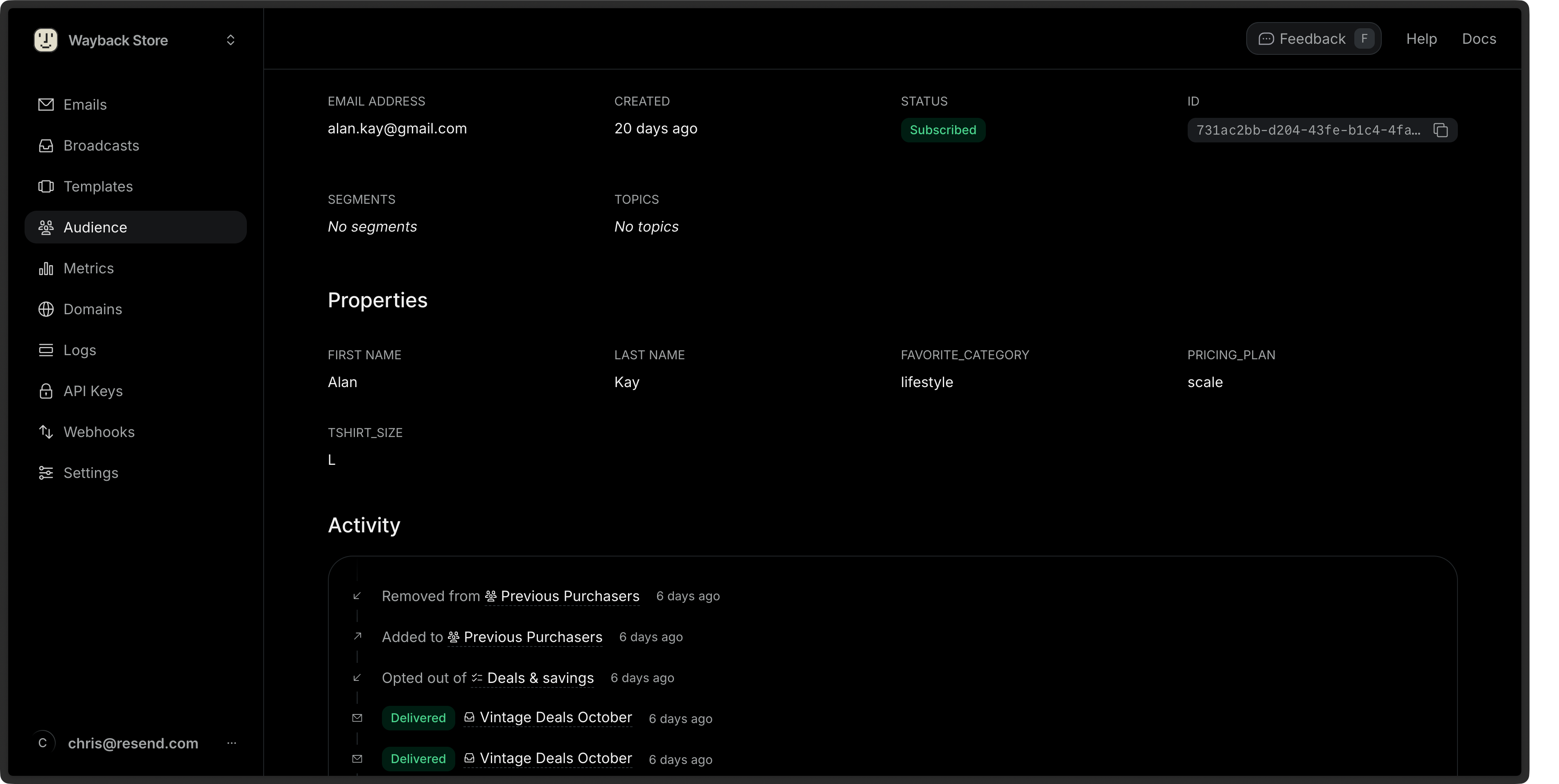
Edit Contacts
You can edit any Contact property (excluding the email address), assign the Contact to a Segment or Topic, or unsubscribe the Contact from all Broadcasts.1
Go to the Contacts Dashboard view.
2
Click on the More options button next to any Contact and then Edit contact.
3
Edit the Contact details and choose Save.
id or email of the Contact.
Bulk Actions
You can perform actions on multiple Contacts at once in the Dashboard by selecting them from the Contacts view.1
Go to the Contacts Dashboard view.
2
Select multiple Contacts by clicking the checkbox next to each Contact.
3
Click the Edit button in the bulk actions bar.
4
Choose an available action to apply to all Contacts.
Delete Contacts
1
Go to the Contacts Dashboard view.
2
Click on the More options button next to any Contact and then Delete contact.
3
Confirm the deletion.