Documentation Index Fetch the complete documentation index at: https://resend.com/docs/llms.txt
Use this file to discover all available pages before exploring further.
Every time an event triggers an Automation, Resend creates a run.
A run tracks the execution of each step in the workflow, including its status and timing, along with any errors.
How it works
Each run has one of the following statuses:
Status Description runningThe Automation is currently executing steps completedAll steps finished successfully failedA step encountered an error and the run stopped cancelledThe run was cancelled before completing skippedAn email step was skipped because the contact has unsubscribed
Skipped steps
When a contact unsubscribes, any remaining Send Email steps in the Automation will be skipped automatically. Other step types (such as Delay, Condition, Update Contact, etc.) will still be executed as normal.
Listing runs
Using the dashboard
Using the API
Navigate to the Automations page and select an Automation to view its runs. Each run shows:
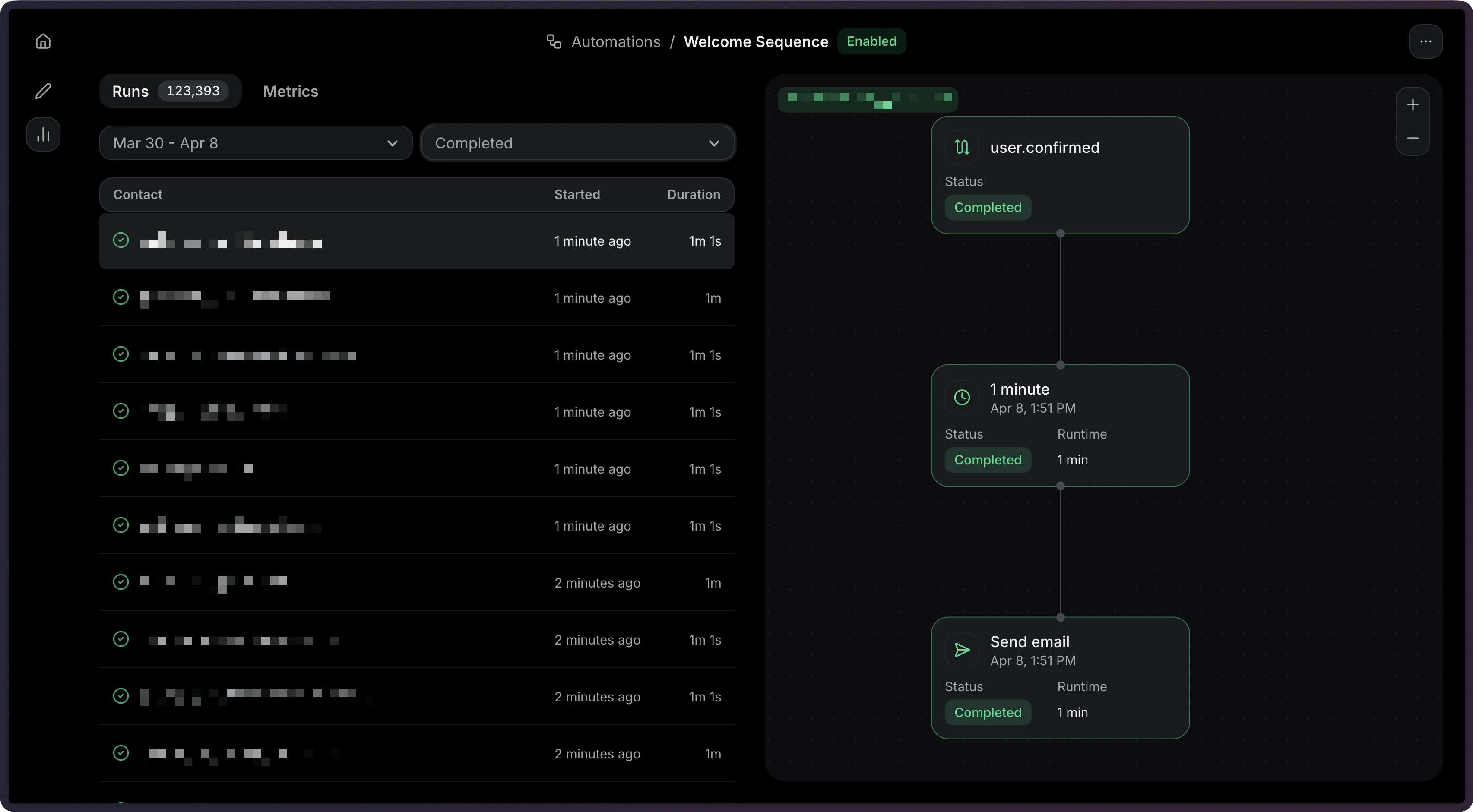
Status — Whether the run is running, completed, failed, cancelled, or skipped.
Started — When the run began.
Duration — When the run finished (if applicable).
List all runs for an Automation: Node.js
PHP
Python
Ruby
Go
Rust
Java
.NET
cURL
CLI
import { Resend } from 'resend' ;
const resend = new Resend ( 're_xxxxxxxxx' );
const { data , error } = await resend.automations.runs. list ({
automationId: 'c9b16d4f-ba6c-4e2e-b044-6bf4404e57fd' ,
});
Response: {
"object" : "list" ,
"has_more" : false ,
"data" : [
{
"id" : "a1b2c3d4-e5f6-7890-abcd-ef1234567890" ,
"status" : "completed" ,
"started_at" : "2026-10-01 12:00:00.000000+00" ,
"completed_at" : "2026-10-01 12:05:00.000000+00" ,
"created_at" : "2026-10-01 12:00:00.000000+00"
}
]
}
View the List Automation Runs API reference for more details.
Filtering runs by status
Using the dashboard
Using the API
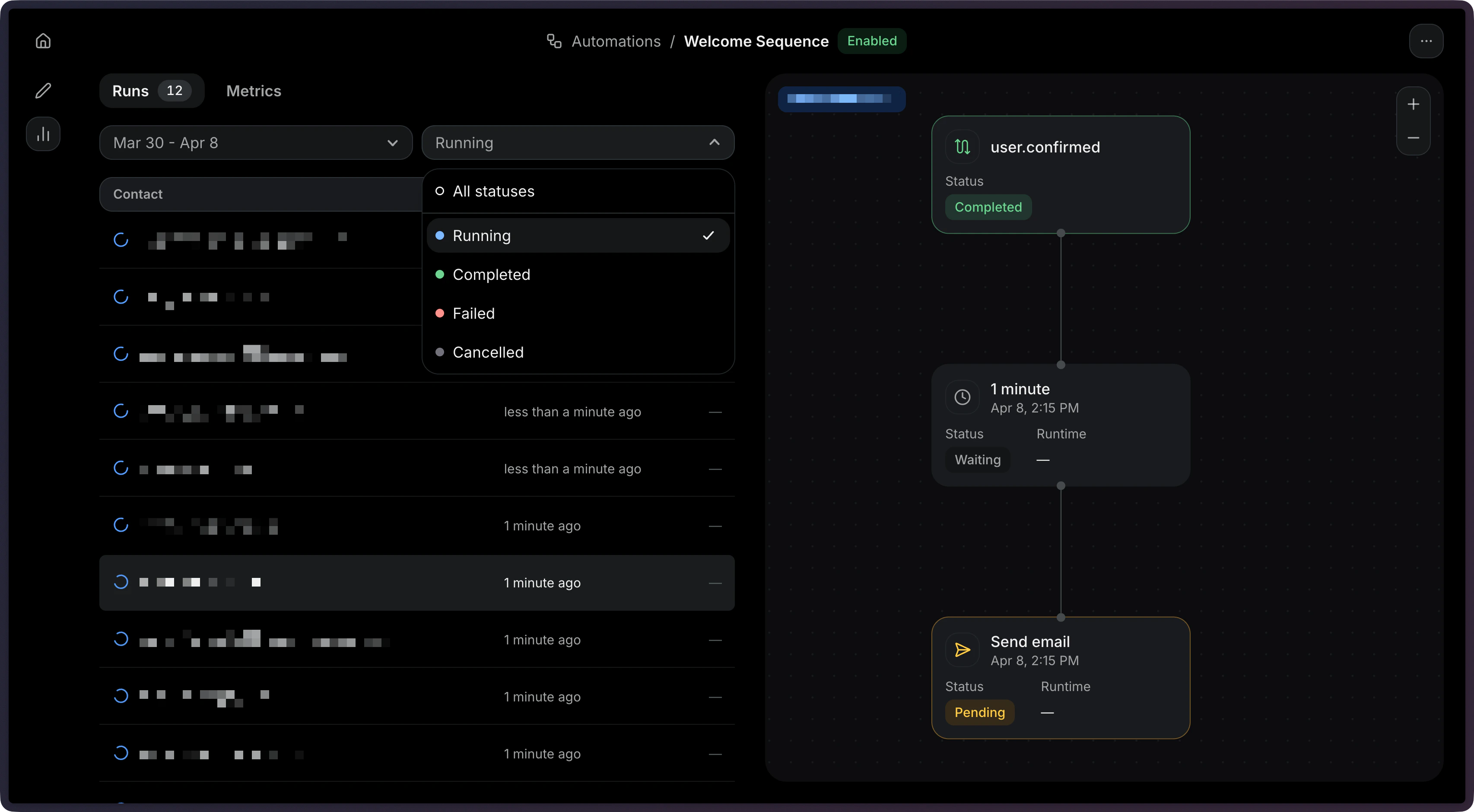
You can filter runs by status to find specific executions. You can filter by multiple statuses using a comma-separated list. Node.js
PHP
Python
Ruby
Go
Rust
Java
.NET
cURL
CLI
const { data , error } = await resend.automations.runs. list ({
automationId: 'c9b16d4f-ba6c-4e2e-b044-6bf4404e57fd' ,
status: [ 'running' , 'completed' ],
});
Viewing a single run
Using the dashboard
Using the API
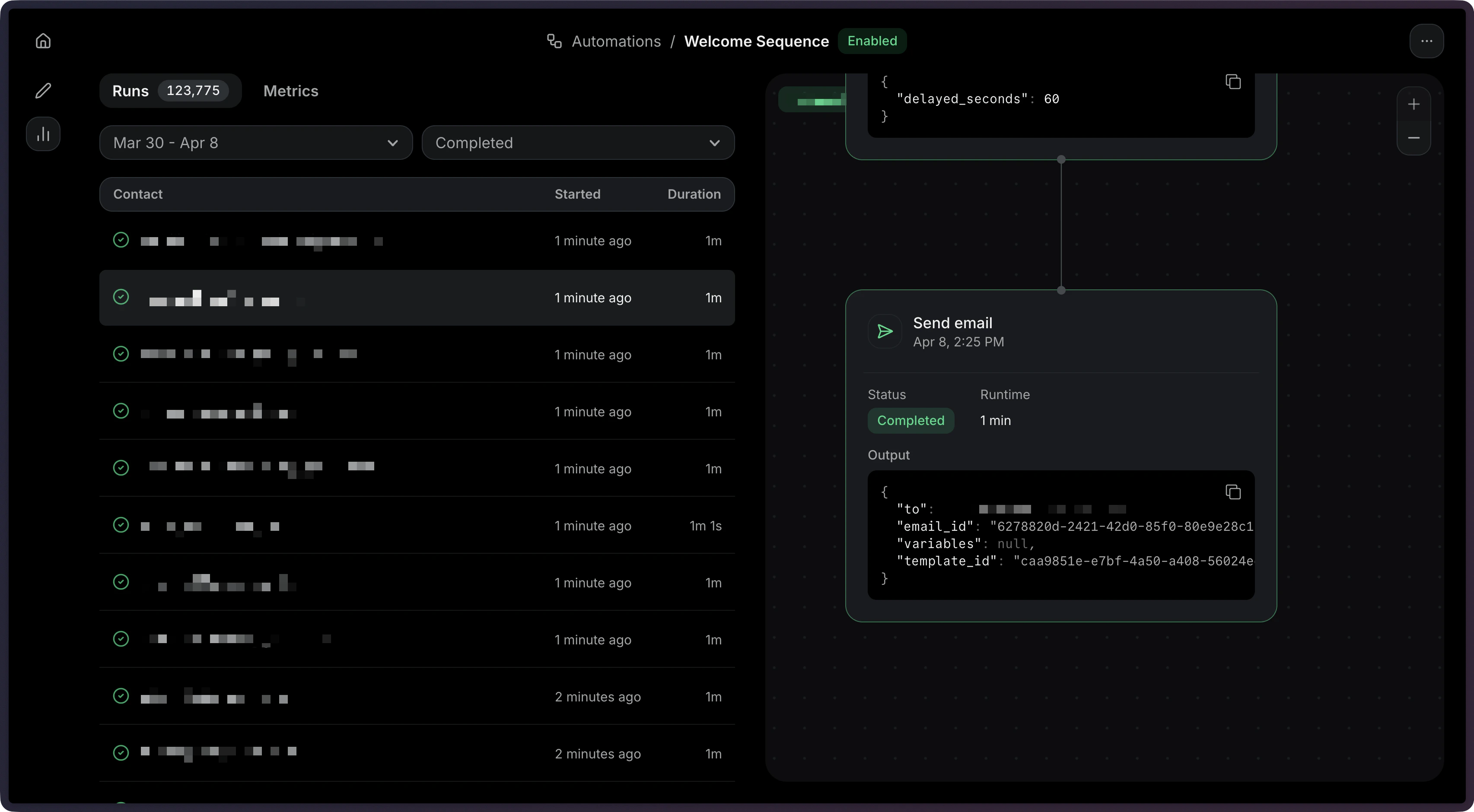
Click on a run to view its details, and select the step you want to debug. Get the details of a specific run: Node.js
PHP
Python
Ruby
Go
Rust
Java
.NET
cURL
CLI
const { data , error } = await resend.automations.runs. get ({
automationId: 'c9b16d4f-ba6c-4e2e-b044-6bf4404e57fd' ,
runId: 'a1b2c3d4-e5f6-7890-abcd-ef1234567890' ,
});
Response: {
"object" : "automation_run" ,
"id" : "a1b2c3d4-e5f6-7890-abcd-ef1234567890" ,
"status" : "completed" ,
"started_at" : "2026-10-01 12:00:00.000000+00" ,
"completed_at" : "2026-10-01 12:05:00.000000+00" ,
"created_at" : "2026-10-01 12:00:00.000000+00" ,
"steps" : [
{
"key" : "start" ,
"type" : "trigger" ,
"status" : "completed" ,
"started_at" : "2026-10-01 12:00:00.000000+00" ,
"completed_at" : "2026-10-01 12:00:01.000000+00" ,
"output" : null ,
"error" : null
},
{
"key" : "welcome" ,
"type" : "send_email" ,
"status" : "completed" ,
"started_at" : "2026-10-01 12:00:01.000000+00" ,
"completed_at" : "2026-10-01 12:00:02.000000+00" ,
"output" : {
"to" : "user@example.com" ,
"email_id" : "6278820d-2421-42d0-85f0-80e9e28c1c69" ,
"template" : {
"id" : "caa9851e-e7bf-4a50-a408-56024edc19c0" ,
"variables" : null
}
},
"error" : null
}
]
}
Each step in the response includes: Field Description keyThe unique key of the step in the automation graph typeThe step type (e.g., trigger, send_email, delay) statusThe step’s execution status started_atWhen the step started executing completed_atWhen the step finished outputOutput data from the step (if any) errorError details if the step failed
View the Retrieve Automation Run API reference for more details.
Debugging failed runs
Using the dashboard
Using the API
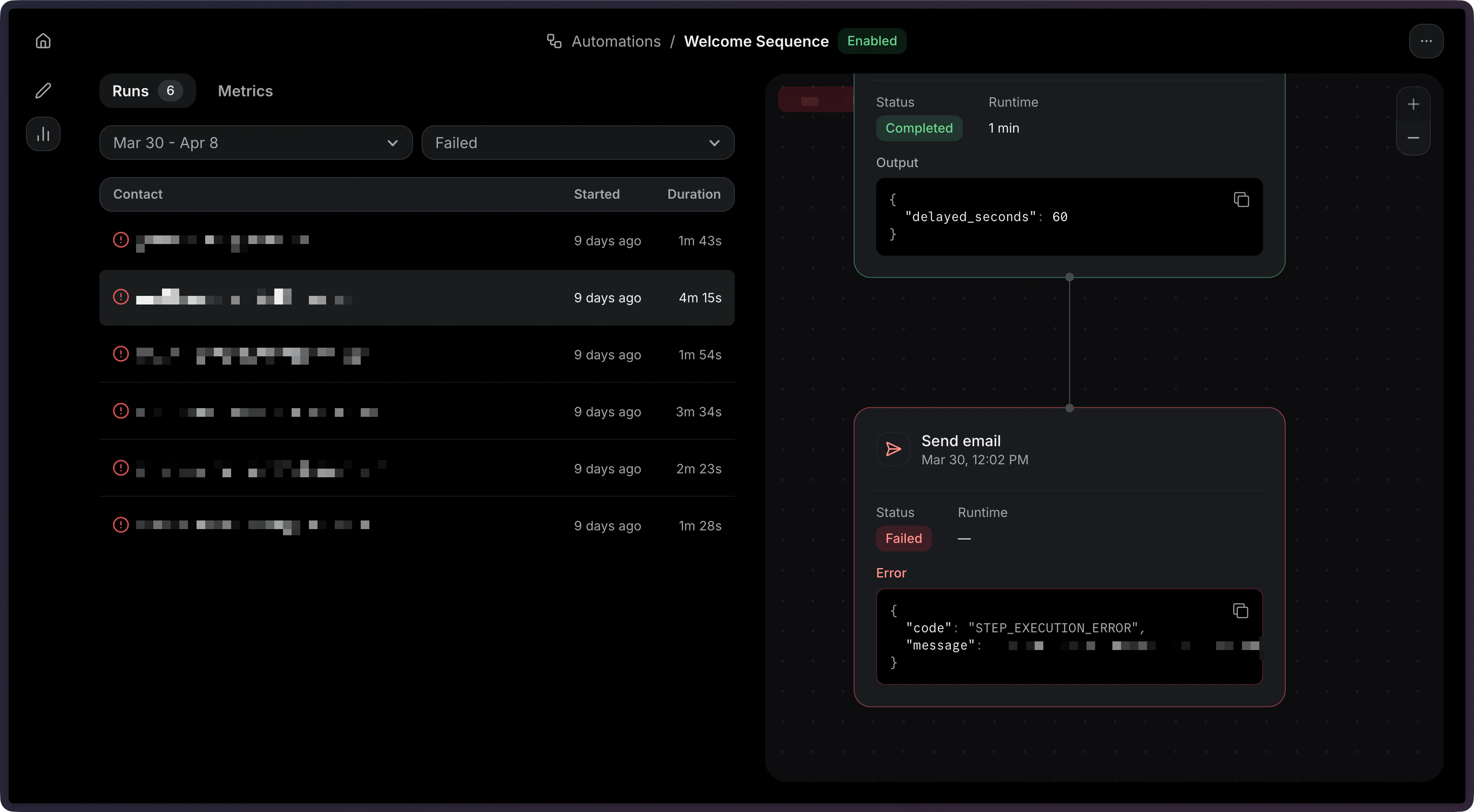
Go to the Runs tab and click on a run to view the details. Get the details of a specific failed run: Node.js
PHP
Python
Ruby
Go
Rust
Java
.NET
cURL
CLI
const { data , error } = await resend.automations.runs. get ({
automationId: 'c9b16d4f-ba6c-4e2e-b044-6bf4404e57fd' ,
runId: 'a1b2c3d4-e5f6-7890-abcd-ef1234567890' ,
});
When a run fails, use the step-level details to identify the issue:
List failed runs: Filter runs by status=failed to find problematic executions.
Retrieve the run: Get the full run details including the steps array.
Find the failed step: Look for the step with a failed status.
Check the error: The error field on the failed step contains details about what went wrong.
Common failure scenarios:
Condition error: A referenced field may not exist in the event payload. See Condition for how conditions are evaluated.
Wait for event timeout: The expected event was not received within the timeout window.
Send email failed: The template may not be published, or the sender address may not be verified.
Stopping an Automation
Using the dashboard
Using the API
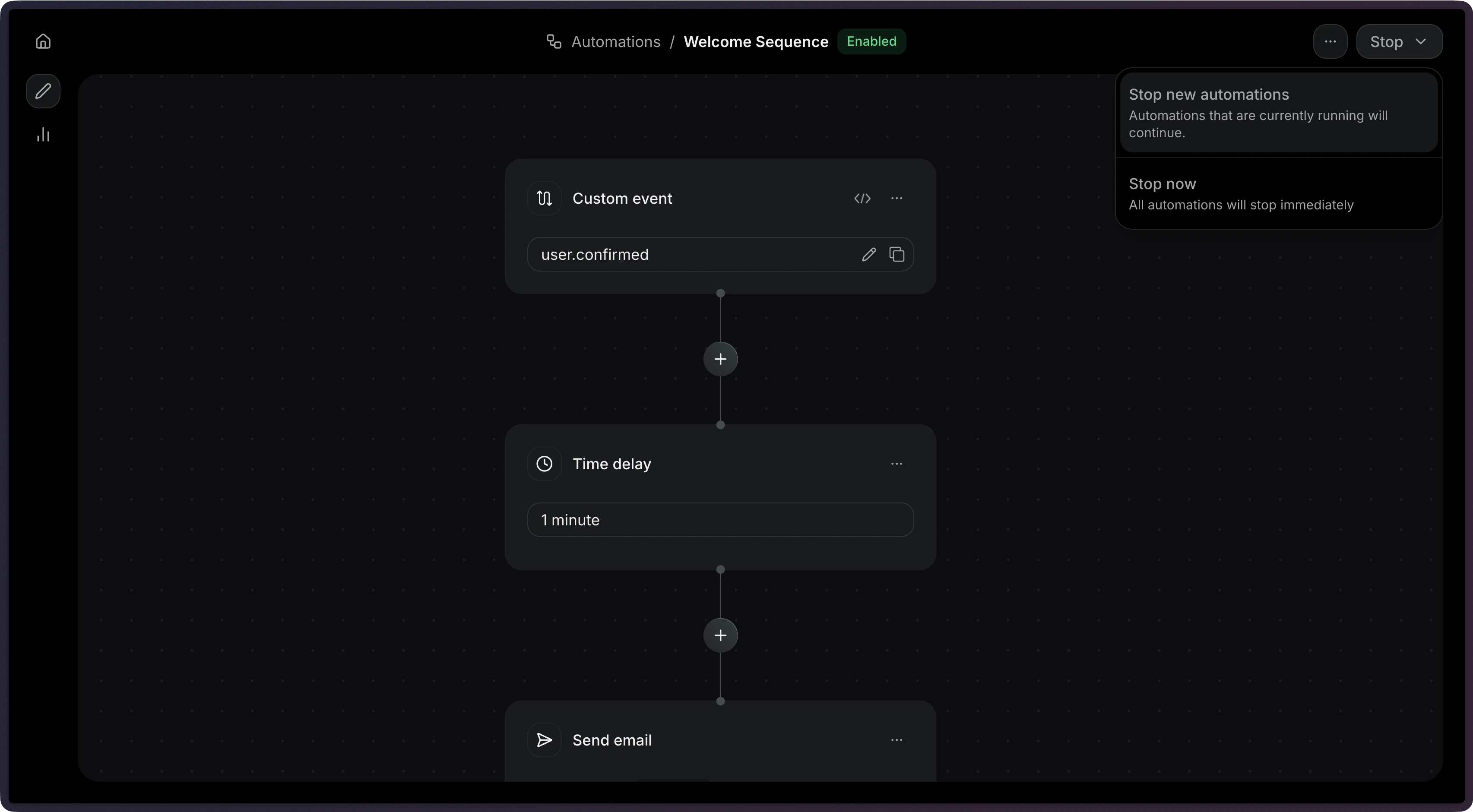
Click on the Stop button to stop an Automation. Stop an Automation programmatically: Node.js
PHP
Python
Ruby
Go
Rust
Java
.NET
cURL
CLI
const { data , error } = await resend.automations. stop (
'c9b16d4f-ba6c-4e2e-b044-6bf4404e57fd' ,
);
Stopping an Automation prevents new runs from being created. Existing in-progress runs will continue to completion.
View the Stop Automation API reference for more details.
Viewing Metrics
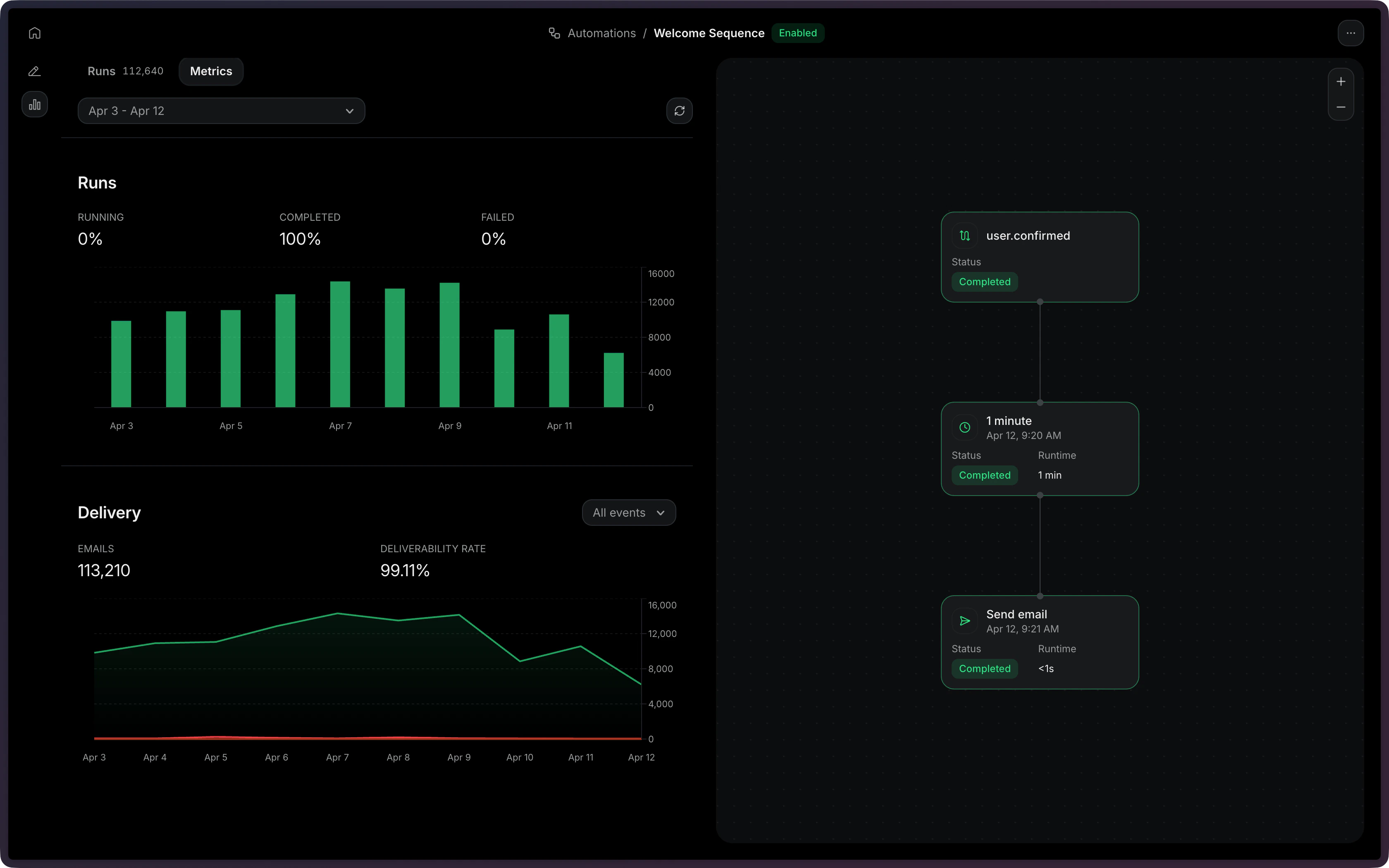
In the dashboard, you can view overall metrics for any Automation. In the Observability panel for any Automation, select Metrics .
The API currently does not support fetching metrics for an Automation.