> ## Documentation Index
> Fetch the complete documentation index at: https://resend.com/docs/llms.txt
> Use this file to discover all available pages before exploring further.
# Managing Webhooks
> Use webhooks to notify your application about events from Resend.
export const YouTube = ({id}) => {
return ;
};
## What is a webhook?
Resend uses webhooks, which are real-time HTTPS requests that tell your application an event occurred, such as an email delivery notification or subscription status update.
## Why use webhooks?
All webhooks use HTTPS and deliver a JSON payload that can be used by your application. You can use webhook feeds to do things like:
* Automatically remove bounced email addresses from mailing lists
* Create alerts in your messaging or incident tools based on event types
* Store all send events in your own database for custom reporting/retention
* Receive emails using [Inbound](/dashboard/receiving/introduction)
You can [replay any webhook event](/webhooks/retries-and-replays), including
events that already succeeded. This is useful when your endpoint missed an
event, or when you want to reprocess events with updated handler code.
## How to receive webhooks
To receive real-time events in your app via webhooks, follow these steps.
Prefer video? Watch the tutorial below.
### 1. Create a dev endpoint to receive requests.
In your local application, create a new route that can accept POST requests.
For example, you can add an API route:
```js pages/api/webhooks.ts theme={"theme":{"light":"github-light","dark":"vesper"}}
export default (req, res) => {
if (req.method === 'POST') {
const event = req.body;
console.log(event);
res.status(200);
}
};
```
On receiving an event, you should respond with an `HTTP 200 OK` to signal to Resend that the event was successfully delivered.
For development, you can create a tunnel to your localhost server using a tool like
[ngrok](https://ngrok.com/download) or [VS Code Port Forwarding](https://code.visualstudio.com/docs/debugtest/port-forwarding). These tools serve your local dev environment at a public URL you can use to test your local webhook endpoint.
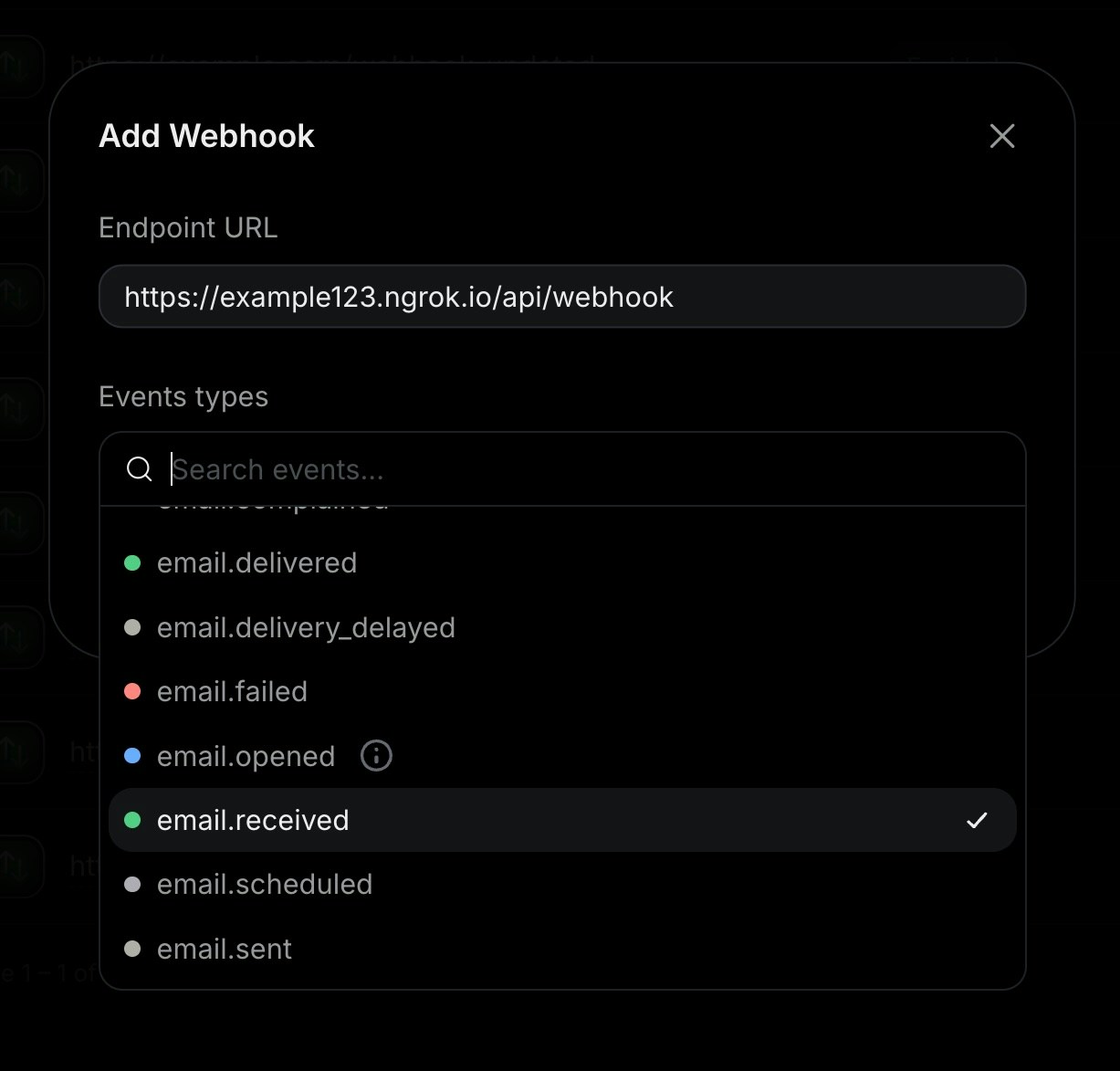
Example: `https://example123.ngrok.io/api/webhook`
The [Resend CLI](/cli) has a built-in `webhooks listen` command that handles
local webhook development. It starts a server, registers a temporary webhook,
and streams events to your terminal. See the [CLI
reference](/cli#resend-webhooks-listen) for setup instructions.
### 2. Add a webhook in Resend.
Navigate to the [Webhooks page](https://resend.com/webhooks), then select **Add Webhook**.
1. Add your publicly accessible HTTPS URL
2. Select all events you want to observe
Resend also supports managing webhooks via the API or the SDKs. View the [API reference](/api-reference/webhooks/create-webhook) for more details.
### 3. Test your local endpoint.
To ensure your endpoint is successfully receiving events, perform an event you are tracking with your webhook, like sending an email, creating a contact, or creating a domain.
The webhook will send a JSON payload to your endpoint with the event details. For example:
```json theme={"theme":{"light":"github-light","dark":"vesper"}}
{
"type": "email.bounced",
"created_at": "2026-11-22T23:41:12.126Z",
"data": {
"broadcast_id": "8b146471-e88e-4322-86af-016cd36fd216",
"created_at": "2026-11-22T23:41:11.894719+00:00",
"email_id": "56761188-7520-42d8-8898-ff6fc54ce618",
"from": "Acme ",
"to": ["delivered@resend.dev"],
"subject": "Sending this example",
"template_id": "43f68331-0622-4e15-8202-246a0388854b",
"bounce": {
"message": "The recipient's email address is on the suppression list because it has a recent history of producing hard bounces.",
"subType": "Suppressed",
"type": "Permanent"
},
"tags": {
"category": "confirm_email"
}
}
}
```
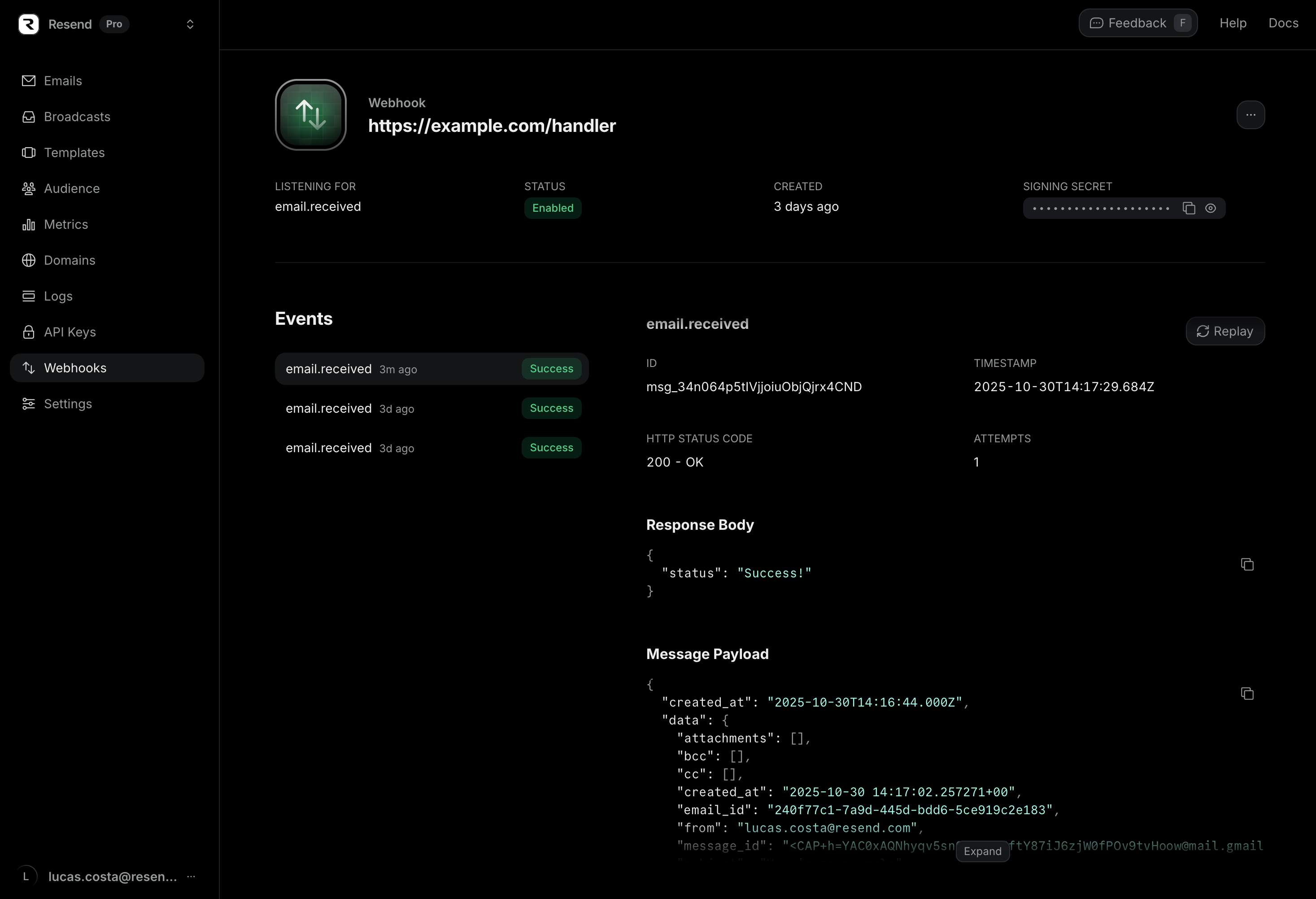
You can also see the webhook details in the dashboard.
View all possible [event types and their webhook payload
responses](/webhooks/event-types).
### 4. Update and deploy your production endpoint.
Once you successfully receive events, update your endpoint to process the events.
For example, update your API route:
```js pages/api/webhooks.ts theme={"theme":{"light":"github-light","dark":"vesper"}}
export default (req:, res) => {
if (req.method === 'POST') {
const event = req.body;
if(event.type === "email.bounced"){
//
}
res.status(200);
}
};
```
After you're done testing, deploy your webhook endpoint to production.
### 5. Register your production webhook endpoint
Once your webhook endpoint is deployed to production, you can register it in the Resend dashboard.
## FAQ
If Resend does not receive a 200 response from a webhook server, we will retry the webhooks.
Each message is attempted based on the following schedule, where each period is started following the failure of the preceding attempt:
* 5 seconds
* 5 minutes
* 30 minutes
* 2 hours
* 5 hours
* 10 hours
You can see when a message will be retried next in the webhook message details in the dashboard.
If your server requires an allowlist, our webhooks come from the following IP addresses:
* `44.228.126.217`
* `50.112.21.217`
* `52.24.126.164`
* `54.148.139.208`
* `2600:1f24:64:8000::/52`
Resend webhooks provide **at-least-once** delivery. Every event will be delivered to your endpoint at least once, but may be delivered more than once in rare cases (such as network timeouts where your server processed the event but the acknowledgement was lost).
To handle duplicates, use the `svix-id` header included with every webhook request. This is a unique identifier for each event delivery. Store processed `svix-id` values and skip any duplicates.
Events are sent as they occur, but **delivery order is not guaranteed**. Network conditions, retries, and processing delays can cause events to arrive out of order. For example, an `email.opened` event could arrive before the `email.delivered` event for the same email.
If ordering matters for your application, use the `created_at` timestamp in the event payload to sort events after receipt.
Yes. You can replay webhook events manually from the dashboard.
You can replay both `failed` and `succeeded` events. Replaying successful events is useful when you need to:
* Backfill your system after an outage on your endpoint.
* Reprocess events with updated handler code.
* Send the event to a different endpoint for testing.
To replay a webhook event, click to see your webhook details
and then click the link to the event you want to replay.
On that page, you will see both the payload for the event
and a button to replay the webhook event and get it sent to
the configured webhook endpoint.
For more details, see [Retries and Replays](/webhooks/retries-and-replays).
## Try it yourself
See the full source code.
See the full source code.
See the full source code.
See the full source code.
See the full source code.
See the full source code.