> ## Documentation Index
> Fetch the complete documentation index at: https://resend.com/docs/llms.txt
> Use this file to discover all available pages before exploring further.
# Send emails using Supabase with SMTP
> Learn how to integrate Supabase Auth with Resend SMTP.
## Prerequisites
Before you start, you'll need:
* A Resend [API key](/create-an-api-key)
* A [verified domain](/add-a-domain)
## 1. Get the Resend SMTP credentials
When configuring your SMTP integration, you'll need to use the following credentials:
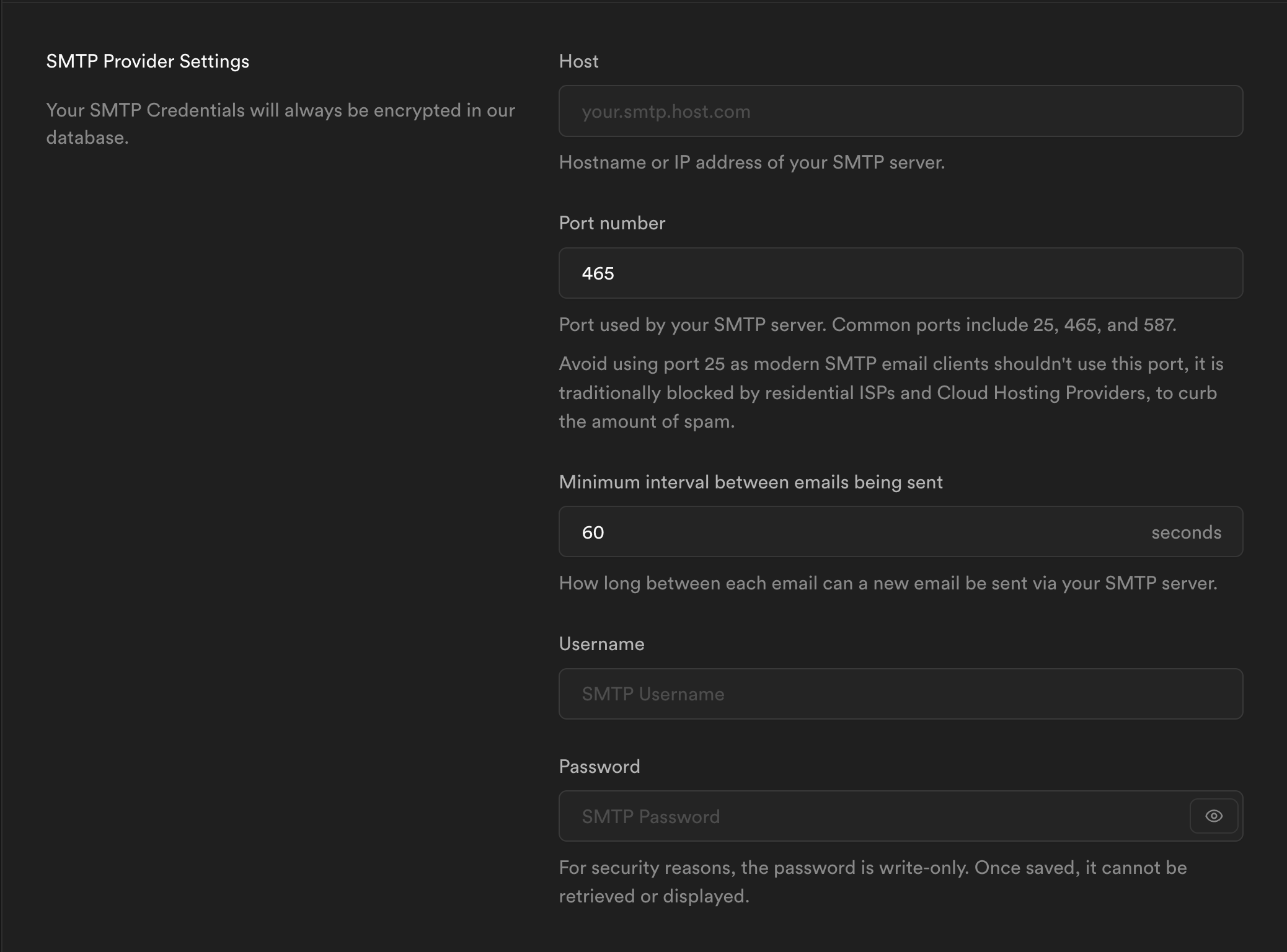
* **Host**: `smtp.resend.com`
* **Port**: `465`
* **Username**: `resend`
* **Password**: `YOUR_API_KEY`
## 2. Integrate with Supabase SMTP
After logging into your Supabase account, you'll need to enable the SMTP integration.
1. Go to your Supabase project
2. Click on **Authentication** in the left sidebar
3. Click **Email** under the **Notifications** section
4. Click **SMTP Settings**
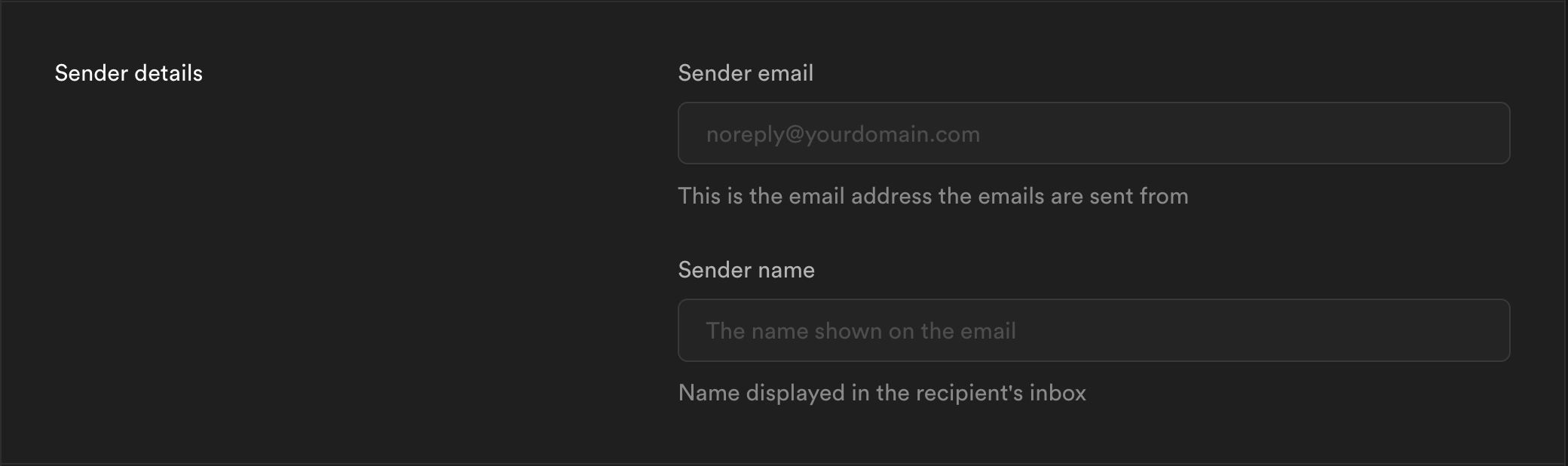
5. Add your Sender email and name (these are required fields). For example: `support@example.com` and `ACME Support`.
 6. You can copy-and-paste the [SMTP credentials](https://resend.com/settings/smtp) from Resend to Supabase.
 After that, you can click the **Save** button and all of your emails will be sent through Resend.