> ## Documentation Index
> Fetch the complete documentation index at: https://resend.com/docs/llms.txt
> Use this file to discover all available pages before exploring further.
# Send emails using Metabase with SMTP
> Learn how to integrate Metabase with Resend SMTP.
### Prerequisites
Before you start, you'll need:
* A Resend [API key](/create-an-api-key)
* A [verified domain](/add-a-domain)
## 1. Get the Resend SMTP credentials
When configuring your SMTP integration, you'll need to use the following credentials:
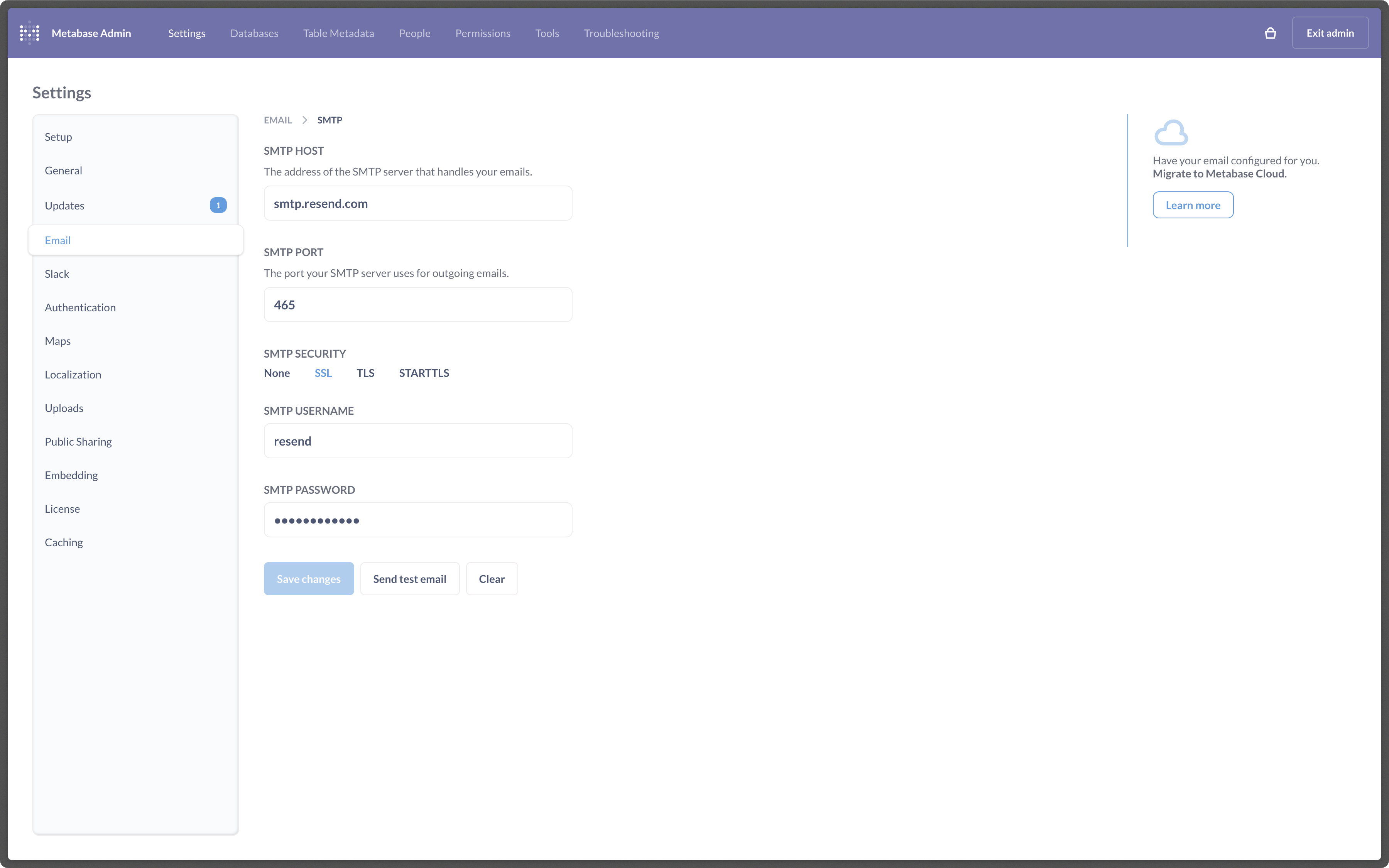
* **Host**: `smtp.resend.com`
* **Port**: `465`
* **Username**: `resend`
* **Password**: `YOUR_API_KEY`
## 2. Integrate with Metabase SMTP
After logging into your [Metabase Cloud](https://www.metabase.com/cloud/login) account, you’ll need to enable the SMTP integration.
1. From your Metabase Cloud Admin Panel, go to **Settings > Email** in the left menu. You should see the form below.
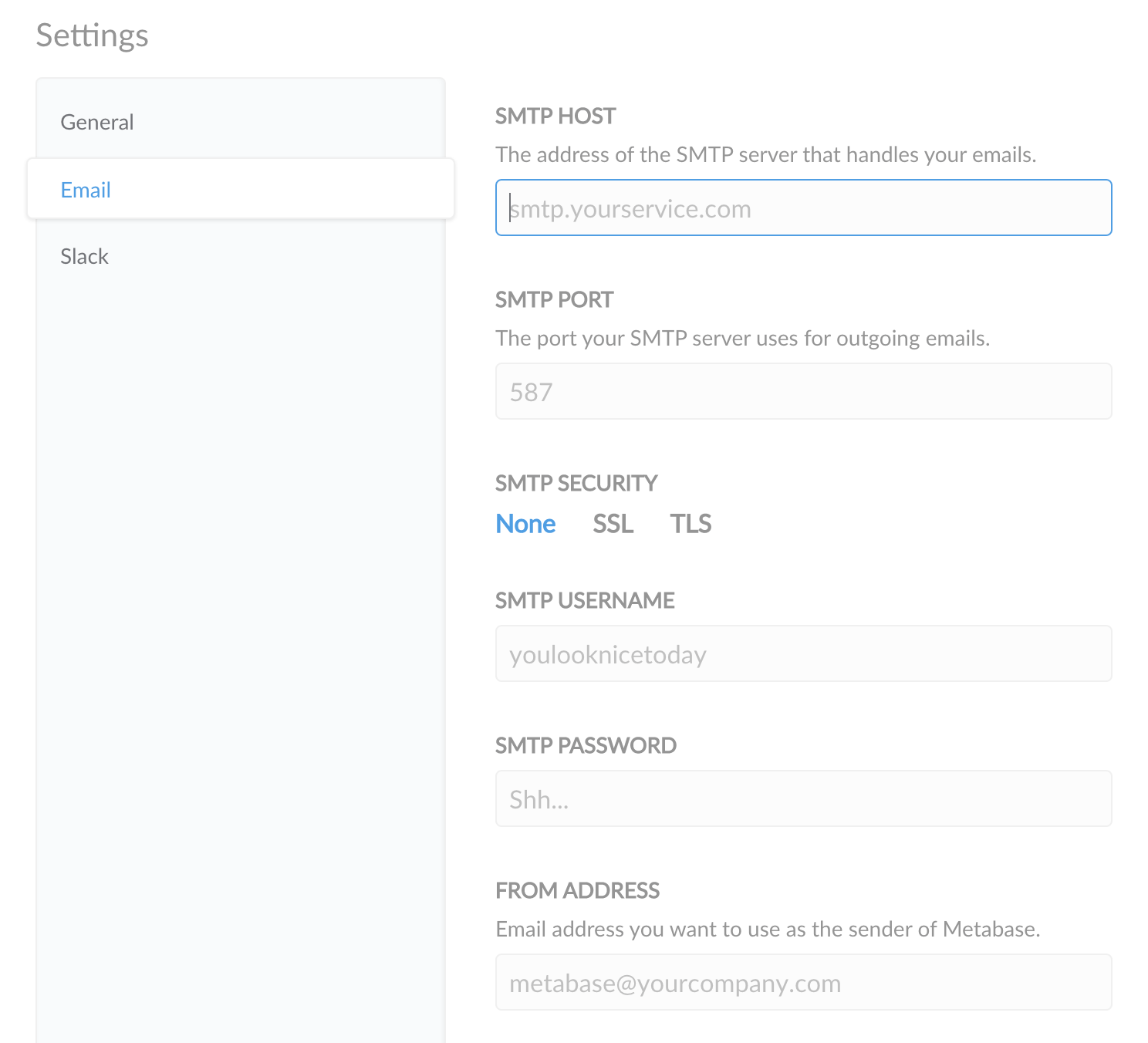 2. Copy-and-paste the SMTP credentials from Resend to Metabase Cloud. Finally, click the **Save** button and all of your emails will be sent through Resend.