> ## Documentation Index
> Fetch the complete documentation index at: https://resend.com/docs/llms.txt
> Use this file to discover all available pages before exploring further.
# Resend Forge
> Send your email through Resend's own sending infrastructure.
Resend Forge is Resend's next-generation sending infrastructure.
It's fully managed by Resend, using our own IPs and our own sending engine, with no third party in the middle. It will provide better deliverability and will enable new features on top of it that aren't possible with the current infrastructure.
**Forge is invite-only**. If the option doesn't appear in your Dashboard, your team doesn't have access yet.
Enabling Resend Forge leads to a *gradual* rollout. We will not switch all
your email at once. We start by routing a small share of your email through
the new engine and ramp up over a few days, closely monitoring bounces,
deferrals, and deliverability. Everything else keeps sending exactly as today.
## Enable Resend Forge
Enabling Forge takes one click and one CNAME record. No code changes, nothing to redeploy.
1. Go to [Domains](https://resend.com/domains) and select your domain.
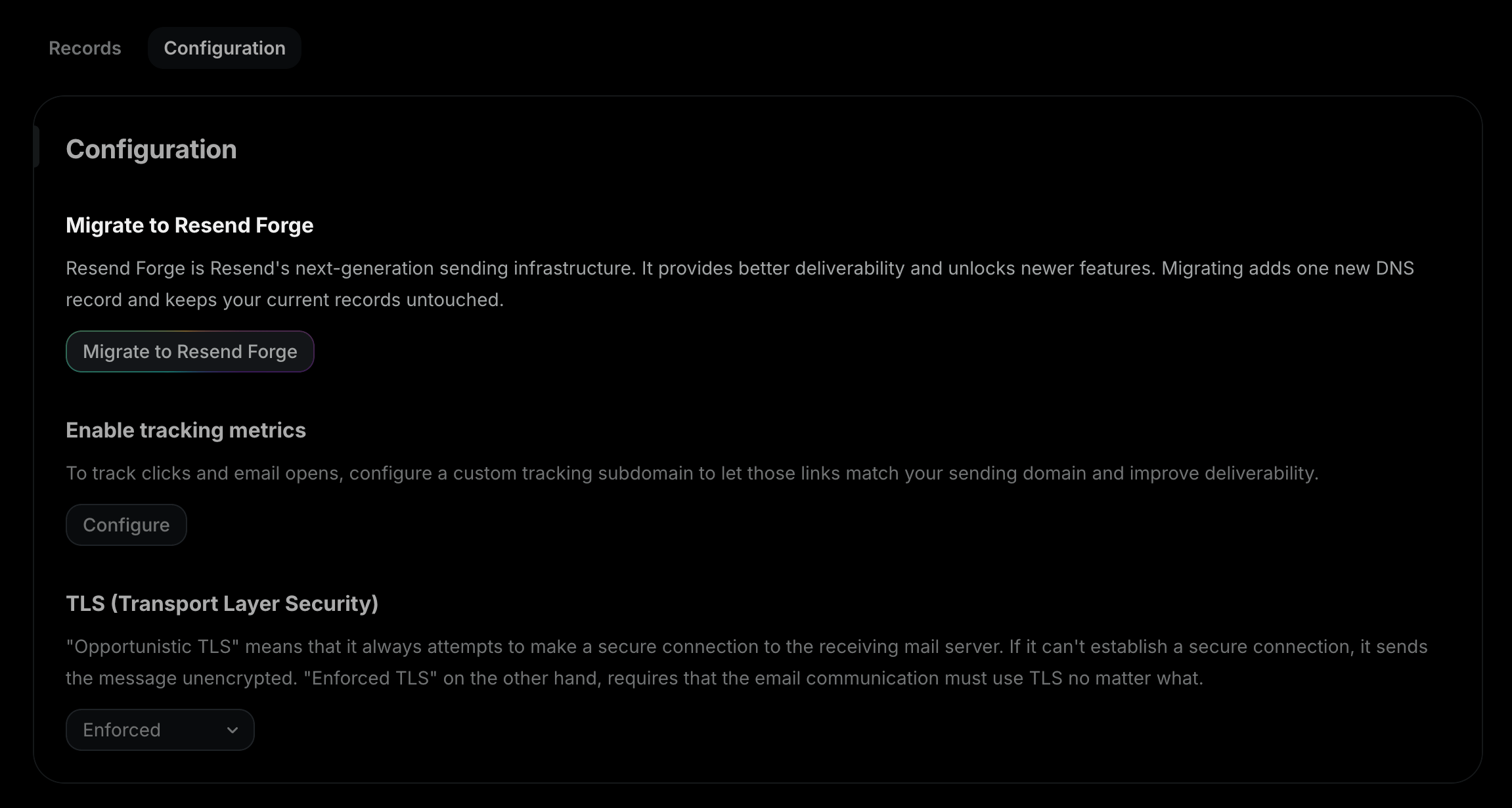
2. Under **Configuration**, click **Migrate to Resend Forge**.
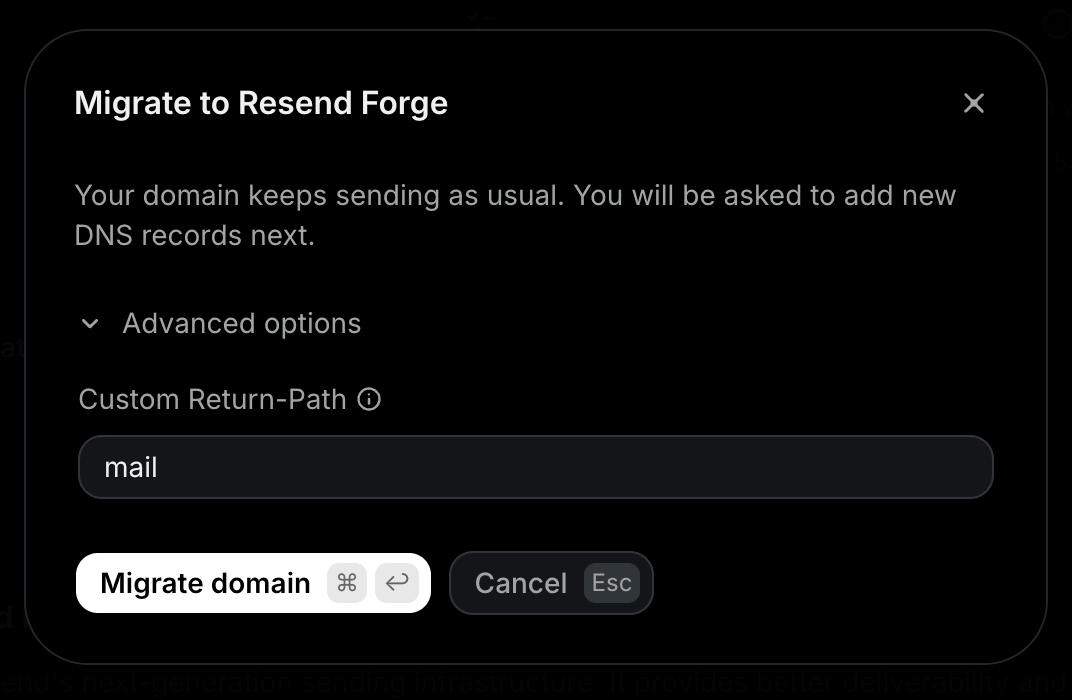
 3. Click **Migrate domain**. Optionally, open **Advanced options** to choose the
subdomain used as the new Return-Path (e.g. `mail.yourdomain.com`). We will
suggest an available one by default.
3. Click **Migrate domain**. Optionally, open **Advanced options** to choose the
subdomain used as the new Return-Path (e.g. `mail.yourdomain.com`). We will
suggest an available one by default.
 Add the CNAME record shown in the dashboard at your DNS provider. Your existing
DNS records stay untouched. Don't remove them.
Add the CNAME record shown in the dashboard at your DNS provider. Your existing
DNS records stay untouched. Don't remove them.
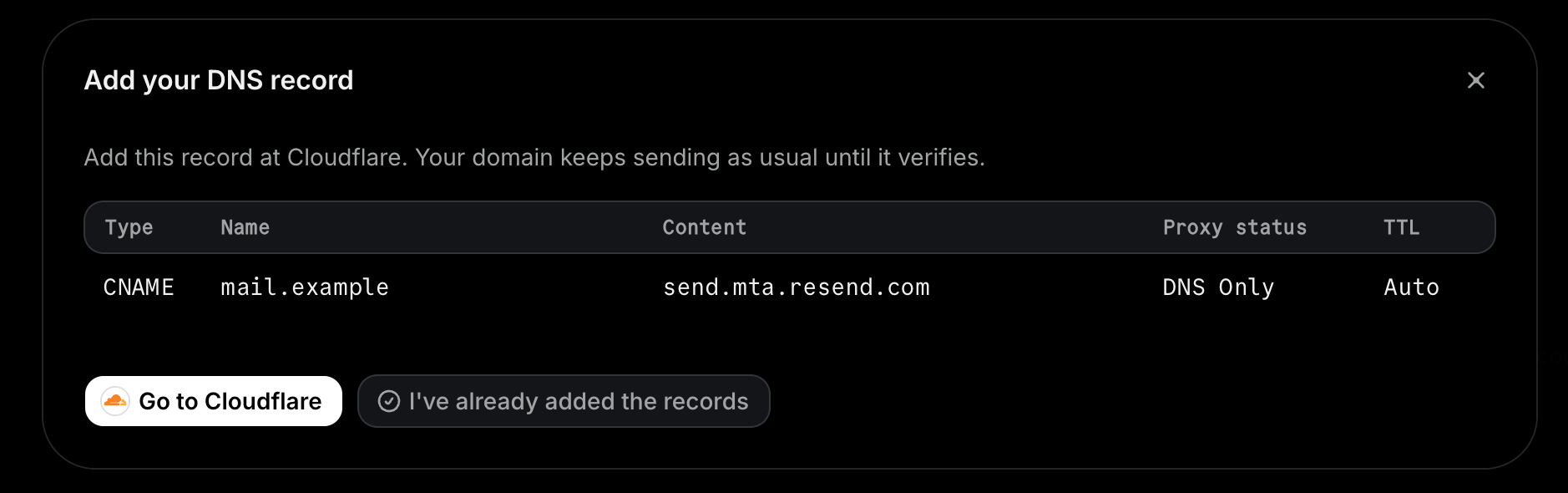 Pay attention to the record's proxy status. If you use Cloudflare, set the
record to **DNS only**, not proxied (the cloud icon is gray, not orange).
Proxied records don't resolve as CNAMEs, so verification will fail.
Click **I've added the records**. Once the record verifies, the domain shows an
**Enabled** tag on the Forge section of its page and we start ramping up your
traffic. Your domain keeps sending as usual until then.
## Troubleshooting
If the Forge record doesn't verify, these are some common troubleshooting methods.
A CNAME can't coexist with other records at the same name. If the subdomain
you chose already has records (e.g., an A, TXT, or MX record), pick a
different Return-Path subdomain: click **Enable Resend Forge**, open
**Advanced options**, and choose another name.
DNS changes can take up to 72 hours to propagate, though they're usually much
faster. Check that the record name and value match exactly what the Dashboard
shows, and rule out copy and paste errors. Some DNS providers auto-append
your domain name to record values; if the record value shows your domain
twice, add a trailing period to the value.
If you use Cloudflare, check the record's proxy status: it must be **DNS
only**, not proxied (the cloud icon is gray, not orange). Proxied records
don't resolve as CNAMEs, so verification will fail.
Also confirm you added the record at the DNS provider that actually controls
your domain's DNS. If your DNS is managed in multiple places (e.g., your
registrar and Cloudflare), run a nameserver lookup with a tool like
[dns.email](https://dns.email) to see which provider to use.
1. Open your domain's page. The Forge section under **Configuration** shows an **Action needed** tag.
2. Click **Enable Resend Forge**, then **Continue**.
3. The modal shows your CNAME record again. Confirm it matches what's in your DNS provider and click **I've already added the records** to restart verification.
Unless you pick a different Return-Path subdomain in the modal, the record
stays the same. You're re-verifying the existing record and don't need to
change anything at your DNS provider.
Hover over the button to see the reason. Your domain doesn't meet one of the
[requirements](#requirements) below.
## Requirements
* Open and click tracking aren't supported on Forge yet.
* Domains on a Dedicated IP can't migrate.
* The domain must have sending capabilities enabled. If your domain can't send emails there's no point in migrating it to Forge.
Pay attention to the record's proxy status. If you use Cloudflare, set the
record to **DNS only**, not proxied (the cloud icon is gray, not orange).
Proxied records don't resolve as CNAMEs, so verification will fail.
Click **I've added the records**. Once the record verifies, the domain shows an
**Enabled** tag on the Forge section of its page and we start ramping up your
traffic. Your domain keeps sending as usual until then.
## Troubleshooting
If the Forge record doesn't verify, these are some common troubleshooting methods.
A CNAME can't coexist with other records at the same name. If the subdomain
you chose already has records (e.g., an A, TXT, or MX record), pick a
different Return-Path subdomain: click **Enable Resend Forge**, open
**Advanced options**, and choose another name.
DNS changes can take up to 72 hours to propagate, though they're usually much
faster. Check that the record name and value match exactly what the Dashboard
shows, and rule out copy and paste errors. Some DNS providers auto-append
your domain name to record values; if the record value shows your domain
twice, add a trailing period to the value.
If you use Cloudflare, check the record's proxy status: it must be **DNS
only**, not proxied (the cloud icon is gray, not orange). Proxied records
don't resolve as CNAMEs, so verification will fail.
Also confirm you added the record at the DNS provider that actually controls
your domain's DNS. If your DNS is managed in multiple places (e.g., your
registrar and Cloudflare), run a nameserver lookup with a tool like
[dns.email](https://dns.email) to see which provider to use.
1. Open your domain's page. The Forge section under **Configuration** shows an **Action needed** tag.
2. Click **Enable Resend Forge**, then **Continue**.
3. The modal shows your CNAME record again. Confirm it matches what's in your DNS provider and click **I've already added the records** to restart verification.
Unless you pick a different Return-Path subdomain in the modal, the record
stays the same. You're re-verifying the existing record and don't need to
change anything at your DNS provider.
Hover over the button to see the reason. Your domain doesn't meet one of the
[requirements](#requirements) below.
## Requirements
* Open and click tracking aren't supported on Forge yet.
* Domains on a Dedicated IP can't migrate.
* The domain must have sending capabilities enabled. If your domain can't send emails there's no point in migrating it to Forge.