> ## Documentation Index
> Fetch the complete documentation index at: https://resend.com/docs/llms.txt
> Use this file to discover all available pages before exploring further.
# Send emails with Lovable and Resend
> Learn how to add the Resend integration to your Lovable project.
export const YouTube = ({id}) => {
return ;
};
[Lovable](https://lovable.dev) is a platform for building web sites, tools, apps, and projects via chat. You can add Resend in a Lovable project by asking the chat to add email sending with Resend.
If you prefer to watch a video, check out our video walkthrough below.
## 1. Add your Resend API key
To use Resend with Lovable, you'll need to add a Resend API key, which you can create in the [Resend Dashboard](https://resend.com/api-keys). Do not share your API key with others or expose it in the browser or other client-side code.
Lovable may integrate Resend in a few different ways:
* Use the Supabase integration to store the API key **(highly recommended)**
* Ask users to provide their own API key
* Add the API key directly in the code
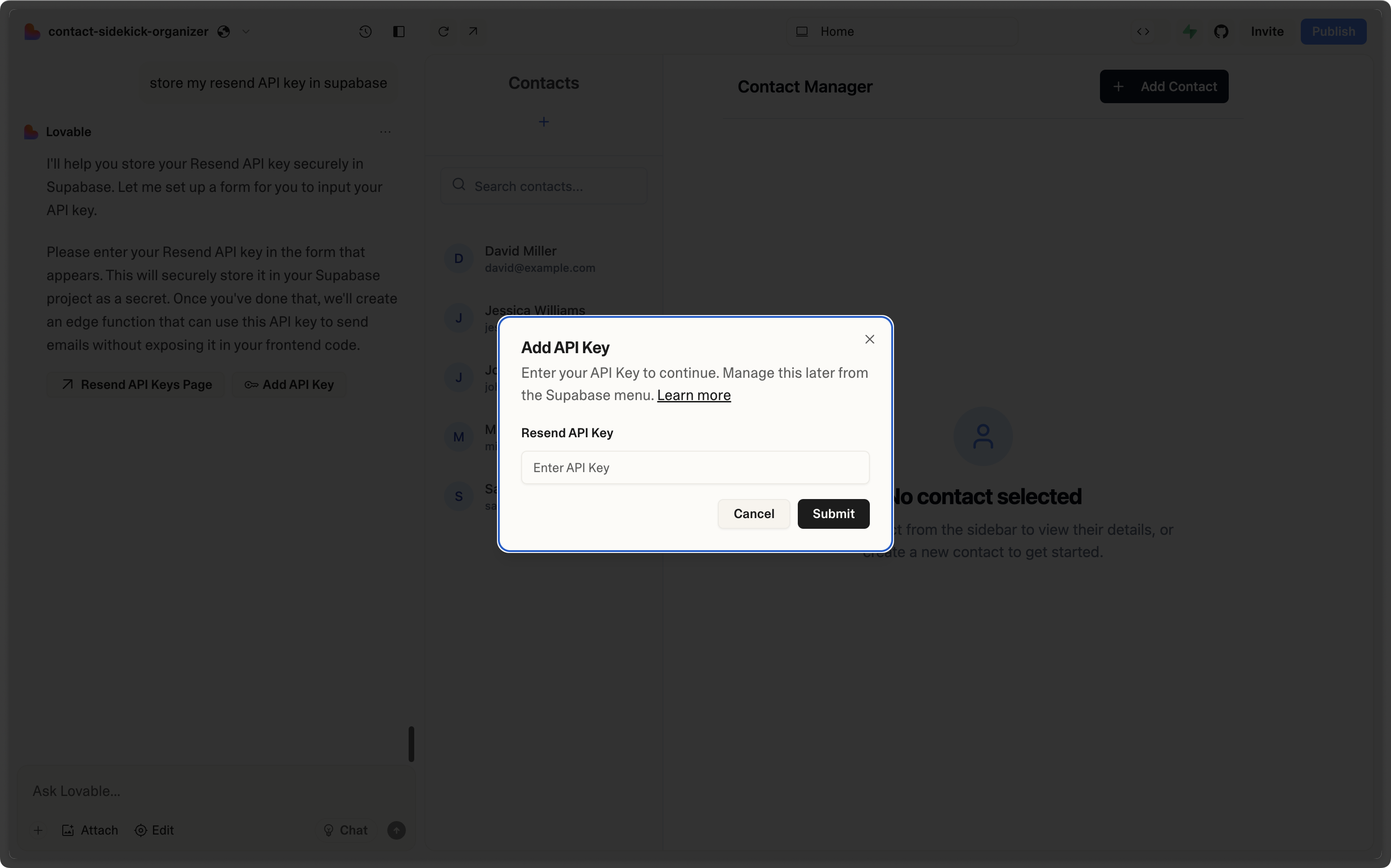
You may need to prompt Lovable to store the API key for Resend using Supabase. Clicking **Add API key** will open a modal where you can add the API key.
At the time of writing, Lovable does not securely handle API keys
independently. Instead, it uses the [Supabase integration to store
secrets](https://docs.lovable.dev/integrations/supabase#storing-secrets-api-keys-%26-config).
## 2. Add a custom domain to your Resend account
By default, you can only send emails to your own email address.
To send emails to other email addresses:
1. Add a [custom domain to your Resend account](https://resend.com/domains).
2. Add the custom domain to the `from` field in the `resend` function in Lovable (or ask the chat to update these fields).
By default, Lovable deploys using the test domain `resend.dev`. Once your custom domain is verified, the function does not automatically redeploy or update the sender address.
You’ll need to ask Lovable to manually update the `From` email to use your verified domain and then redeploy the function so the changes take effect.
Get more help adding a custom domain in [Resend's documentation](/dashboard/domains/introduction).