> ## Documentation Index
> Fetch the complete documentation index at: https://resend.com/docs/llms.txt
> Use this file to discover all available pages before exploring further.
# What if my domain is not verifying?
> Learn what steps to take when your domain doesn't seem to be verifying.
Verifying a domain involves a few steps:
1. Add your domain to Resend
2. Copy the required DNS records from Resend
3. Add these records to your DNS provider
4. Wait for verification to complete
When this process is completed correctly, your domain will often verify within 15 minutes of adding the DNS records. What should you do if your domain isn't verifying?
If you are having any conflict issues with the `MX` records, [check out this
guide](/knowledge-base/how-do-i-avoid-conflicting-with-my-mx-records).
## Common verification issues
When your domain doesn't verify as expected, it's typically due to DNS configuration issues. This guide will help you troubleshoot and resolve common verification problems.
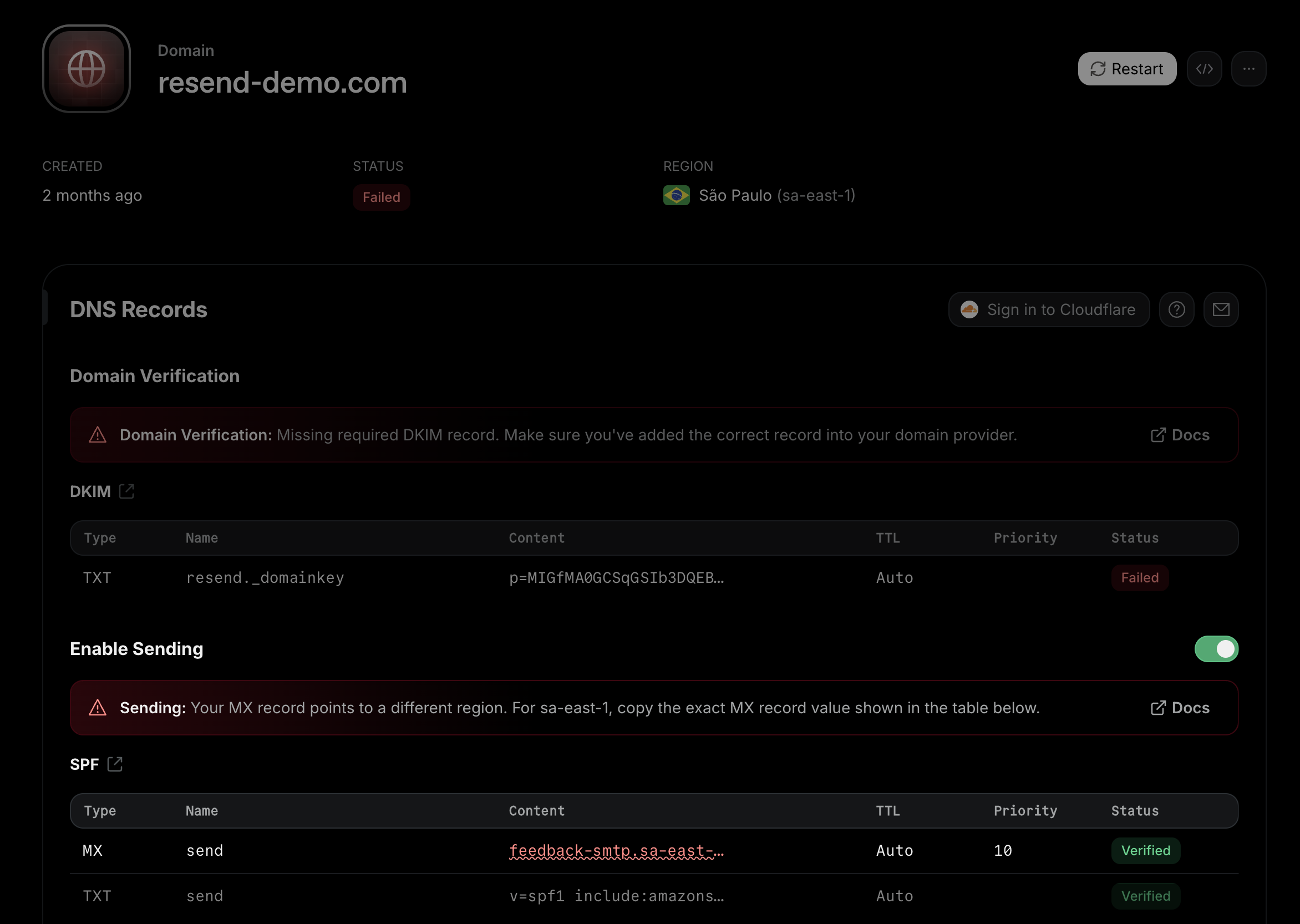
Resend provides real-time DNS validation when viewing your domain details.
When viewing your domain, you'll see specific error messages and visual
indicators highlighting any issues with your DNS records in case you've added
them incorrectly.
### Incorrect DNS records
Usually when a domain doesn't verify, it's because the DNS records were not added correctly. Here's how to check:
1. Confirm that you've added all required records (DKIM, SPF, and MX)
2. Verify that the records are added at the correct location (the `send` subdomain, not the root domain)
3. Check that record values match exactly what Resend generated for you
4. Look for red wavy underlines on the domain details page (these indicate specific DNS record errors)
 ### DNS provider auto-appending domain names
Some DNS providers automatically append your domain name to record MX values, causing verification failures.
**Problem:**
Your MX record appears as:
`feedback-smtp.eu-west-1.amazonses.com.example.com`
Instead of:
`feedback-smtp.eu-west-1.amazonses.com`
**Solution:**
In your DNS provider, add a trailing period (dot) at the end of the record value:
`feedback-smtp.eu-west-1.amazonses.com.`
The trailing period tells your DNS provider that this is a fully qualified domain name that should not be modified.
Note: The region your domain is added to is in this MX record. It may be
`us-east-1`, `eu-west-1`, `ap-northeast-1`, or `sa-east-1` depending on the
region.
### Nameserver conflicts
If your domain's DNS is managed in multiple places (e.g., Vercel, Cloudflare, your domain registrar), you might be adding records in the wrong location.
**How to check:** Run a nameserver lookup for your domain using a tool like [dns.email](https://dns.email) to see which provider actually controls your DNS. Add the Resend records at that provider, not elsewhere.
### Region mismatch errors
If your MX records point to a different AWS region than where your domain is configured, you'll see a "region-mismatch" error. This happens when:
* Your domain is configured in one region (e.g., `us-east-1`)
* But your MX record points to a different region (e.g., `eu-west-1`)
**Solution:** Update your MX record to match the region shown in your Resend domain configuration. The correct MX record value is displayed in the DNS records table on your domain details page.
### Multiple regions detected
If you have multiple MX records pointing to different AWS regions, you'll see a "multiple-regions" error. All MX records for a domain must point to the same region.
**Solution:** Remove any MX records pointing to incorrect regions, keeping only the one that matches your domain's configured region.
### DKIM record value mismatches
The DKIM record must match exactly what Resend generated. Common mistakes include:
1. Adding extra quotes or spaces
2. Truncating long values
3. Adding SPF information to the DKIM record
4. Not copying the entire value
Always copy and paste the exact value from Resend's domain configuration page. If there's a mismatch, you'll see a red wavy underline on the incorrect value.
### DNS Propagation
After adding or correcting your DNS records:
1. DNS changes can take up to 72 hours to propagate globally (though often much faster)
2. Use the "Restart verification" button in the Resend dashboard to trigger a fresh verification check
3. If verification still fails after 24 hours, use [dns.email](https://dns.email) to check if your records are visible publicly
## Need more help?
If you've followed all the steps above and your domain still isn't verifying, contact [Resend support](https://resend.com/help) with:
1. Your domain name
2. Screenshots of your DNS configuration
Our team will help identify any remaining issues preventing successful verification.
Tools like [dns.email](https://dns.email) allow you to check your DNS records in the browser.
Go to this URL and replace `example.com` with the domain you added in Resend.
### DNS provider auto-appending domain names
Some DNS providers automatically append your domain name to record MX values, causing verification failures.
**Problem:**
Your MX record appears as:
`feedback-smtp.eu-west-1.amazonses.com.example.com`
Instead of:
`feedback-smtp.eu-west-1.amazonses.com`
**Solution:**
In your DNS provider, add a trailing period (dot) at the end of the record value:
`feedback-smtp.eu-west-1.amazonses.com.`
The trailing period tells your DNS provider that this is a fully qualified domain name that should not be modified.
Note: The region your domain is added to is in this MX record. It may be
`us-east-1`, `eu-west-1`, `ap-northeast-1`, or `sa-east-1` depending on the
region.
### Nameserver conflicts
If your domain's DNS is managed in multiple places (e.g., Vercel, Cloudflare, your domain registrar), you might be adding records in the wrong location.
**How to check:** Run a nameserver lookup for your domain using a tool like [dns.email](https://dns.email) to see which provider actually controls your DNS. Add the Resend records at that provider, not elsewhere.
### Region mismatch errors
If your MX records point to a different AWS region than where your domain is configured, you'll see a "region-mismatch" error. This happens when:
* Your domain is configured in one region (e.g., `us-east-1`)
* But your MX record points to a different region (e.g., `eu-west-1`)
**Solution:** Update your MX record to match the region shown in your Resend domain configuration. The correct MX record value is displayed in the DNS records table on your domain details page.
### Multiple regions detected
If you have multiple MX records pointing to different AWS regions, you'll see a "multiple-regions" error. All MX records for a domain must point to the same region.
**Solution:** Remove any MX records pointing to incorrect regions, keeping only the one that matches your domain's configured region.
### DKIM record value mismatches
The DKIM record must match exactly what Resend generated. Common mistakes include:
1. Adding extra quotes or spaces
2. Truncating long values
3. Adding SPF information to the DKIM record
4. Not copying the entire value
Always copy and paste the exact value from Resend's domain configuration page. If there's a mismatch, you'll see a red wavy underline on the incorrect value.
### DNS Propagation
After adding or correcting your DNS records:
1. DNS changes can take up to 72 hours to propagate globally (though often much faster)
2. Use the "Restart verification" button in the Resend dashboard to trigger a fresh verification check
3. If verification still fails after 24 hours, use [dns.email](https://dns.email) to check if your records are visible publicly
## Need more help?
If you've followed all the steps above and your domain still isn't verifying, contact [Resend support](https://resend.com/help) with:
1. Your domain name
2. Screenshots of your DNS configuration
Our team will help identify any remaining issues preventing successful verification.
Tools like [dns.email](https://dns.email) allow you to check your DNS records in the browser.
Go to this URL and replace `example.com` with the domain you added in Resend.
 You are looking to see the same values that you see in Resend.
Checking your DNS records in the terminal is just as easy. You can use the `nslookup` command and a record type flag to get the same information.
Replace `example.com` with whatever you added as the domain in Resend:
Check your DKIM `TXT` record:
```
nslookup -type=TXT resend._domainkey.example.com
```
Check your SPF `TXT` record:
```
nslookup -type=TXT send.example.com
```
Check your SPF `MX` record:
```
nslookup -type=MX send.example.com
```
You are looking to see the same values that you see in Resend.
Checking your DNS records in the terminal is just as easy. You can use the `nslookup` command and a record type flag to get the same information.
Replace `example.com` with whatever you added as the domain in Resend:
Check your DKIM `TXT` record:
```
nslookup -type=TXT resend._domainkey.example.com
```
Check your SPF `TXT` record:
```
nslookup -type=TXT send.example.com
```
Check your SPF `MX` record:
```
nslookup -type=MX send.example.com
```
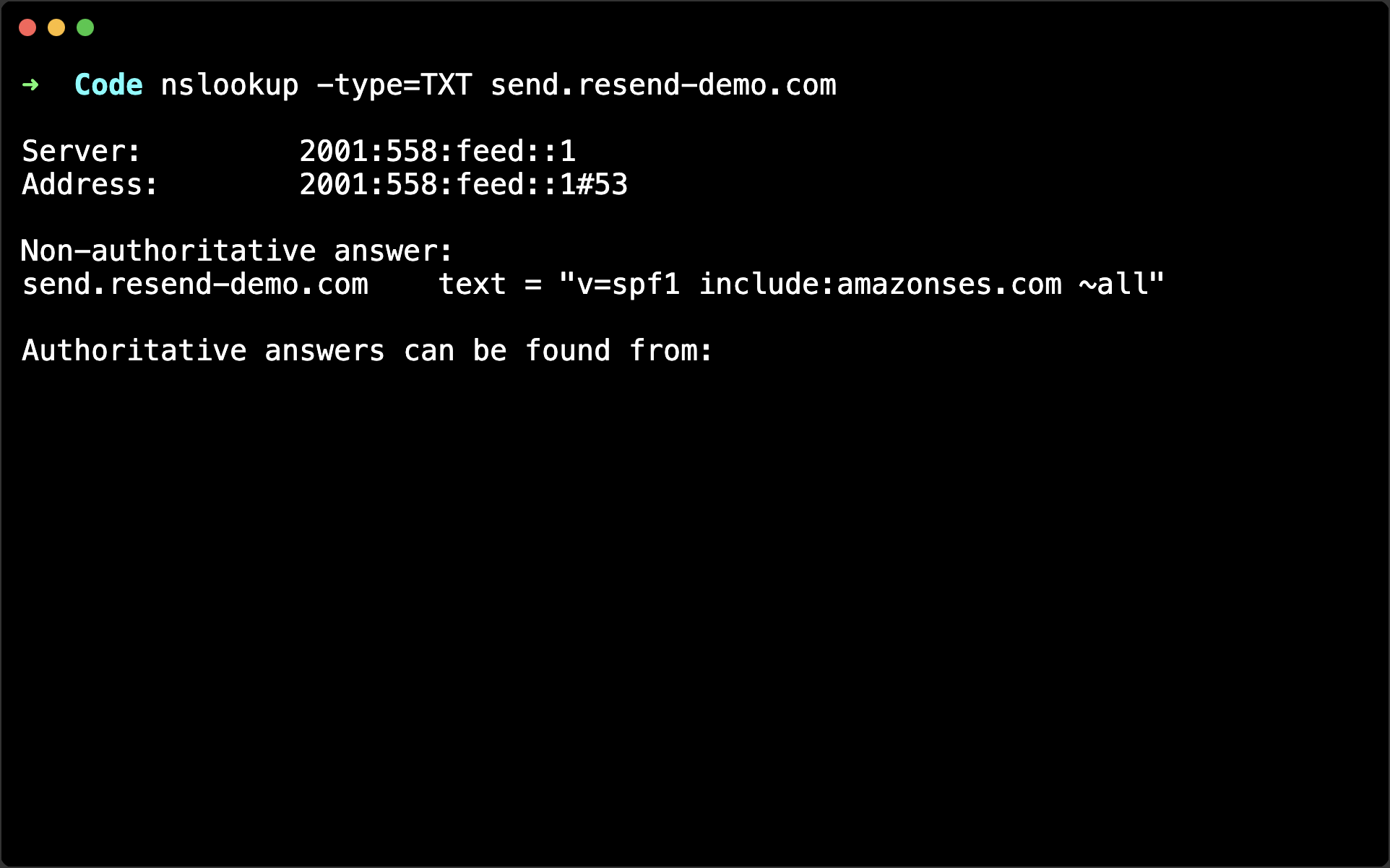 You are looking to see the same values that you see in Resend.