> ## Documentation Index
> Fetch the complete documentation index at: https://resend.com/docs/llms.txt
> Use this file to discover all available pages before exploring further.
# Template emails with React Email
> Author email templates as React components and upload them to Resend with the CLI.
With [React Email](https://react.email), write email templates as React components, with full TypeScript and [Tailwind support](https://react.email/docs/components/tailwind), and a local preview server. Preview your emails in real time with hot reloading, and render to email-friendly HTML or plain text when you're ready to send.
This guide walks through setting up a React Email project, writing a template, and uploading it to [Resend Templates](/dashboard/templates/introduction) with the [Resend CLI](/cli) so the rest of your team can collaborate on it in the dashboard.
Use `create-email` to scaffold a project with a starter template, a preview server, and the `@react-email/components` package.
```bash npm theme={"theme":{"light":"github-light","dark":"vesper"}}
npx create-email@latest
```
```bash yarn theme={"theme":{"light":"github-light","dark":"vesper"}}
yarn create email
```
```bash pnpm theme={"theme":{"light":"github-light","dark":"vesper"}}
pnpm create email
```
```bash bun theme={"theme":{"light":"github-light","dark":"vesper"}}
bun create email
```
This creates a new `react-email-starter` folder with an `emails/` directory and a few example templates. Install dependencies:
```bash npm theme={"theme":{"light":"github-light","dark":"vesper"}}
cd react-email-starter
npm install
```
```bash yarn theme={"theme":{"light":"github-light","dark":"vesper"}}
cd react-email-starter
yarn
```
```bash pnpm theme={"theme":{"light":"github-light","dark":"vesper"}}
cd react-email-starter
pnpm install
```
```bash bun theme={"theme":{"light":"github-light","dark":"vesper"}}
cd react-email-starter
bun install
```
Already have a project? See the [React Email
docs](https://react.email/docs/getting-started/manual-setup) for the manual
setup and then create an `emails/` directory in your preferred location.
Create `emails/welcome.tsx`. Each component can be imported from `react-email` ([view all components](https://react.email/docs/components/html)). Optionally add props to the component to be used as variables when sending.
```tsx emails/welcome.tsx theme={"theme":{"light":"github-light","dark":"vesper"}}
import {
Body,
Button,
Container,
Head,
Heading,
Html,
Preview,
Section,
pixelBasedPreset,
Tailwind,
Text,
} from 'react-email';
import * as React from 'react';
interface WelcomeEmailProps {
firstName?: string;
productName?: string;
}
export default function WelcomeEmail({
firstName = 'there',
productName = 'Acme',
}: WelcomeEmailProps) {
return (
Welcome to {productName}
Welcome, {firstName}
Thanks for signing up for {productName}. Let's get you started.
);
}
```
```json package.json theme={"theme":{"light":"github-light","dark":"vesper"}}
{
"scripts": {
"email:dev": "email dev"
}
}
```
The `email:dev` script will start the preview server. If your `email` directory is not in the root of your project, you can specify the path to it.
```json package.json theme={"theme":{"light":"github-light","dark":"vesper"}}
{
"scripts": {
"email:dev": "email dev --dir src/emails"
}
}
```
Run the preview server to see your email render in real time as you edit. Hot reload picks up changes automatically.
```bash npm theme={"theme":{"light":"github-light","dark":"vesper"}}
npm run email:dev
```
```bash yarn theme={"theme":{"light":"github-light","dark":"vesper"}}
yarn email:dev
```
```bash pnpm theme={"theme":{"light":"github-light","dark":"vesper"}}
pnpm email:dev
```
```bash bun theme={"theme":{"light":"github-light","dark":"vesper"}}
bun email:dev
```
Open [localhost:3000](http://localhost:3000) and select `welcome.tsx` from the sidebar.
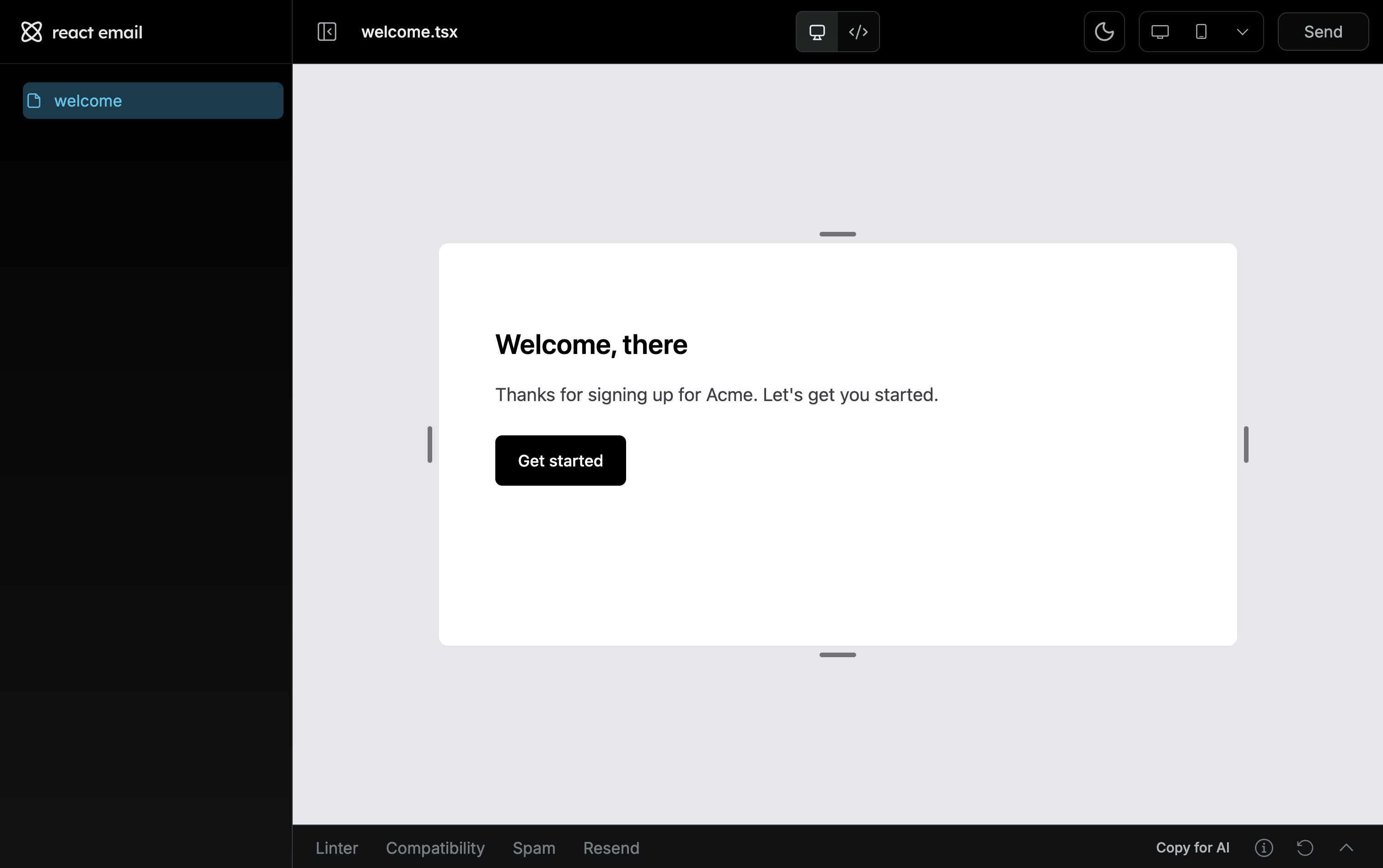 The preview shows the rendered email and offers desktop/mobile toggles, the source HTML, and plain-text output. Changes you make to `welcome.tsx` show in real-time and dedicated email tools show in the toolbars.
* `Linter`: lint your email content, links, and more.
* `Compatibility`: check your email's HTML/CSS with [caniemail](https://caniemail.com).
* `Spam`: see how spam checkers view your email.
You can pass your React Email template in the email call using the Resend Node SDK.
```ts sendEmail.tsx {10} theme={"theme":{"light":"github-light","dark":"vesper"}}
import { Resend } from 'resend';
import { Email } from './email';
const resend = new Resend('re_123456789');
await resend.emails.send({
from: 'you@example.com',
to: 'delivered@resend.com',
subject: 'hello world',
react: ,
});
```
[Templates](/dashboard/templates/introduction) are stored on Resend and can be referenced when you send transactional emails. With Templates, define the structure and layout of a message and optionally include custom variables which will be replaced with the actual values when sending the email.
Set up the Resend integration using the React Email CLI:
```bash theme={"theme":{"light":"github-light","dark":"vesper"}} theme={"theme":{"light":"github-light","dark":"vesper"}}
npx react-email@latest resend setup
```
This will prompt you to enter your Resend API Key. To get one, navigate to [API Keys](https://resend.com/api-keys) in your Resend dashboard, click **Create API key**, and ensure that the API Key is scoped to **Full Access**.
Paste the API Key into the terminal and press enter.
Run the React Email preview server and visit the **Resend** tab of the toolbar. Choose **Upload** or **Bulk Upload** to import your Template to Resend.
If you want to remove the Resend integration, run `npx react-email@latest resend reset`.
Browse every available component — Button, Container, Tailwind, and more.
See every CLI command and flag, including templates, automations, and
webhooks.
Learn how Templates, variables, and version history work in Resend.
Add the open-source visual editor to your own app.
The preview shows the rendered email and offers desktop/mobile toggles, the source HTML, and plain-text output. Changes you make to `welcome.tsx` show in real-time and dedicated email tools show in the toolbars.
* `Linter`: lint your email content, links, and more.
* `Compatibility`: check your email's HTML/CSS with [caniemail](https://caniemail.com).
* `Spam`: see how spam checkers view your email.
You can pass your React Email template in the email call using the Resend Node SDK.
```ts sendEmail.tsx {10} theme={"theme":{"light":"github-light","dark":"vesper"}}
import { Resend } from 'resend';
import { Email } from './email';
const resend = new Resend('re_123456789');
await resend.emails.send({
from: 'you@example.com',
to: 'delivered@resend.com',
subject: 'hello world',
react: ,
});
```
[Templates](/dashboard/templates/introduction) are stored on Resend and can be referenced when you send transactional emails. With Templates, define the structure and layout of a message and optionally include custom variables which will be replaced with the actual values when sending the email.
Set up the Resend integration using the React Email CLI:
```bash theme={"theme":{"light":"github-light","dark":"vesper"}} theme={"theme":{"light":"github-light","dark":"vesper"}}
npx react-email@latest resend setup
```
This will prompt you to enter your Resend API Key. To get one, navigate to [API Keys](https://resend.com/api-keys) in your Resend dashboard, click **Create API key**, and ensure that the API Key is scoped to **Full Access**.
Paste the API Key into the terminal and press enter.
Run the React Email preview server and visit the **Resend** tab of the toolbar. Choose **Upload** or **Bulk Upload** to import your Template to Resend.
If you want to remove the Resend integration, run `npx react-email@latest resend reset`.
Browse every available component — Button, Container, Tailwind, and more.
See every CLI command and flag, including templates, automations, and
webhooks.
Learn how Templates, variables, and version history work in Resend.
Add the open-source visual editor to your own app.