> ## Documentation Index
> Fetch the complete documentation index at: https://resend.com/docs/llms.txt
> Use this file to discover all available pages before exploring further.
# AWS Route 53
> Verify your domain on Route 53 with Resend.
## Add Domain to Resend
First, log in to your [Resend Account](https://resend.com/login) and [add a domain](https://resend.com/domains).
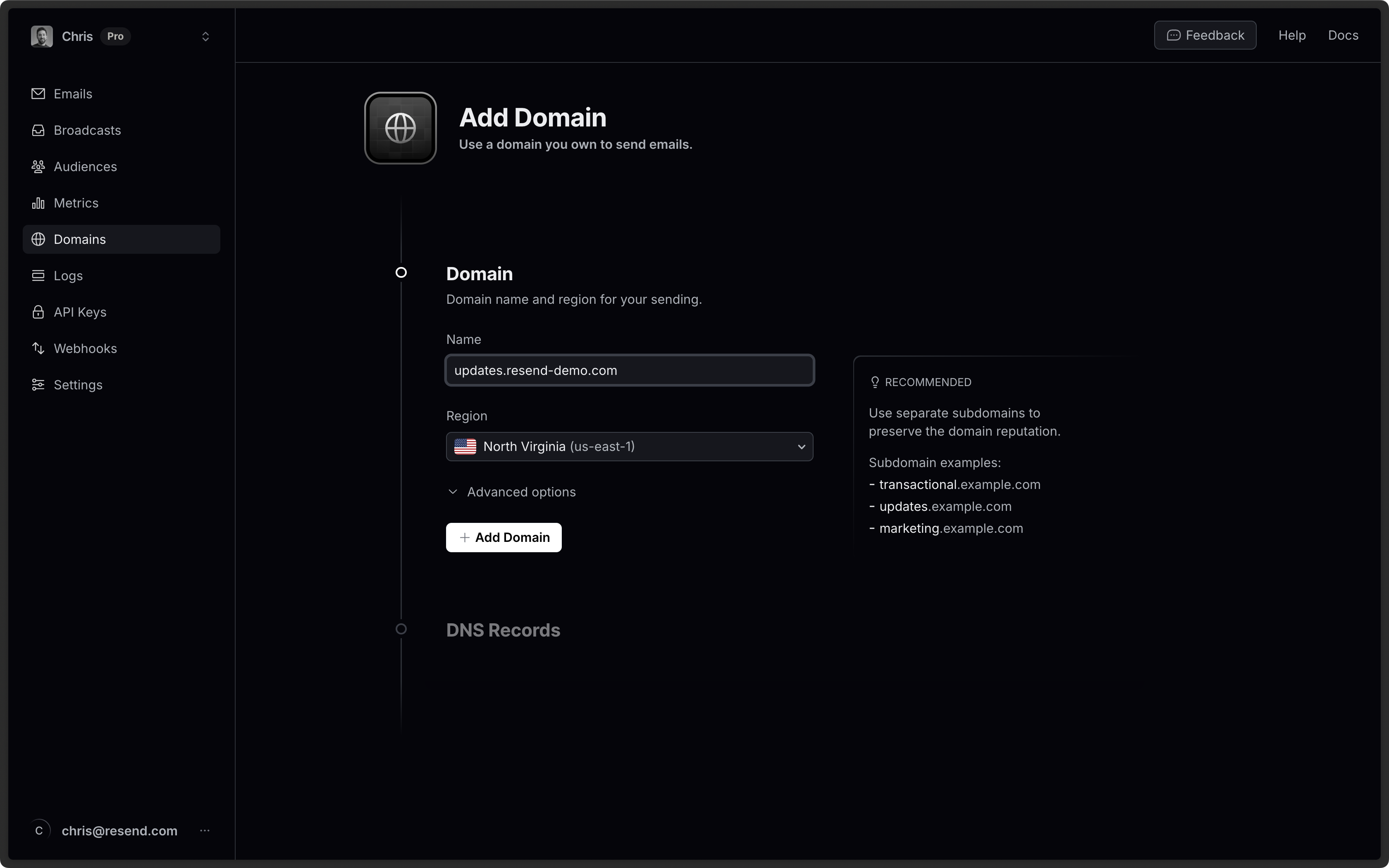 It is [best practice to use a
subdomain](/knowledge-base/is-it-better-to-send-emails-from-a-subdomain-or-the-root-domain)
(updates.example.com) instead of the root domain (example.com). Using a
subdomain allows for proper reputation segmentation based on topics or purpose
(e.g. marketing) and is especially important if receiving emails with Resend.
## Log in to Route 53
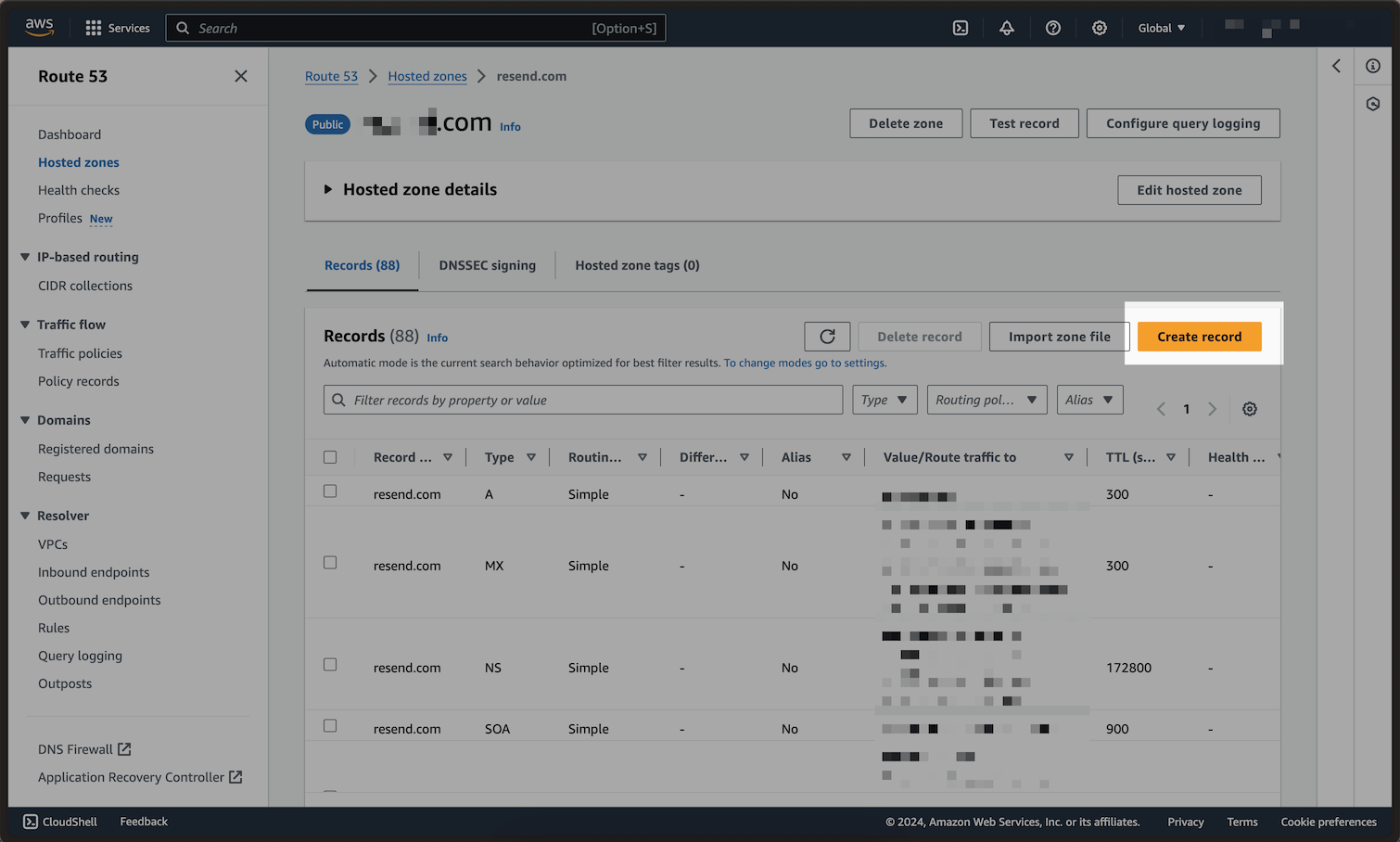
Then, log in to your [AWS Management Console, and open Route 53 console](https://console.aws.amazon.com/route53/), then click on your domain name. From there, click on `Create Record`.
It is [best practice to use a
subdomain](/knowledge-base/is-it-better-to-send-emails-from-a-subdomain-or-the-root-domain)
(updates.example.com) instead of the root domain (example.com). Using a
subdomain allows for proper reputation segmentation based on topics or purpose
(e.g. marketing) and is especially important if receiving emails with Resend.
## Log in to Route 53
Then, log in to your [AWS Management Console, and open Route 53 console](https://console.aws.amazon.com/route53/), then click on your domain name. From there, click on `Create Record`.
 ## Add MX SPF Record
1. Type in `send` for the `Record name`.
2. Select the `Record type` dropdown, and choose `MX`.
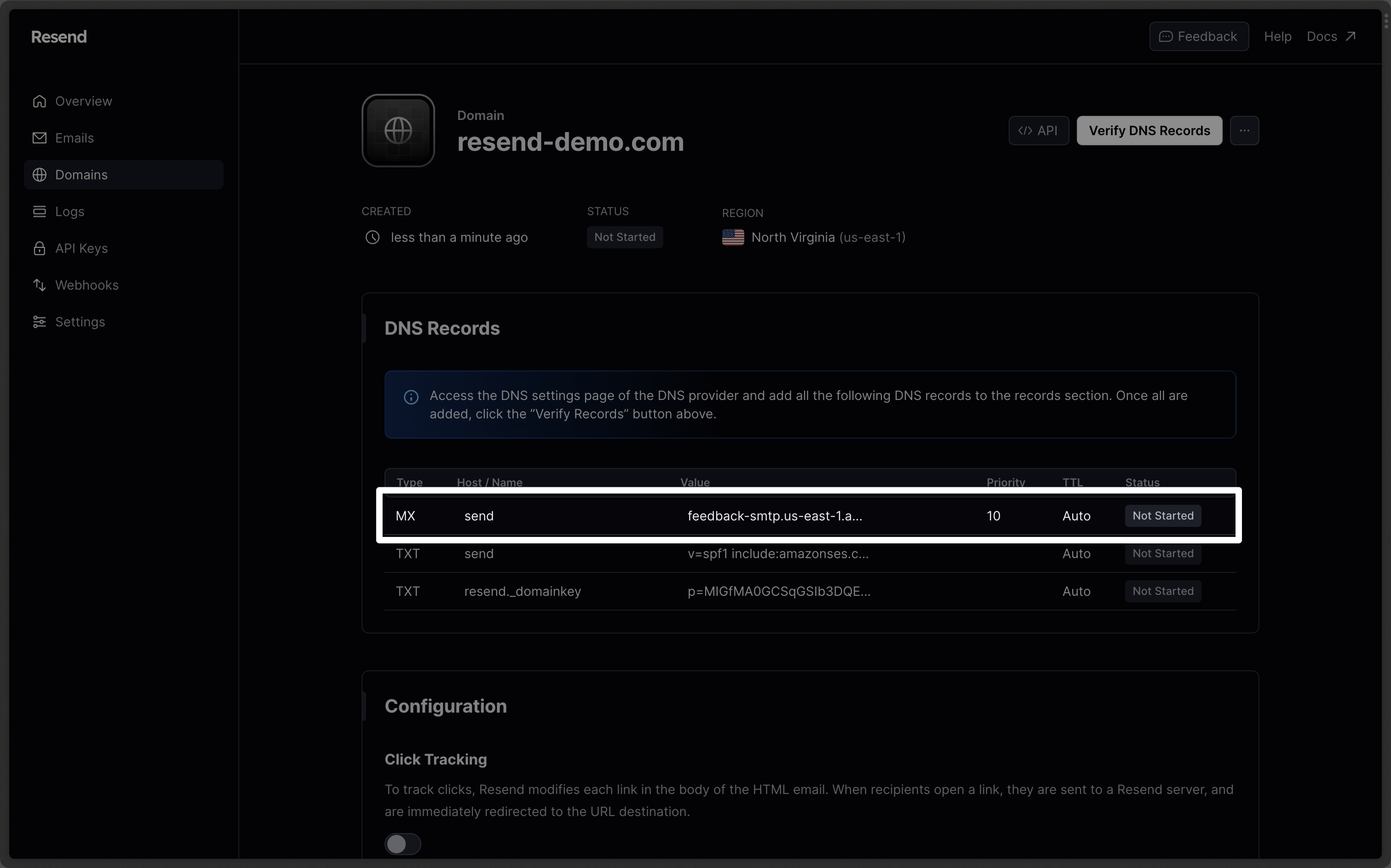
3. Copy the MX Value from your domain in Resend into the `Value` field.
4. Be sure to include the `10` in the `Value` field, as seen in the screenshot.
Omit your domain from the record values in Resend when you paste. Instead of
`send.example.com`, paste only `send` (or `send.subdomain` if you're using a
subdomain).
## Add MX SPF Record
1. Type in `send` for the `Record name`.
2. Select the `Record type` dropdown, and choose `MX`.
3. Copy the MX Value from your domain in Resend into the `Value` field.
4. Be sure to include the `10` in the `Value` field, as seen in the screenshot.
Omit your domain from the record values in Resend when you paste. Instead of
`send.example.com`, paste only `send` (or `send.subdomain` if you're using a
subdomain).
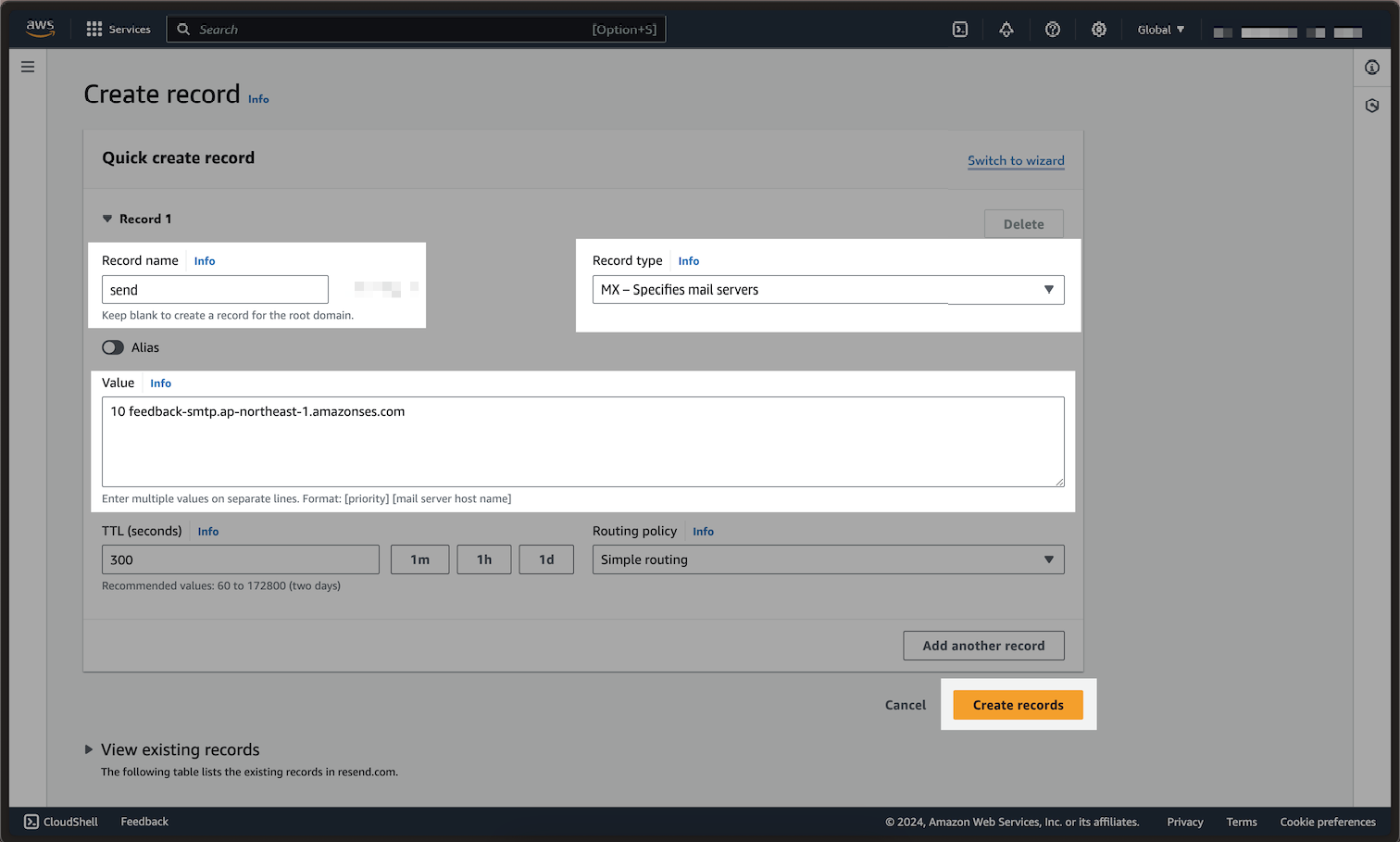 Below is a mapping of the record fields from Resend to Route 53:
| Route 53 | Resend | Example Value |
| -------------- | ------------------ | ------------------------------------------ |
| Record Type | Type | `MX Record` |
| Record name | Name | `send` |
| Value | Content & Priority | `10 feedback-smtp.us-east-1.amazonses.com` |
| TTL | TTL | `Use Route 53 Default (300)` |
| Routing policy | - | `Simple routing` |
Route 53 does not label the `priority` column, and you will need to add this
in to the `Value` section, as shown in the screenshot. Do not use the same
priority for multiple records. If Priority `10` is already in use, try a
number slightly higher like `11` or `12`.
## Add TXT SPF Record
In the same section, choose `Add another record`:
1. Type in `send` for the `Record name`.
2. Click the `Record type` dropdown.
3. Select the `Record type` dropdown, and choose `TXT`.
4. Copy TXT Value from your domain in Resend into the `Value` field.
Below is a mapping of the record fields from Resend to Route 53:
| Route 53 | Resend | Example Value |
| -------------- | ------------------ | ------------------------------------------ |
| Record Type | Type | `MX Record` |
| Record name | Name | `send` |
| Value | Content & Priority | `10 feedback-smtp.us-east-1.amazonses.com` |
| TTL | TTL | `Use Route 53 Default (300)` |
| Routing policy | - | `Simple routing` |
Route 53 does not label the `priority` column, and you will need to add this
in to the `Value` section, as shown in the screenshot. Do not use the same
priority for multiple records. If Priority `10` is already in use, try a
number slightly higher like `11` or `12`.
## Add TXT SPF Record
In the same section, choose `Add another record`:
1. Type in `send` for the `Record name`.
2. Click the `Record type` dropdown.
3. Select the `Record type` dropdown, and choose `TXT`.
4. Copy TXT Value from your domain in Resend into the `Value` field.
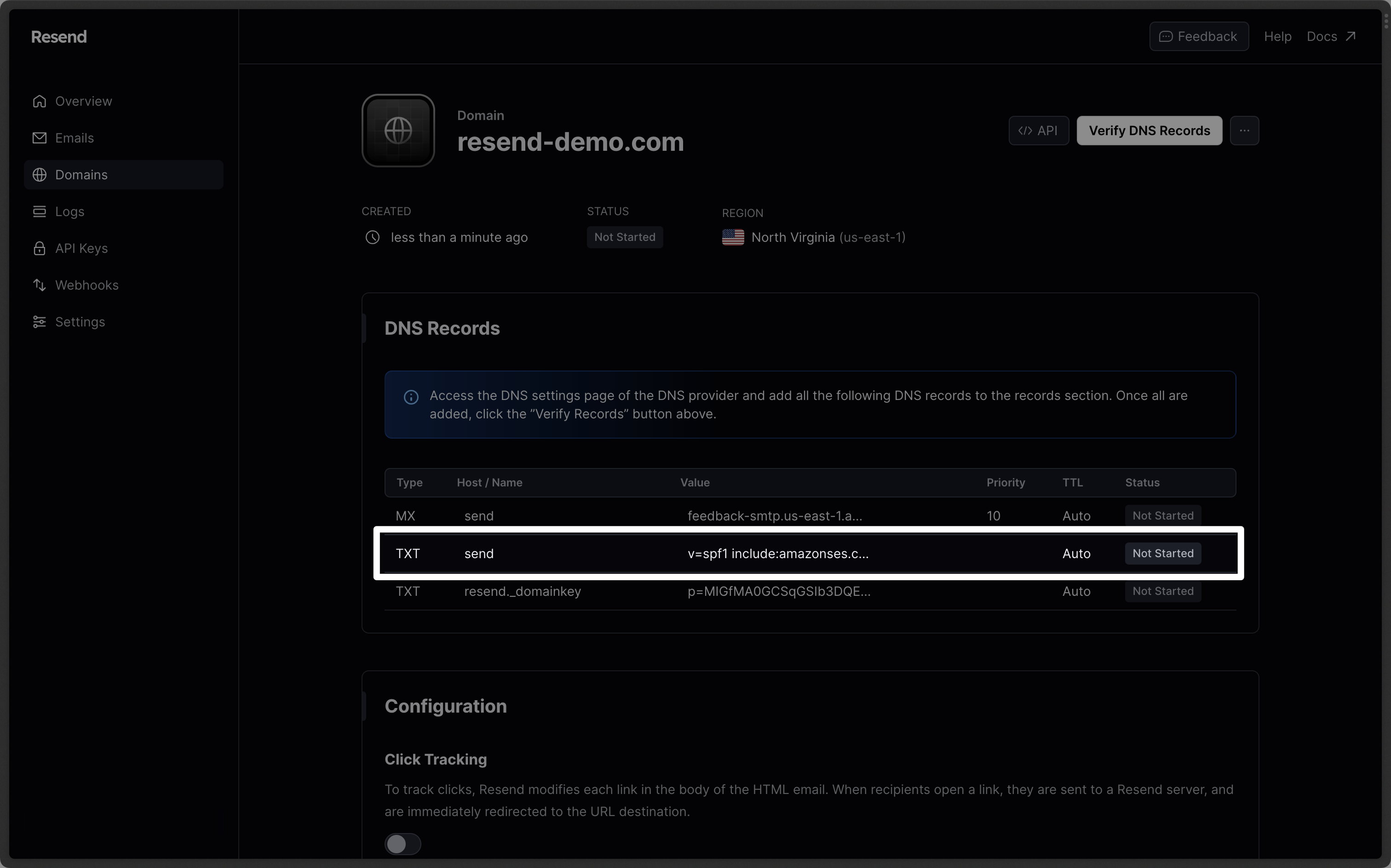
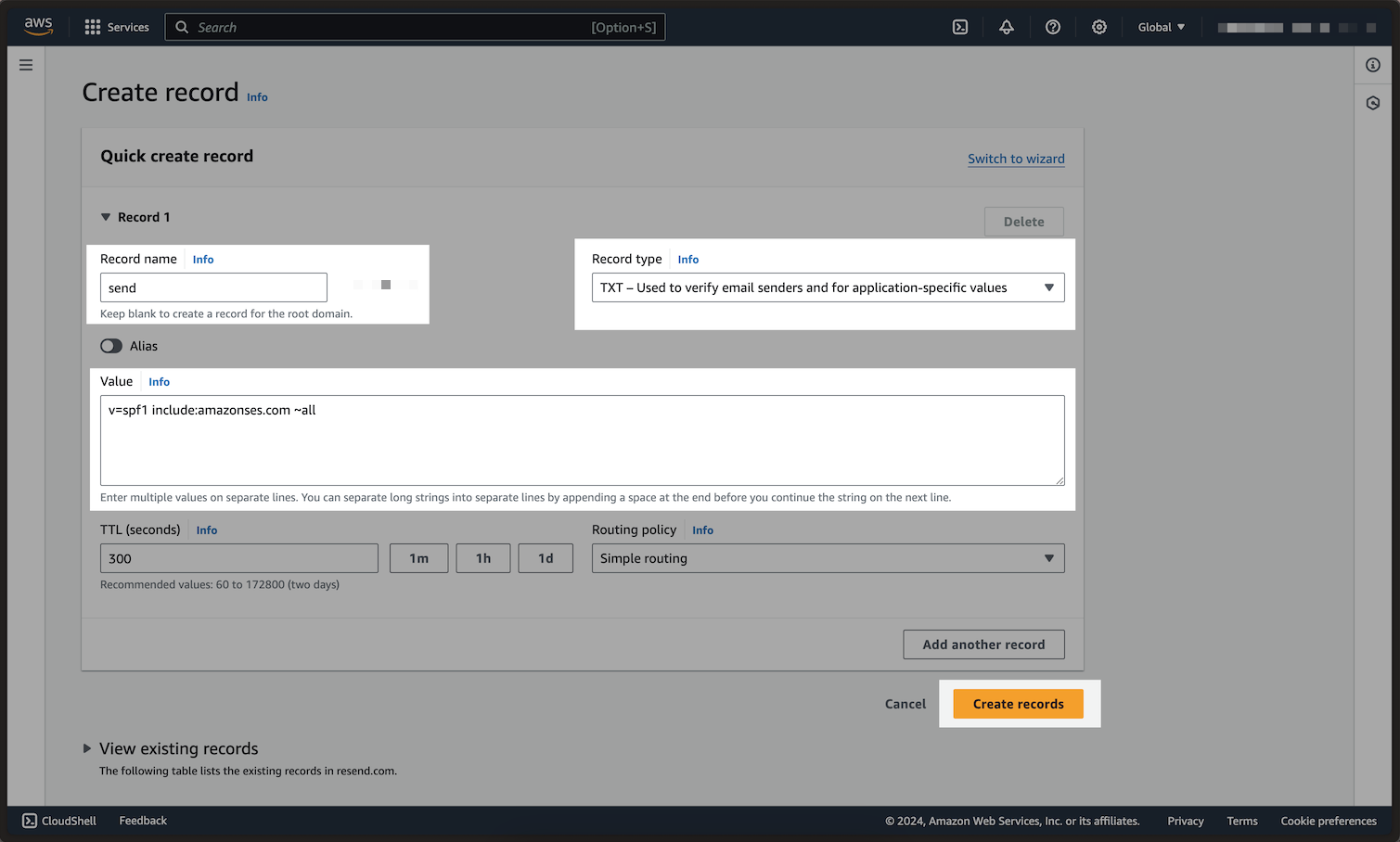 Below is a mapping of the record fields from Resend to Route 53:
| Route 53 | Resend | Example Value |
| -------------- | ------- | ------------------------------------- |
| Record type | Type | `TXT Record` |
| Record name | Name | `send` |
| Value | Content | `"v=spf1 include:amazonses.com ~all"` |
| TTL | TTL | `Use Route 53 Default (300)` |
| Routing policy | - | `Simple routing` |
Omit your domain from the record values in Resend when you paste. Instead of
`send.example.com`, paste only `send` (or `send.subdomain` if you're using a
subdomain).
## Add TXT DKIM Records
In the same section, choose `Add another record`:
1. Type in `resend._domainkey` for the `Record name`.
2. Change the `Record Type` to `TXT`.
3. Copy the TXT Value value from your domain in Resend to the `Value` text box.
4. Click on `Create Records`.
Below is a mapping of the record fields from Resend to Route 53:
| Route 53 | Resend | Example Value |
| -------------- | ------- | ------------------------------------- |
| Record type | Type | `TXT Record` |
| Record name | Name | `send` |
| Value | Content | `"v=spf1 include:amazonses.com ~all"` |
| TTL | TTL | `Use Route 53 Default (300)` |
| Routing policy | - | `Simple routing` |
Omit your domain from the record values in Resend when you paste. Instead of
`send.example.com`, paste only `send` (or `send.subdomain` if you're using a
subdomain).
## Add TXT DKIM Records
In the same section, choose `Add another record`:
1. Type in `resend._domainkey` for the `Record name`.
2. Change the `Record Type` to `TXT`.
3. Copy the TXT Value value from your domain in Resend to the `Value` text box.
4. Click on `Create Records`.
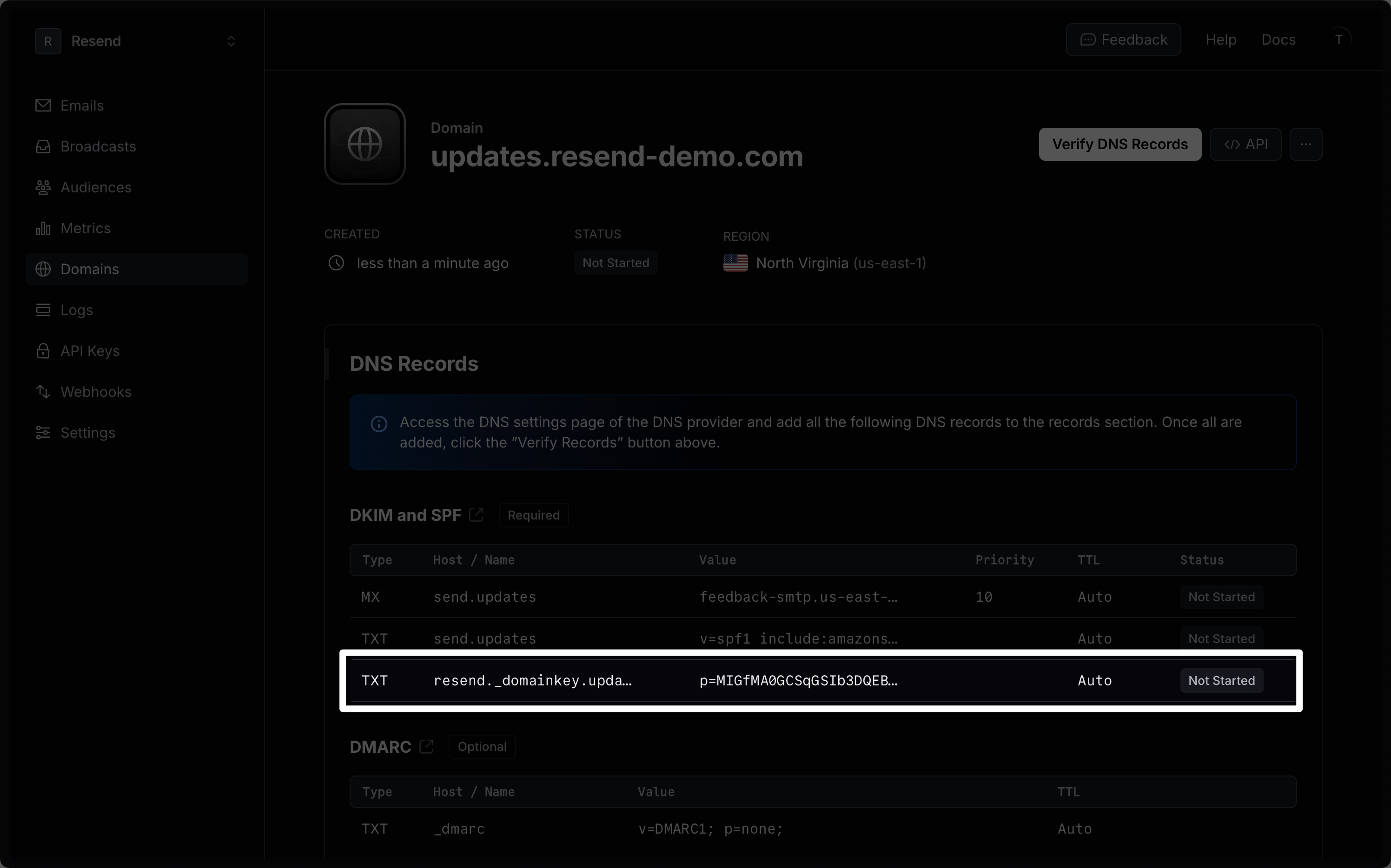
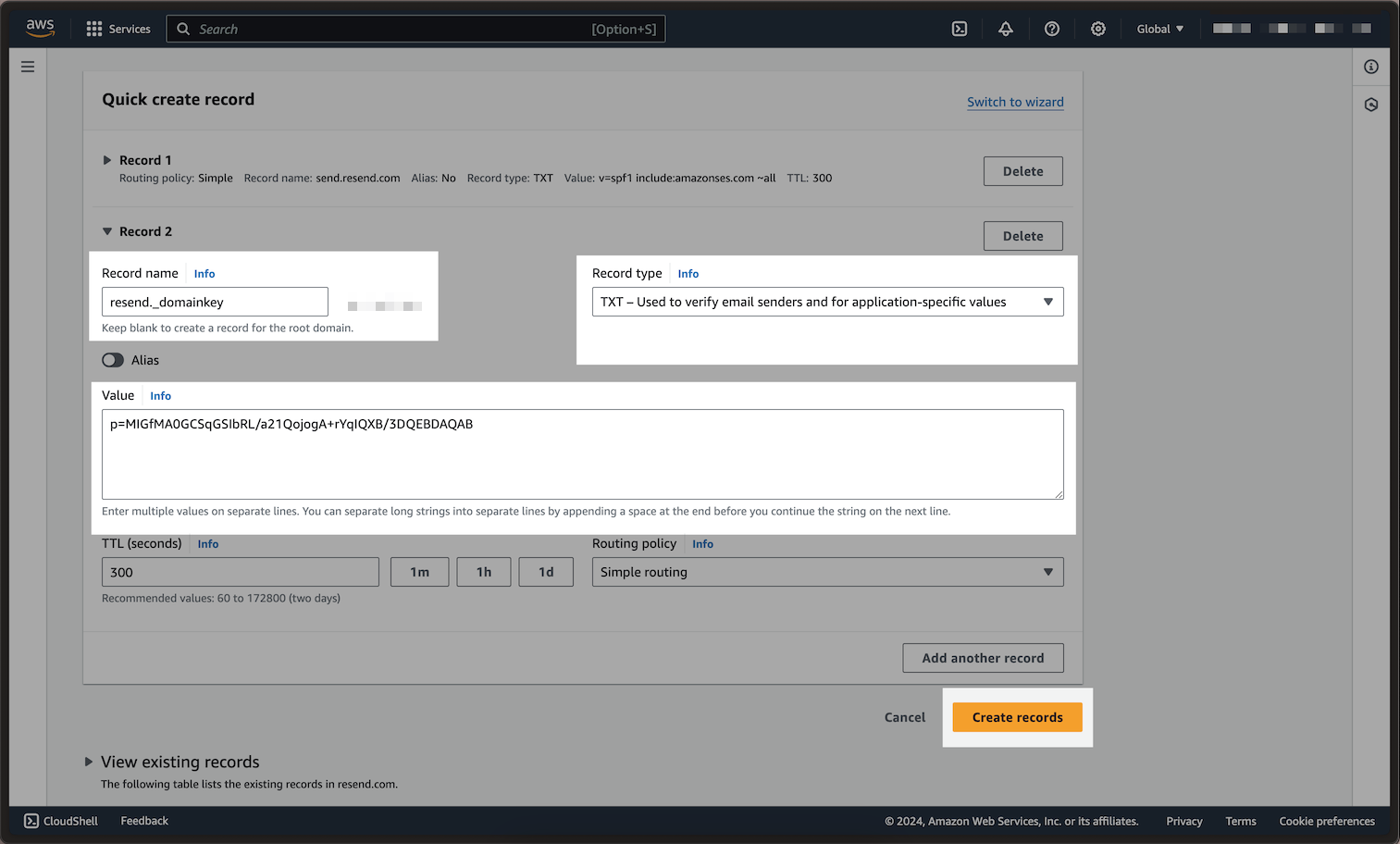 Below is a mapping of the record fields from Resend to Route 53:
| Route 53 | Resend | Example Value |
| -------------- | ------- | ---------------------------- |
| Record type | Type | `TXT Record` |
| Record name | Name | `resend._domainkey` |
| Value | Content | `p=example_domain_key_value` |
| TTL | TTL | `Use Route 53 Default (300)` |
| Routing policy | - | `Simple routing` |
Omit your domain from the record values in Resend when you paste. Instead of
`resend._domainkey.example.com`, paste only `resend._domainkey` (or
`resend._domainkey.subdomain` if you're using a subdomain).
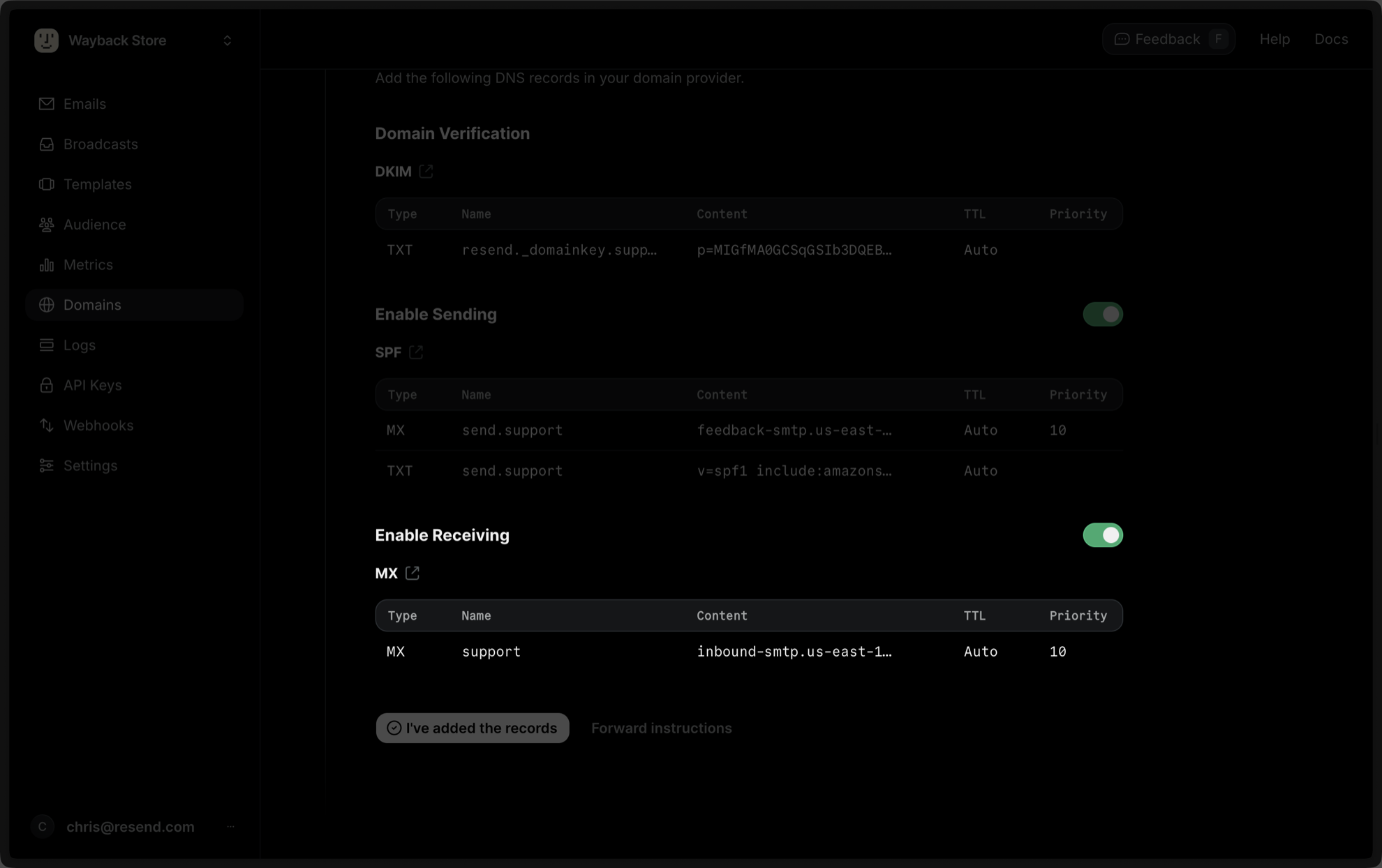
## Receiving Emails
If you want to receive emails at your domain, toggle the "Receiving" switch on the domain details page.
Below is a mapping of the record fields from Resend to Route 53:
| Route 53 | Resend | Example Value |
| -------------- | ------- | ---------------------------- |
| Record type | Type | `TXT Record` |
| Record name | Name | `resend._domainkey` |
| Value | Content | `p=example_domain_key_value` |
| TTL | TTL | `Use Route 53 Default (300)` |
| Routing policy | - | `Simple routing` |
Omit your domain from the record values in Resend when you paste. Instead of
`resend._domainkey.example.com`, paste only `resend._domainkey` (or
`resend._domainkey.subdomain` if you're using a subdomain).
## Receiving Emails
If you want to receive emails at your domain, toggle the "Receiving" switch on the domain details page.
 When you enable Inbound on a domain, Resend receives *all emails* sent to that
specific domain depending on the priority of the MX record. For this reason,
we strongly recommend verifying a subdomain (`subdomain.example.com`) instead
of the root domain (`example.com`). Learn more about [avoiding conflicts with
your existing MX
records](/knowledge-base/how-do-i-avoid-conflicting-with-my-mx-records).
In the Route 53 console, click `Create Record`:
1. Type in `inbound` (or whatever your subdomain is) for the `Record name`.
2. Select the `Record type` dropdown, and choose `MX`.
3. Copy the MX Value from your domain in Resend into the `Value` field.
4. Be sure to include the `10` in the `Value` field (e.g., `10 inbound-smtp.us-east-1.amazonaws.com`).
Below is a mapping of the record fields from Resend to Route 53:
| Route 53 | Resend | Example Value |
| -------------- | ------------------ | ----------------------------------------- |
| Record Type | Type | `MX Record` |
| Record name | Name | `inbound` |
| Value | Content & Priority | `10 inbound-smtp.us-east-1.amazonaws.com` |
| TTL | TTL | `Use Route 53 Default (300)` |
| Routing policy | - | `Simple routing` |
After verifying your domain, create a webhook to process incoming emails. For help setting up a webhook, how to access email data and attachments, forward emails, and more, see [our guide on receiving emails with Resend](/dashboard/receiving/introduction).
## Complete Verification
Now click [Verify DNS Records](https://resend.com/domains) on your Domain in Resend. It may take up to 5 hours to complete the verification process (often much faster).
## Troubleshooting
If your domain is not successfully verified, these are some common troubleshooting methods.
Review the records you added to Route 53 to rule out copy and paste errors.
[Review our guide on a domain not verifying](/knowledge-base/what-if-my-domain-is-not-verifying).
When you enable Inbound on a domain, Resend receives *all emails* sent to that
specific domain depending on the priority of the MX record. For this reason,
we strongly recommend verifying a subdomain (`subdomain.example.com`) instead
of the root domain (`example.com`). Learn more about [avoiding conflicts with
your existing MX
records](/knowledge-base/how-do-i-avoid-conflicting-with-my-mx-records).
In the Route 53 console, click `Create Record`:
1. Type in `inbound` (or whatever your subdomain is) for the `Record name`.
2. Select the `Record type` dropdown, and choose `MX`.
3. Copy the MX Value from your domain in Resend into the `Value` field.
4. Be sure to include the `10` in the `Value` field (e.g., `10 inbound-smtp.us-east-1.amazonaws.com`).
Below is a mapping of the record fields from Resend to Route 53:
| Route 53 | Resend | Example Value |
| -------------- | ------------------ | ----------------------------------------- |
| Record Type | Type | `MX Record` |
| Record name | Name | `inbound` |
| Value | Content & Priority | `10 inbound-smtp.us-east-1.amazonaws.com` |
| TTL | TTL | `Use Route 53 Default (300)` |
| Routing policy | - | `Simple routing` |
After verifying your domain, create a webhook to process incoming emails. For help setting up a webhook, how to access email data and attachments, forward emails, and more, see [our guide on receiving emails with Resend](/dashboard/receiving/introduction).
## Complete Verification
Now click [Verify DNS Records](https://resend.com/domains) on your Domain in Resend. It may take up to 5 hours to complete the verification process (often much faster).
## Troubleshooting
If your domain is not successfully verified, these are some common troubleshooting methods.
Review the records you added to Route 53 to rule out copy and paste errors.
[Review our guide on a domain not verifying](/knowledge-base/what-if-my-domain-is-not-verifying).