> ## Documentation Index
> Fetch the complete documentation index at: https://resend.com/docs/llms.txt
> Use this file to discover all available pages before exploring further.
# Hetzner
> Verify your domain on Hetzner with Resend.
## Add Domain to Resend
First, log in to your [Resend Account](https://resend.com/login) and [add a domain](https://resend.com/domains).
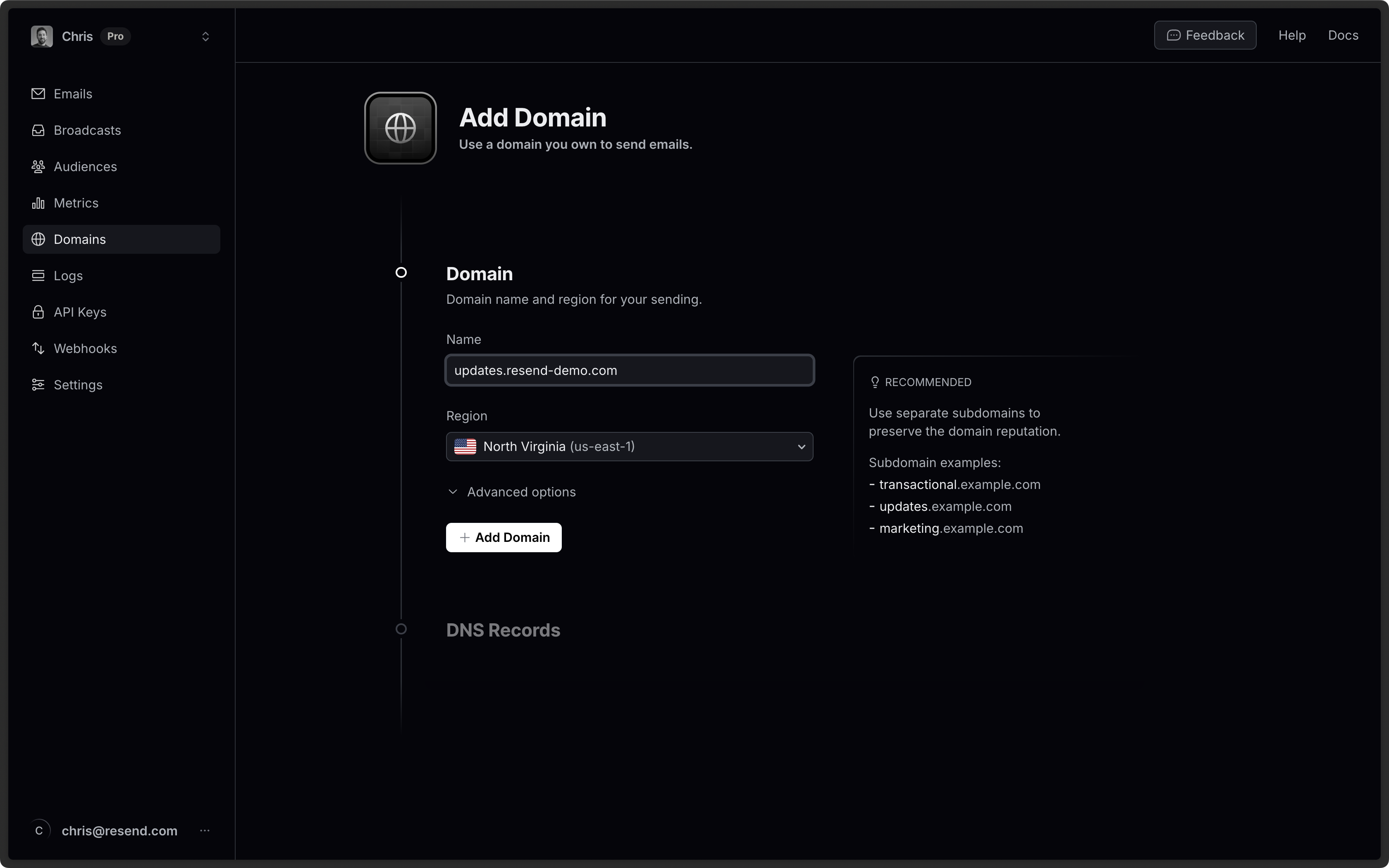 It is [best practice to use a
subdomain](/knowledge-base/is-it-better-to-send-emails-from-a-subdomain-or-the-root-domain)
(updates.example.com) instead of the root domain (example.com). Using a
subdomain allows for proper reputation segmentation based on topics or purpose
(e.g. marketing) and is especially important if receiving emails with Resend.
## Log in to Hetzner Console
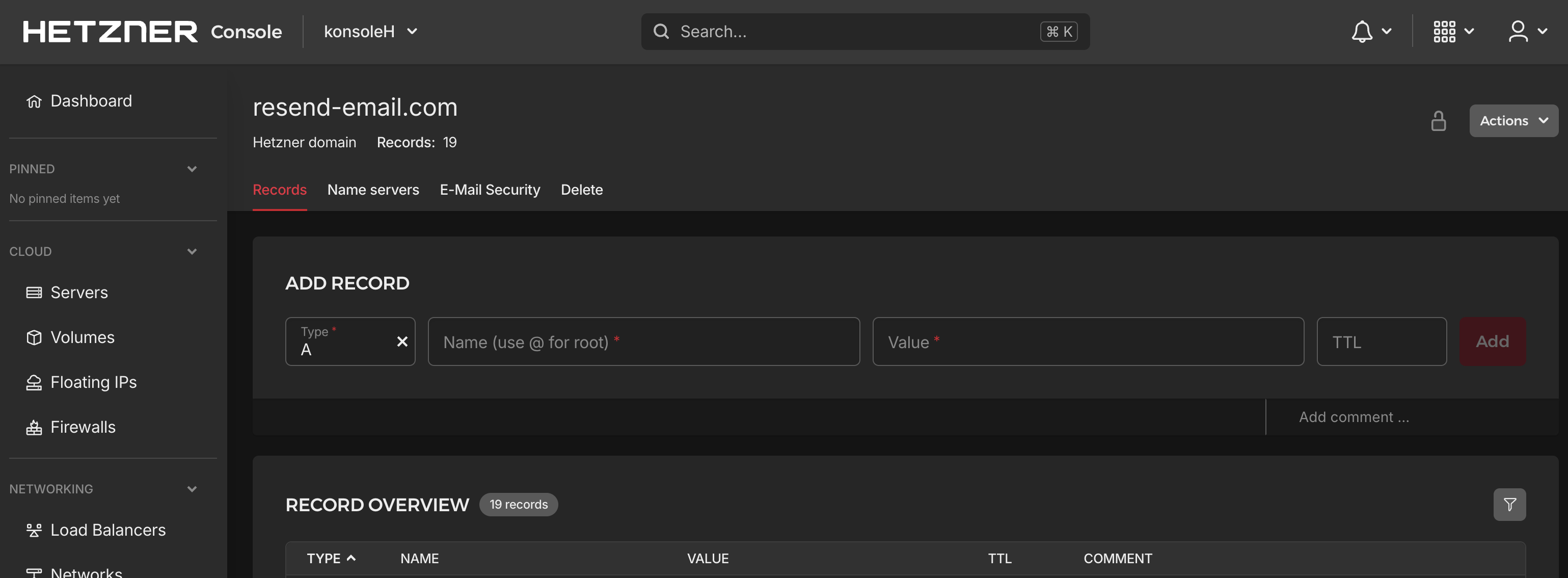
This section covers accessing the new Hetzner Console for managing DNS records. If your domain is still using the legacy Hetzner DNS console, please skip to the [Log in to Hetzner DNS Console](#log-in-to-hetzner-dns-console) section below.
Log in to [Hetzner Console](https://console.hetzner.com/):
1. Choose your project from the `Projects` list.
2. Click on the `DNS` link from the `Networking` section of the side navigation.
3. Choose your Domain from the `DNS zones` list.
It is [best practice to use a
subdomain](/knowledge-base/is-it-better-to-send-emails-from-a-subdomain-or-the-root-domain)
(updates.example.com) instead of the root domain (example.com). Using a
subdomain allows for proper reputation segmentation based on topics or purpose
(e.g. marketing) and is especially important if receiving emails with Resend.
## Log in to Hetzner Console
This section covers accessing the new Hetzner Console for managing DNS records. If your domain is still using the legacy Hetzner DNS console, please skip to the [Log in to Hetzner DNS Console](#log-in-to-hetzner-dns-console) section below.
Log in to [Hetzner Console](https://console.hetzner.com/):
1. Choose your project from the `Projects` list.
2. Click on the `DNS` link from the `Networking` section of the side navigation.
3. Choose your Domain from the `DNS zones` list.
 ## Log in to Hetzner DNS Console
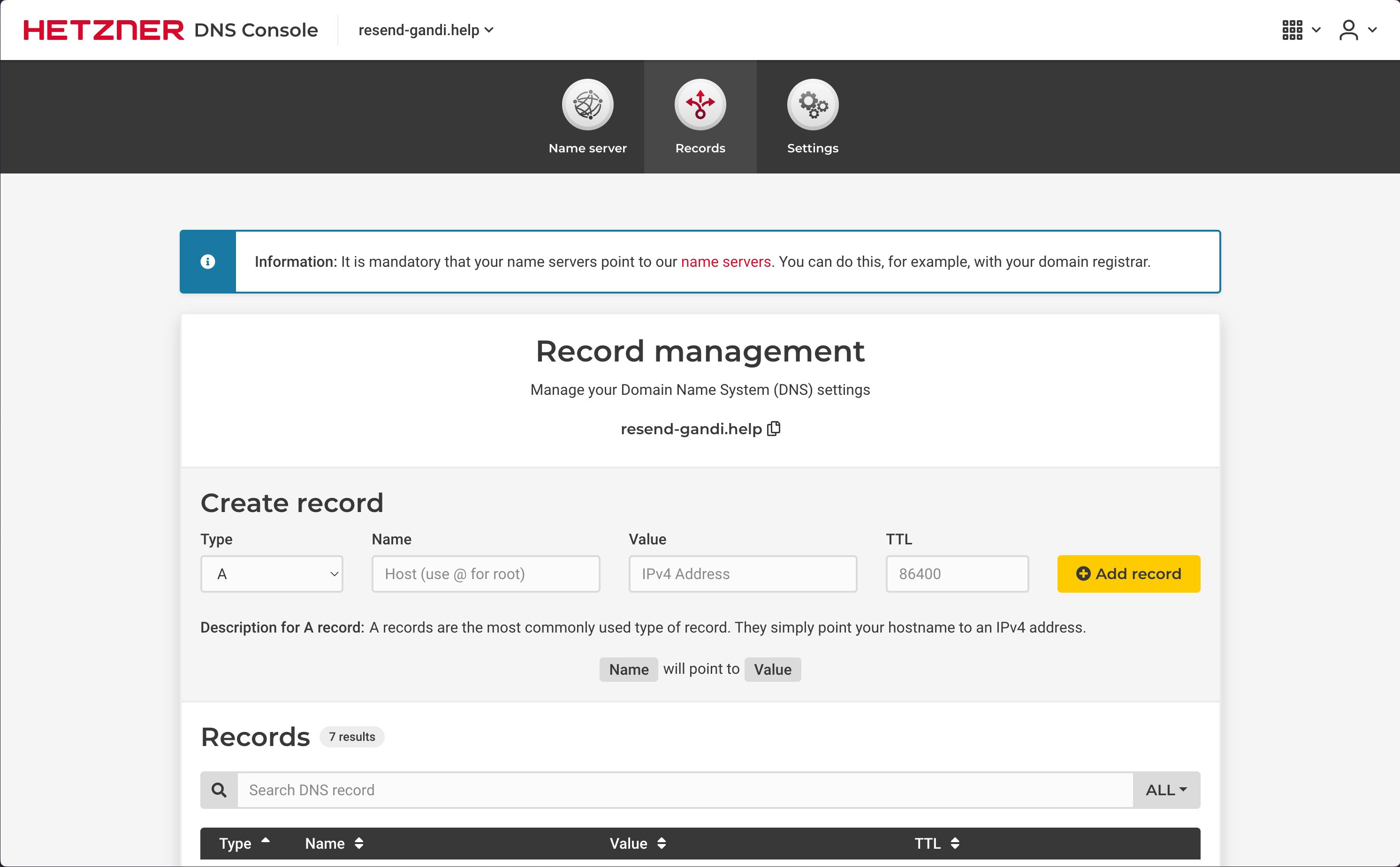
This section covers accessing the legacy Hetzner DNS Console. Hetzner recently created the new Hetzner Console for managing DNS records. If your domain is using the new Hetzner console, please go to the [Log in to Hetzner Console](#log-in-to-hetzner-console) section above then skip to the [Add MX SPF Record](#add-mx-spf-record) section.
Log in to [Hetzner DNS Console](https://dns.hetzner.com):
1. Choose your Domain from the `Your Zones` list.
2. Select the `Records` tab to get to the page to manage DNS records.
## Log in to Hetzner DNS Console
This section covers accessing the legacy Hetzner DNS Console. Hetzner recently created the new Hetzner Console for managing DNS records. If your domain is using the new Hetzner console, please go to the [Log in to Hetzner Console](#log-in-to-hetzner-console) section above then skip to the [Add MX SPF Record](#add-mx-spf-record) section.
Log in to [Hetzner DNS Console](https://dns.hetzner.com):
1. Choose your Domain from the `Your Zones` list.
2. Select the `Records` tab to get to the page to manage DNS records.
 ## Add MX SPF Record
In the `Add Record` section on Hetzner copy and paste the values MX from Resend:
1. For the `Type` field, choose `MX`.
2. For the `Name` field, type `send` (or `send.subdomain` if you're using a subdomain).
3. For the `Priority` field, set the value to `10`.
4. For the `Value` field, add the MX SPF Record `Content` from Resend.
5. For the `TTL` field, set the value to `1800`.
6. Select `Add`.
Hetzner requires your MX record to have a trailing period when adding. Resend
will include the trailing period when copying. Removing the period will cause
the verification to fail.
## Add MX SPF Record
In the `Add Record` section on Hetzner copy and paste the values MX from Resend:
1. For the `Type` field, choose `MX`.
2. For the `Name` field, type `send` (or `send.subdomain` if you're using a subdomain).
3. For the `Priority` field, set the value to `10`.
4. For the `Value` field, add the MX SPF Record `Content` from Resend.
5. For the `TTL` field, set the value to `1800`.
6. Select `Add`.
Hetzner requires your MX record to have a trailing period when adding. Resend
will include the trailing period when copying. Removing the period will cause
the verification to fail.
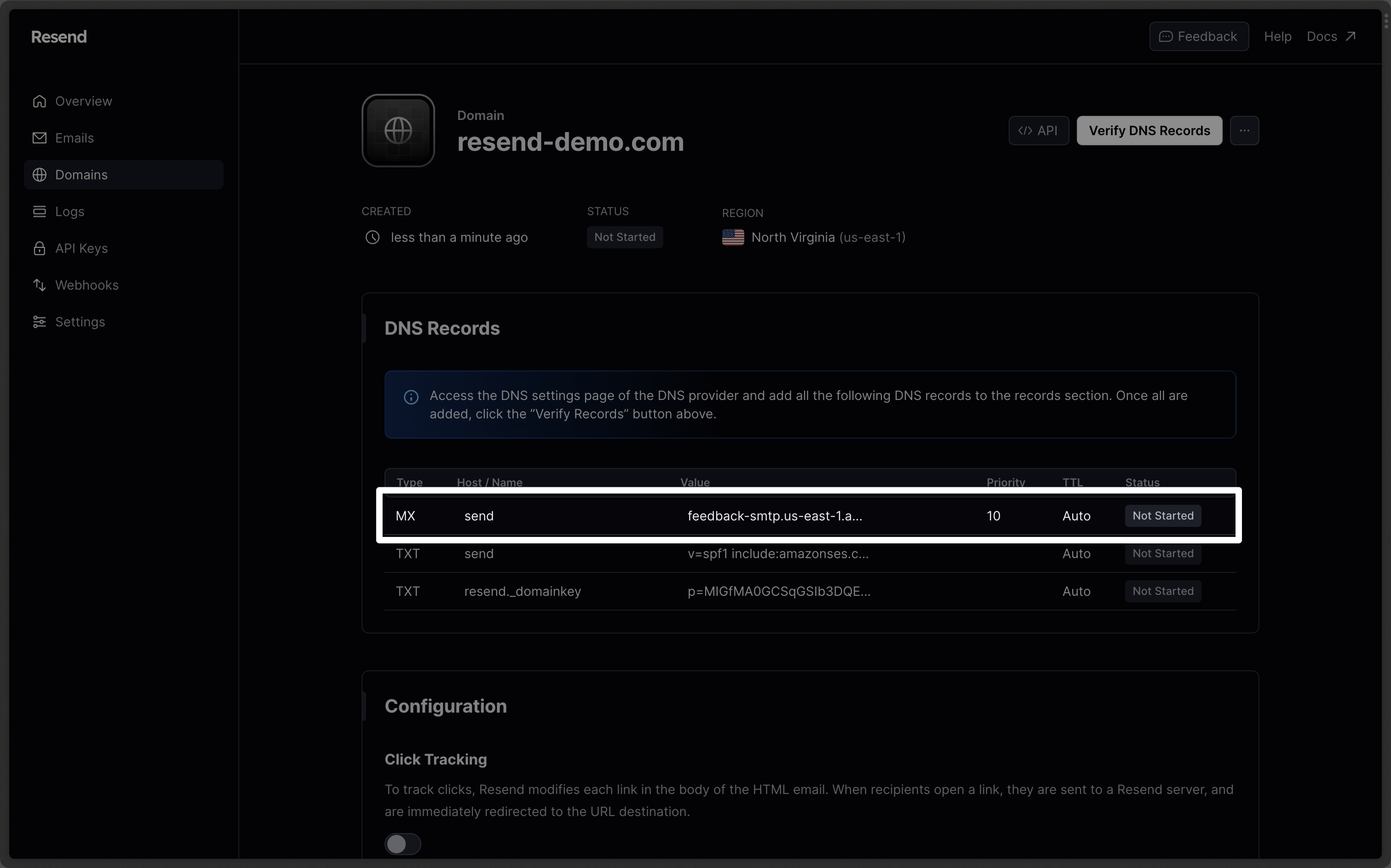
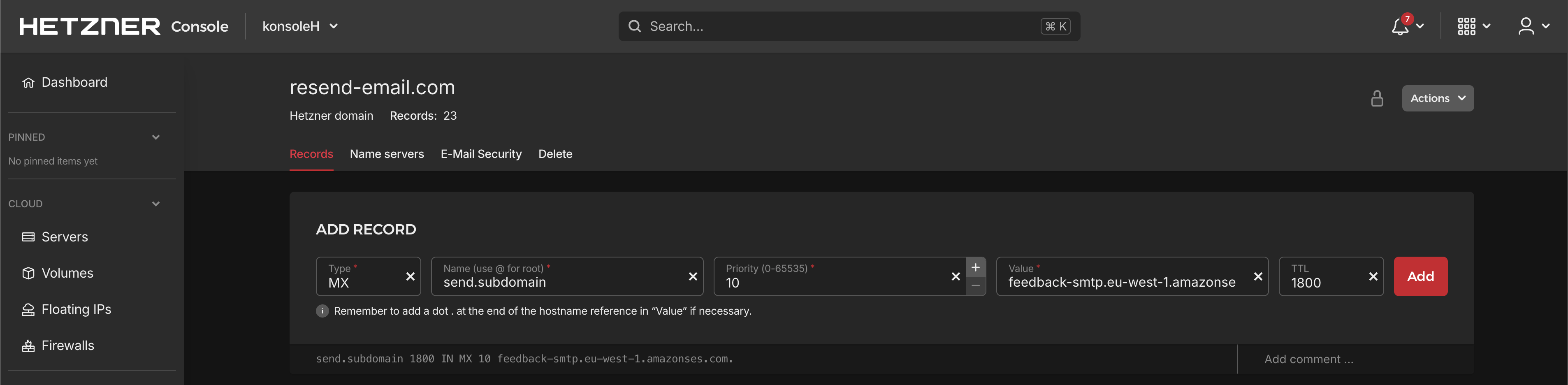 Below is a mapping of the record fields from Resend to Hetzner Console:
| Hetzner | Resend | Example Value |
| -------- | -------- | ---------------------------------------- |
| Type | Type | `MX Record` |
| Name | Name | `send.subdomain` |
| Value | Content | `feedback-smtp.us-east-1.amazonses.com.` |
| TTL | TTL | `1800` |
| Priority | Priority | `10` |
Do not use the same priority for multiple records. If Priority `10` is already
in use on another record, try a higher value `20` or `30`.
## Add TXT SPF Record
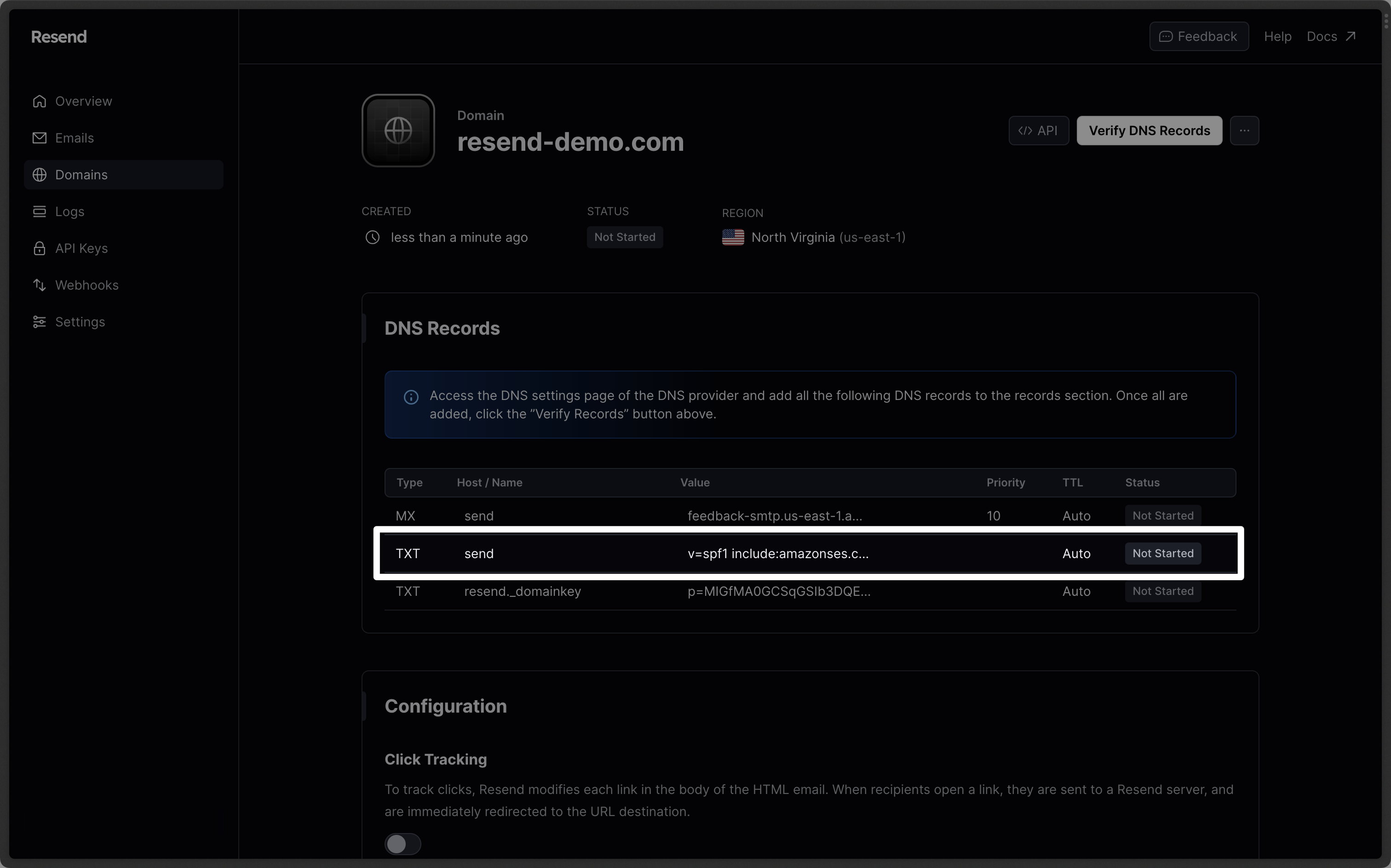
On the same `Add Record` section:
1. For the `Type` field, choose `TXT`.
2. For the `Name` field, type `send` (or `send.subdomain` if you're using a subdomain).
3. For the `Value` field, add the TXT SPF Record `Content` from Resend.
4. For the `TTL` field, set the value to `1800`.
5. Select `Add`.
Omit your domain from the record values in Resend when you paste. Instead of
`send.example.com`, paste only `send` (or `send.subdomain` if you're using a
subdomain).
Below is a mapping of the record fields from Resend to Hetzner Console:
| Hetzner | Resend | Example Value |
| -------- | -------- | ---------------------------------------- |
| Type | Type | `MX Record` |
| Name | Name | `send.subdomain` |
| Value | Content | `feedback-smtp.us-east-1.amazonses.com.` |
| TTL | TTL | `1800` |
| Priority | Priority | `10` |
Do not use the same priority for multiple records. If Priority `10` is already
in use on another record, try a higher value `20` or `30`.
## Add TXT SPF Record
On the same `Add Record` section:
1. For the `Type` field, choose `TXT`.
2. For the `Name` field, type `send` (or `send.subdomain` if you're using a subdomain).
3. For the `Value` field, add the TXT SPF Record `Content` from Resend.
4. For the `TTL` field, set the value to `1800`.
5. Select `Add`.
Omit your domain from the record values in Resend when you paste. Instead of
`send.example.com`, paste only `send` (or `send.subdomain` if you're using a
subdomain).
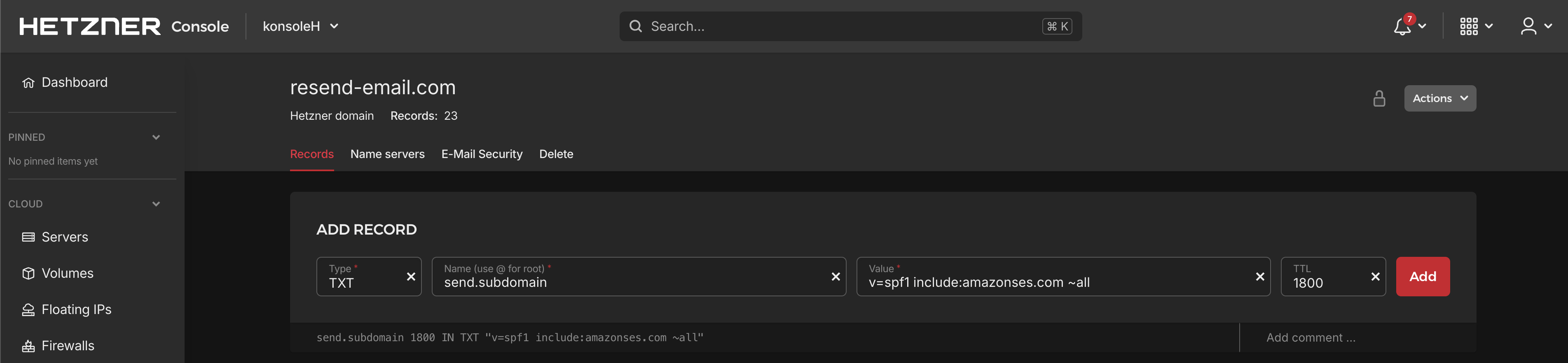 Below is a mapping of the record fields from Resend to Hetzner:
| Hetzner | Resend | Example Value |
| ------- | ------- | ------------------------------------- |
| Type | Type | `TXT Record` |
| Name | Name | `send.subdomain` |
| Value | Content | `"v=spf1 include:amazonses.com ~all"` |
| TTL | TTL | `10800` |
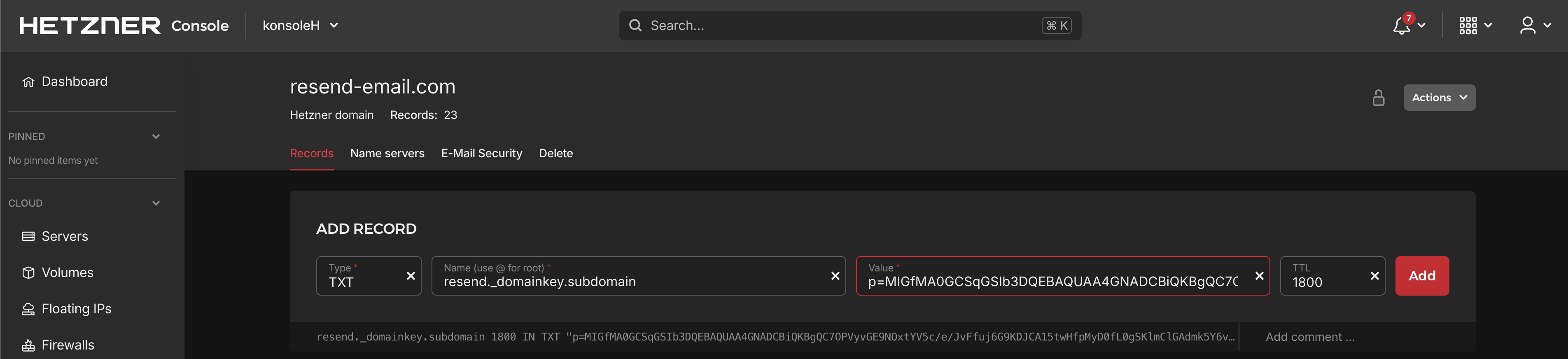
## Add TXT DKIM Records
On the same `Add Record` section:
1. For the `Type` field, choose `TXT`.
2. For the `Name` field, type `resend._domainkey` (or `resend._domainkey.subdomain` if you're using a subdomain).
3. For the `Value` field, add the TXT DKIM Record `Content` from Resend.
4. For the `TTL` field, set the value to `1800`.
5. Select `Add`.
Omit your domain from the record values in Resend when you paste. Instead of
`resend._domainkey.example.com`, paste only `resend._domainkey` (or
`resend._domainkey.subdomain` if you're using a subdomain).
Below is a mapping of the record fields from Resend to Hetzner:
| Hetzner | Resend | Example Value |
| ------- | ------- | ------------------------------------- |
| Type | Type | `TXT Record` |
| Name | Name | `send.subdomain` |
| Value | Content | `"v=spf1 include:amazonses.com ~all"` |
| TTL | TTL | `10800` |
## Add TXT DKIM Records
On the same `Add Record` section:
1. For the `Type` field, choose `TXT`.
2. For the `Name` field, type `resend._domainkey` (or `resend._domainkey.subdomain` if you're using a subdomain).
3. For the `Value` field, add the TXT DKIM Record `Content` from Resend.
4. For the `TTL` field, set the value to `1800`.
5. Select `Add`.
Omit your domain from the record values in Resend when you paste. Instead of
`resend._domainkey.example.com`, paste only `resend._domainkey` (or
`resend._domainkey.subdomain` if you're using a subdomain).
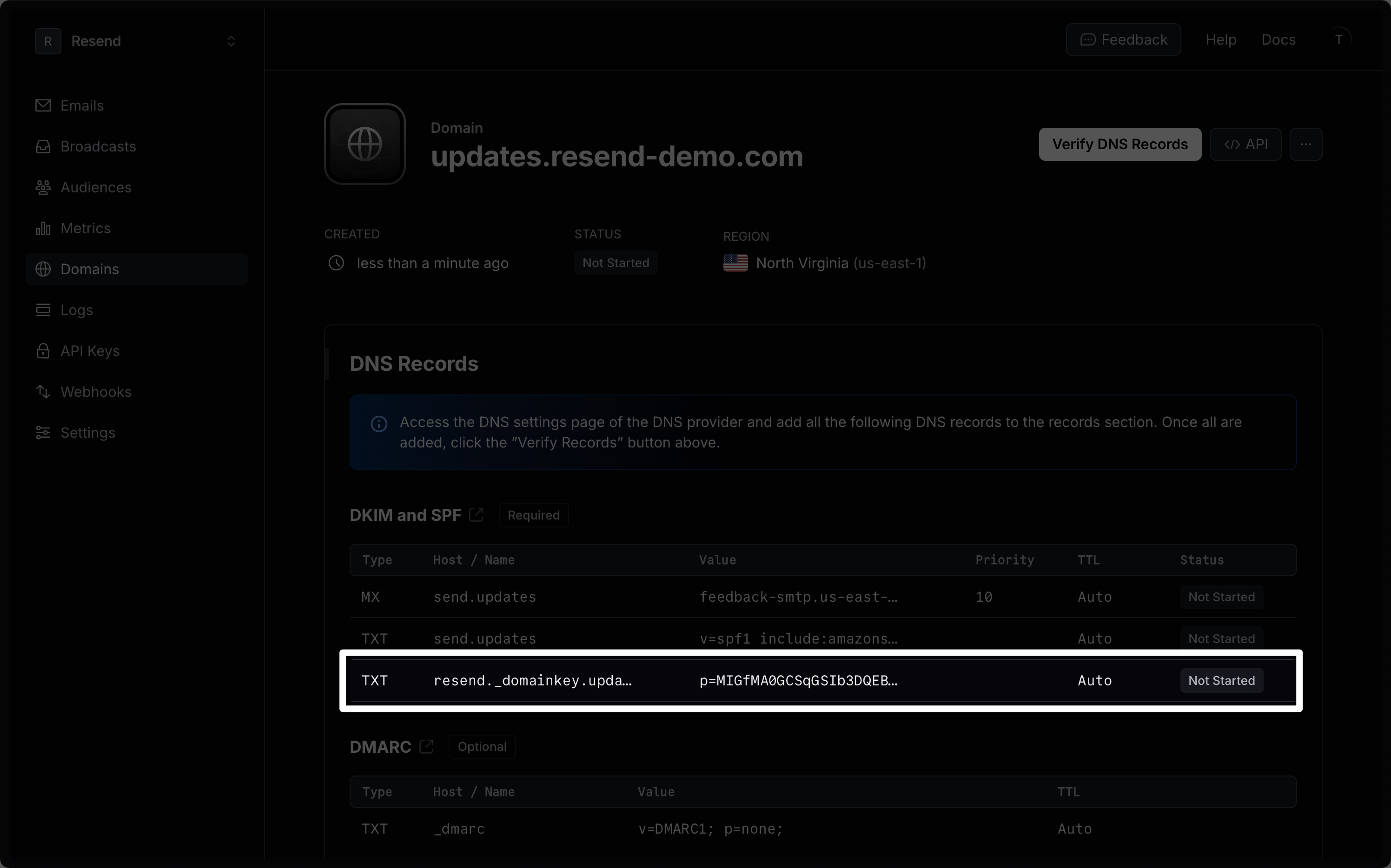
 Below is a mapping of the record fields from Resend to Hetzner:
| Hetzner | Resend | Example Value |
| ------- | ------- | ---------------------------- |
| Type | Type | `TXT Record` |
| Name | Name | `send.subdomain` |
| Value | Content | `p=example_domain_key_value` |
| TTL | TTL | `1 hour` |
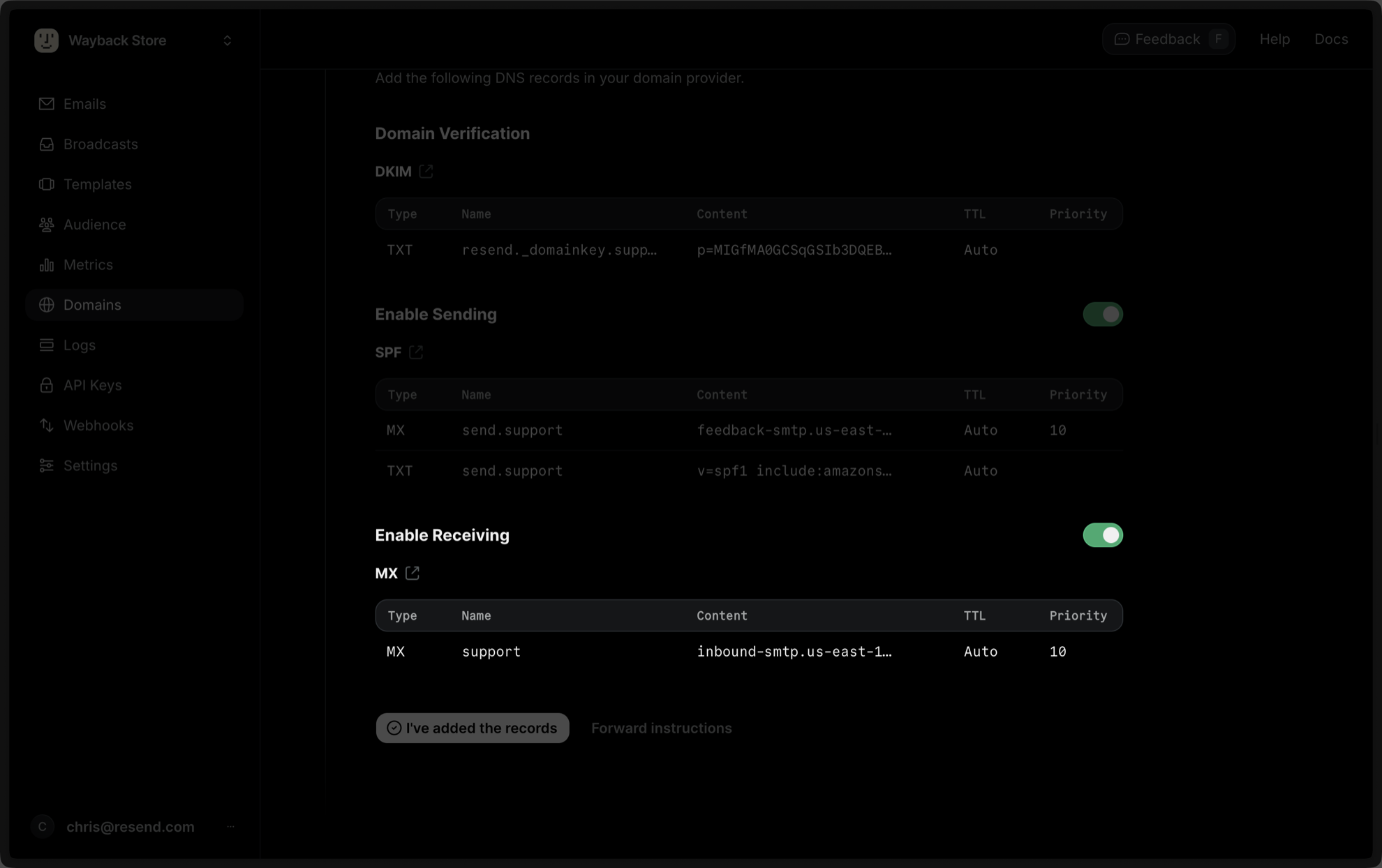
## Receiving Emails
If you want to receive emails at your domain, toggle the "Receiving" switch on the domain details page.
Below is a mapping of the record fields from Resend to Hetzner:
| Hetzner | Resend | Example Value |
| ------- | ------- | ---------------------------- |
| Type | Type | `TXT Record` |
| Name | Name | `send.subdomain` |
| Value | Content | `p=example_domain_key_value` |
| TTL | TTL | `1 hour` |
## Receiving Emails
If you want to receive emails at your domain, toggle the "Receiving" switch on the domain details page.
 When you enable Inbound on a domain, Resend receives *all emails* sent to that
specific domain depending on the priority of the MX record. For this reason,
we strongly recommend verifying a subdomain (`subdomain.example.com`) instead
of the root domain (`example.com`). Learn more about [avoiding conflicts with
your existing MX
records](/knowledge-base/how-do-i-avoid-conflicting-with-my-mx-records).
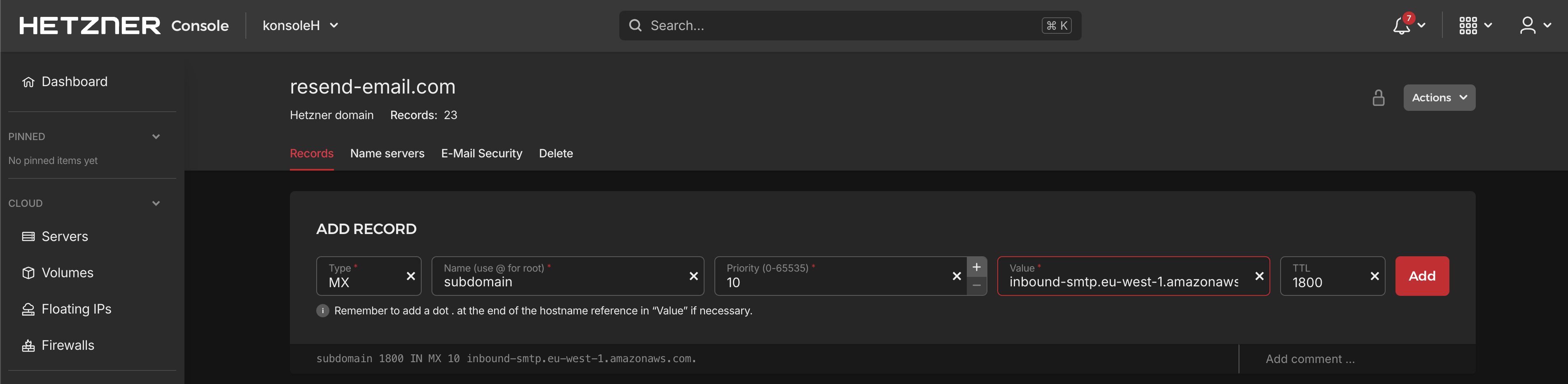
In the `Add Record` section on Hetzner:
1. For the `Type` field, choose `MX`.
2. For the `Name` field, type `@` for the base domain or the name of the subdomain if you're using a subdomain.
3. For the `Priority` field, set the value to `10`.
4. For the `Value` field, add the Receiving MX Record `Content` from Resend.
5. For the `TTL` field, set the value to `1800`.
6. Select `Add`.
Below is a mapping of the record fields from Resend to Hetzner:
| Hetzner | Resend | Example Value |
| ----------- | -------- | --------------------------------------- |
| Type | Type | `MX Record` |
| Name | Name | `subdomain` |
| Mail server | Content | `inbound-smtp.us-east-1.amazonaws.com.` |
| TTL | TTL | `1800` |
| Priority | Priority | `10` |
After verifying your domain, create a webhook to process incoming emails. For help setting up a webhook, how to access email data and attachments, forward emails, and more, see [our guide on receiving emails with Resend](/dashboard/receiving/introduction).
## Complete Verification
Now click [Verify DNS Records](https://resend.com/domains) on your Domain in Resend. It may take a few hours to complete the verification process (often much faster).
## Troubleshooting
If your domain is not successfully verified, these are some common troubleshooting methods.
Review the records you added to Hetzner to rule out copy and paste errors.
[Review our guide on a domain not verifying](/knowledge-base/what-if-my-domain-is-not-verifying).
When you enable Inbound on a domain, Resend receives *all emails* sent to that
specific domain depending on the priority of the MX record. For this reason,
we strongly recommend verifying a subdomain (`subdomain.example.com`) instead
of the root domain (`example.com`). Learn more about [avoiding conflicts with
your existing MX
records](/knowledge-base/how-do-i-avoid-conflicting-with-my-mx-records).
In the `Add Record` section on Hetzner:
1. For the `Type` field, choose `MX`.
2. For the `Name` field, type `@` for the base domain or the name of the subdomain if you're using a subdomain.
3. For the `Priority` field, set the value to `10`.
4. For the `Value` field, add the Receiving MX Record `Content` from Resend.
5. For the `TTL` field, set the value to `1800`.
6. Select `Add`.
Below is a mapping of the record fields from Resend to Hetzner:
| Hetzner | Resend | Example Value |
| ----------- | -------- | --------------------------------------- |
| Type | Type | `MX Record` |
| Name | Name | `subdomain` |
| Mail server | Content | `inbound-smtp.us-east-1.amazonaws.com.` |
| TTL | TTL | `1800` |
| Priority | Priority | `10` |
After verifying your domain, create a webhook to process incoming emails. For help setting up a webhook, how to access email data and attachments, forward emails, and more, see [our guide on receiving emails with Resend](/dashboard/receiving/introduction).
## Complete Verification
Now click [Verify DNS Records](https://resend.com/domains) on your Domain in Resend. It may take a few hours to complete the verification process (often much faster).
## Troubleshooting
If your domain is not successfully verified, these are some common troubleshooting methods.
Review the records you added to Hetzner to rule out copy and paste errors.
[Review our guide on a domain not verifying](/knowledge-base/what-if-my-domain-is-not-verifying).