> ## Documentation Index
> Fetch the complete documentation index at: https://resend.com/docs/llms.txt
> Use this file to discover all available pages before exploring further.
# Turn Paper designs into Resend emails
> Learn how to combine the Paper MCP server and the Resend MCP server so your agent can turn a Paper design into a template or broadcast in your Resend account.
[Paper](https://paper.design) is a design tool built for AI agents. Its MCP server lets agents read your canvas, including layout, styles, copy, and screenshots. Combined with the [Resend MCP server](/mcp-server), your agent can take a design straight from Paper and turn it into a ready-to-send [Template](/dashboard/templates/introduction) or [Broadcast](/dashboard/broadcasts/introduction) in your Resend account.
The flow looks like this:
1. You design an email in Paper.
2. Your agent reads the design through the Paper MCP server.
3. Your agent converts the design into email-safe HTML using the [Resend MCP server](/mcp-server) and [agent skills](/resend-skill).
4. Your agent creates a Template or Broadcast in Resend
## Prerequisites
Before you start, make sure you have:
* The [Paper Desktop app](https://paper.design/downloads) installed with a file open (opening a file starts the Paper MCP server automatically)
* A Resend [API key](/create-an-api-key)
* A [verified domain](/add-a-domain)
* An MCP client like Claude Code, Cursor, or Claude Desktop
[See a full example](#example-end-to-end-prompt) for a complete end-to-end
prompt.
## 1. Connect the Paper MCP server
Paper Desktop runs a local MCP server at `http://127.0.0.1:29979/mcp` whenever a file is open.
Install the official Paper plugin (recommended):
```bash theme={"theme":{"light":"github-light","dark":"vesper"}}
/plugin marketplace add paper-design/agent-plugins
/plugin install paper-desktop@paper
```
Or add the MCP server directly:
```bash theme={"theme":{"light":"github-light","dark":"vesper"}}
claude mcp add paper --transport http http://127.0.0.1:29979/mcp --scope user
```
Install the official Paper plugin (recommended):
```bash theme={"theme":{"light":"github-light","dark":"vesper"}}
codex plugin marketplace add paper-design/agent-plugins
/plugins
```
Select the `paper-design/agent-plugins` marketplace and install the `paper-desktop` plugin.
Run `/add-plugin paper-desktop` in the agent panel, or search for "Paper" in the [Cursor Marketplace](https://cursor.com/marketplace/paper).
Open Claude Desktop settings > "Developer" tab > "Edit Config".
```json theme={"theme":{"light":"github-light","dark":"vesper"}}
{
"mcpServers": {
"paper": {
"command": "npx",
"args": ["mcp-remote", "http://127.0.0.1:29979/mcp"]
}
}
}
```
See the [Paper MCP docs](https://paper.design/docs/mcp) for other clients.
## 2. Connect the Resend MCP server
```bash theme={"theme":{"light":"github-light","dark":"vesper"}}
claude mcp add resend -e RESEND_API_KEY=re_xxxxxxxxx -- npx -y resend-mcp
```
```bash theme={"theme":{"light":"github-light","dark":"vesper"}}
codex mcp add resend \
--env RESEND_API_KEY=re_xxxxxxxxx \
-- npx -y resend-mcp
```
Open the command palette and choose "Cursor Settings" > "MCP" > "Add new global MCP server".
```json theme={"theme":{"light":"github-light","dark":"vesper"}}
{
"mcpServers": {
"resend": {
"command": "npx",
"args": ["-y", "resend-mcp"],
"env": {
"RESEND_API_KEY": "re_xxxxxxxxx"
}
}
}
}
```
Open Claude Desktop settings > "Developer" tab > "Edit Config".
```json theme={"theme":{"light":"github-light","dark":"vesper"}}
{
"mcpServers": {
"resend": {
"command": "npx",
"args": ["-y", "resend-mcp"],
"env": {
"RESEND_API_KEY": "re_xxxxxxxxx"
}
}
}
}
```
For more clients and configuration options, see the [MCP Server overview](/mcp-server).
## 3. Design your email in Paper
Design your email as an artboard in Paper. A few tips for designs that translate well to email:
* Use a single-column layout around 600px wide.
* Use real copy instead of placeholder text.
* Use web-safe fonts like `System Sans-Serif` or `System Serif`.
* Use PNG or JPG images instead of SVGs (not supported in email).
Where you want personalization, write the variable directly into the design
copy, like `Hi {{{NAME|there}}}`. Your agent will preserve it when
creating the template or broadcast.
## 4. Ask your agent to create an email
You can create either a [Template](/dashboard/templates/introduction) or a [Broadcast](/dashboard/broadcasts/introduction).
### Create a Template
Select an artboard in Paper and with both servers connected, prompt your agent with the following:
```text theme={"theme":{"light":"github-light","dark":"vesper"}}
Look at the selected artboard in Paper and recreate it as an email template
in Resend. Convert the design to email-safe HTML (inline styles, table-based
layout) using the Resend agent skills. Provide a name, subject, and preview text for the template that fits the content. Publish the template.
```
Behind the scenes, the agent will:
1. Call Paper's `get_selection` and `get_screenshot` to see the design.
2. Call Paper's `get_jsx` or `get_computed_styles` to read the exact layout, colors, and copy.
3. Convert the output into email-safe HTML.
4. Call Resend's `create-template` with the HTML, name, and subject.
5. Call Resend's `publish-template` to make it available for sending.
Templates support variables using triple-brace syntax, like `{{{USERNAME}}}`. Once published, you can send the template via the [Emails API](/api-reference/emails/send-email) or the dashboard.
### Create a Broadcast
To go from design to a campaign instead:
```text theme={"theme":{"light":"github-light","dark":"vesper"}}
Look at the selected artboard in Paper and create a Resend broadcast from it.
Convert the design to email-safe HTML using the Resend agent skills. Provide a name, subject, and preview text for the template that fits the content. Create it as a
draft, don't send it yet.
```
The agent reads the design the same way, then calls Resend's `create-broadcast` with the HTML, sender, subject, and segment. You can review the draft in the [Resend dashboard](https://resend.com/broadcasts) before sending it yourself.
Before you can send a Broadcast, you must define which
[Segment](/dashboard/segments/introduction) should receive it. If you don't
have one yet, your agent can create one.
## 5. Refine in the visual editor
Templates and Broadcasts created by your agent are editable in the Resend dashboard. If you want your agent's content to be fully editable in the visual editor, ask it to use `compose-template` or `compose-broadcast` instead of raw HTML. You'll see the agent appear as a named avatar in the editor while it works, and you can hand-tune the result afterwards.
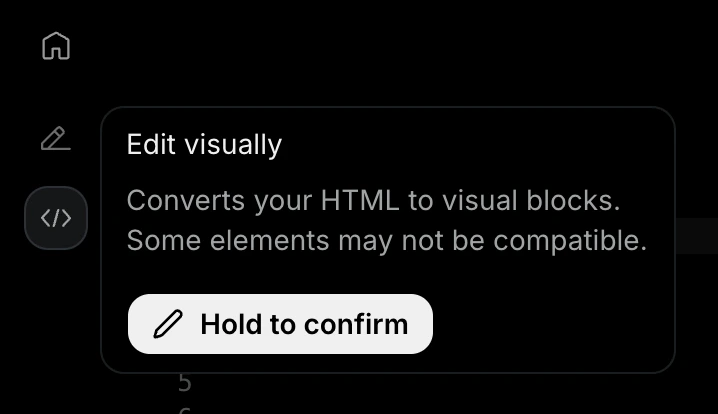 Alternatively, you can edit the Template or Broadcast in the Resend dashboard. Select the **Editor icon** in the top lefthand corner and **Hold to confirm** and convert the HTML to a visual template or broadcast.
## Example: end-to-end prompt
```text theme={"theme":{"light":"github-light","dark":"vesper"}}
1. Read the "Launch Announcement" artboard from Paper.
2. Convert it to an email-safe HTML email. Preserve the colors, spacing, and
copy as closely as email clients allow. Use the Resend agent skills.
3. Create it as a broadcast in Resend from announcements@example.com to the
"Customers" segment, subject "We just launched".
4. Show me a summary and the dashboard link, but do not send it.
```
## Troubleshooting
* **Agent can't reach Paper**: make sure Paper Desktop is running with a file open, then restart your agent session.
* **Design looks different in the email**: email clients don't support modern CSS. Ensure you've installed the Resend's [agent skills](/resend-skill). Then ask the agent to use table-based layout and inline styles, and to flag anything (like custom fonts or complex gradients) that won't survive the conversion.
* **`create-broadcast` fails**: check that the `from` address uses a [verified domain](https://resend.com/domains) and that the segment exists.
Alternatively, you can edit the Template or Broadcast in the Resend dashboard. Select the **Editor icon** in the top lefthand corner and **Hold to confirm** and convert the HTML to a visual template or broadcast.
## Example: end-to-end prompt
```text theme={"theme":{"light":"github-light","dark":"vesper"}}
1. Read the "Launch Announcement" artboard from Paper.
2. Convert it to an email-safe HTML email. Preserve the colors, spacing, and
copy as closely as email clients allow. Use the Resend agent skills.
3. Create it as a broadcast in Resend from announcements@example.com to the
"Customers" segment, subject "We just launched".
4. Show me a summary and the dashboard link, but do not send it.
```
## Troubleshooting
* **Agent can't reach Paper**: make sure Paper Desktop is running with a file open, then restart your agent session.
* **Design looks different in the email**: email clients don't support modern CSS. Ensure you've installed the Resend's [agent skills](/resend-skill). Then ask the agent to use table-based layout and inline styles, and to flag anything (like custom fonts or complex gradients) that won't survive the conversion.
* **`create-broadcast` fails**: check that the `from` address uses a [verified domain](https://resend.com/domains) and that the segment exists.