> ## Documentation Index
> Fetch the complete documentation index at: https://resend.com/docs/llms.txt
> Use this file to discover all available pages before exploring further.
# Send emails with Devin and Resend
> Learn how to install the Resend MCP server in Devin.ai so your agent can send emails, manage contacts, and run broadcasts.
[Devin](https://devin.ai) is an autonomous AI software engineer that can connect to external services through MCP (Model Context Protocol) servers. Adding Resend's MCP server gives Devin native access to send emails, manage contacts and broadcasts, verify domains, and more.
For the full list of capabilities, see the [MCP Server overview](/mcp-server).
## Prerequisites
Before you start, make sure you have:
* A Devin account with access to the Settings menu
* A Resend [API key](/create-an-api-key)
* A [verified domain](/add-a-domain)
## 1. Open Devin Settings
In Devin, open the **Settings** menu from your account dropdown.
## 2. Go to Connections > MCP Servers
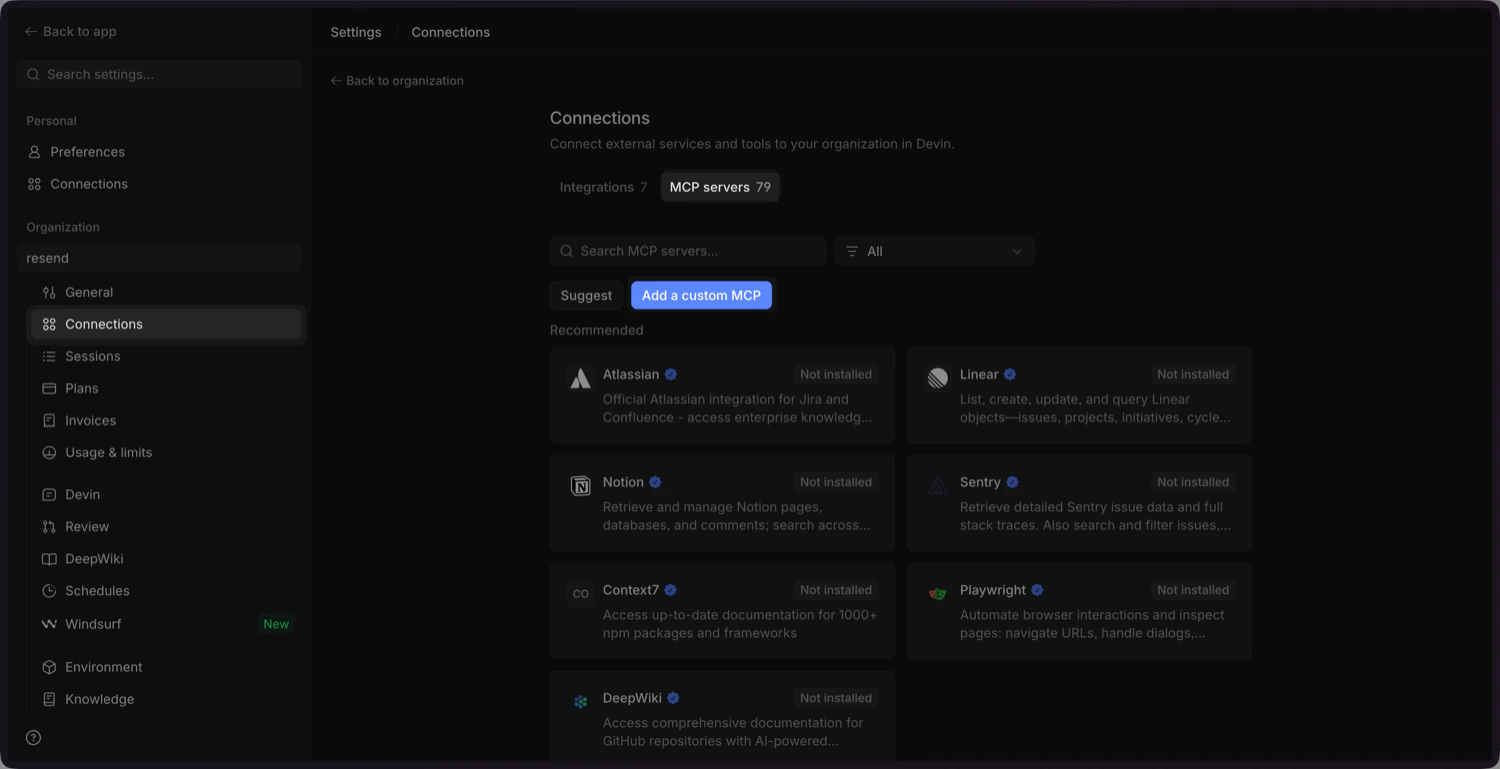
In the Settings sidebar, click **Connections**, then select the **MCP Servers** tab. Click **Add a custom MCP**.
 ## 3. Add the Resend MCP configuration
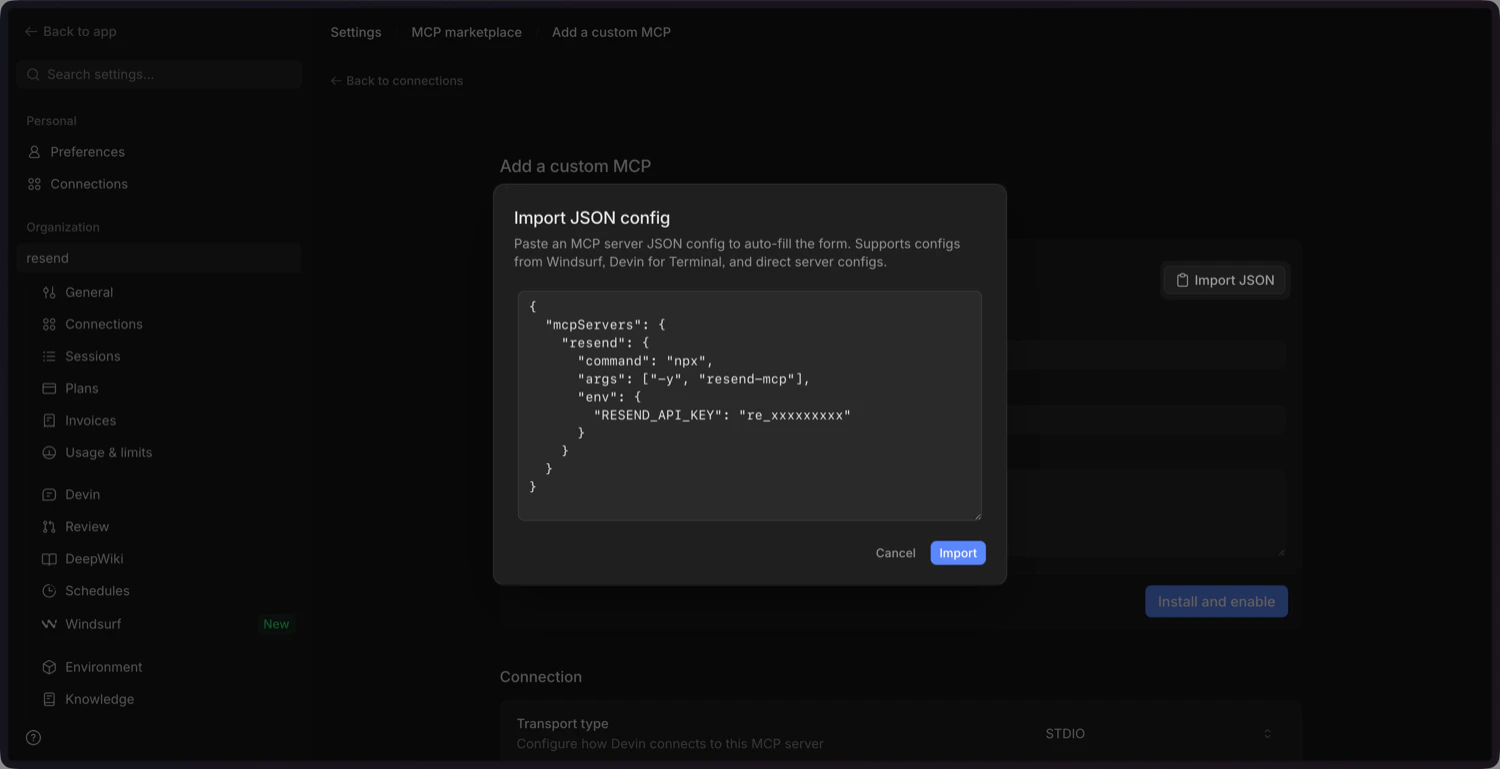
Click **Import JSON** and paste the following configuration into the modal.
```json theme={"theme":{"light":"github-light","dark":"vesper"}}
{
"mcpServers": {
"resend": {
"command": "npx",
"args": ["-y", "resend-mcp"],
"env": {
"RESEND_API_KEY": "re_xxxxxxxxx",
"SENDER_EMAIL_ADDRESS": "onboarding@resend.dev"
}
}
}
}
```
## 3. Add the Resend MCP configuration
Click **Import JSON** and paste the following configuration into the modal.
```json theme={"theme":{"light":"github-light","dark":"vesper"}}
{
"mcpServers": {
"resend": {
"command": "npx",
"args": ["-y", "resend-mcp"],
"env": {
"RESEND_API_KEY": "re_xxxxxxxxx",
"SENDER_EMAIL_ADDRESS": "onboarding@resend.dev"
}
}
}
}
```
 ## 4. Update the Environment Variables
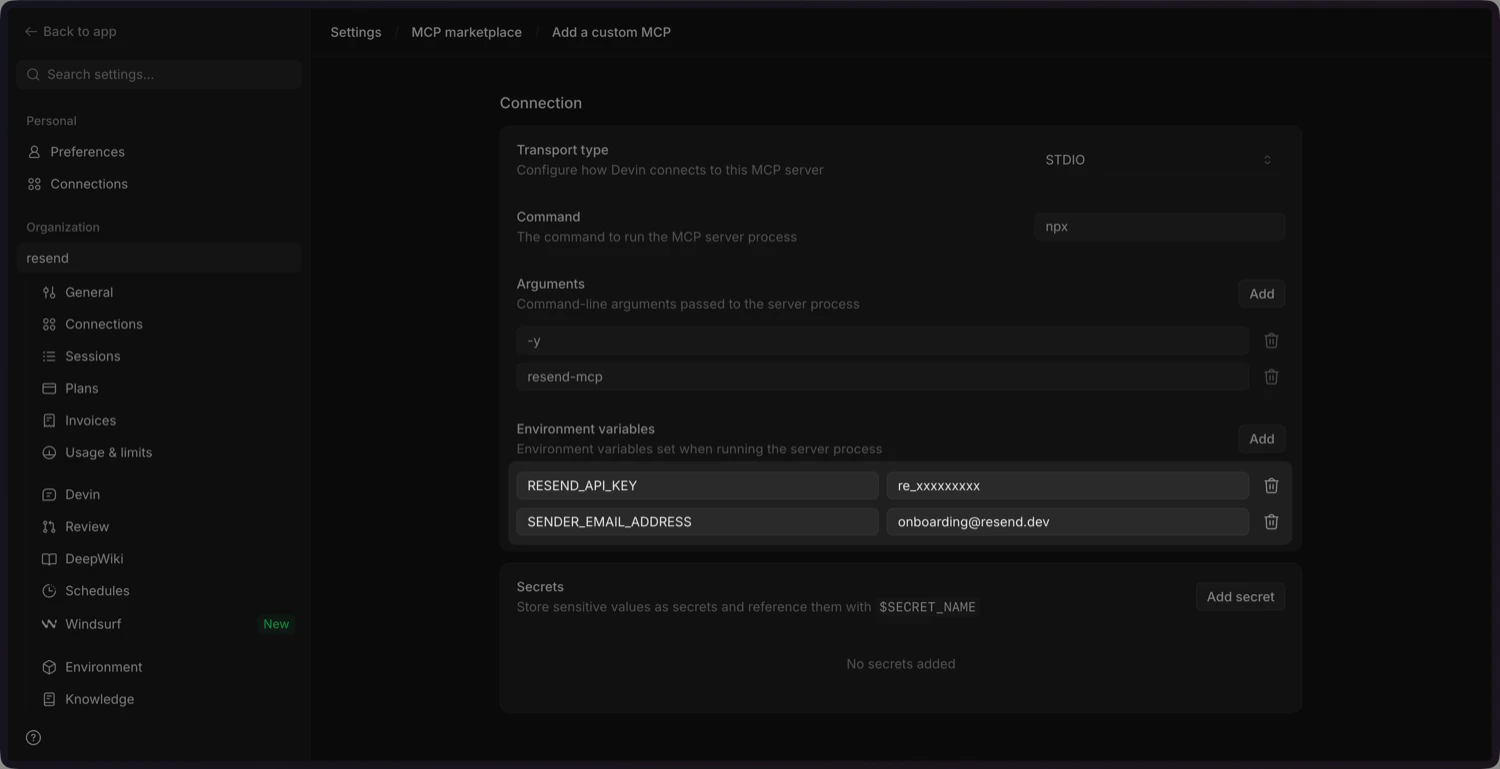
Scroll down and update the environment variables:
* `RESEND_API_KEY`: delete this and add it as a secret ([below](#5-add-the-resend-api-key-as-a-secret)).
* `SENDER_EMAIL_ADDRESS`: update this with your sender email address you've verified in the [Resend Dashboard](https://resend.com/domains).
## 4. Update the Environment Variables
Scroll down and update the environment variables:
* `RESEND_API_KEY`: delete this and add it as a secret ([below](#5-add-the-resend-api-key-as-a-secret)).
* `SENDER_EMAIL_ADDRESS`: update this with your sender email address you've verified in the [Resend Dashboard](https://resend.com/domains).
 ## 5. Add the Resend API key as a secret
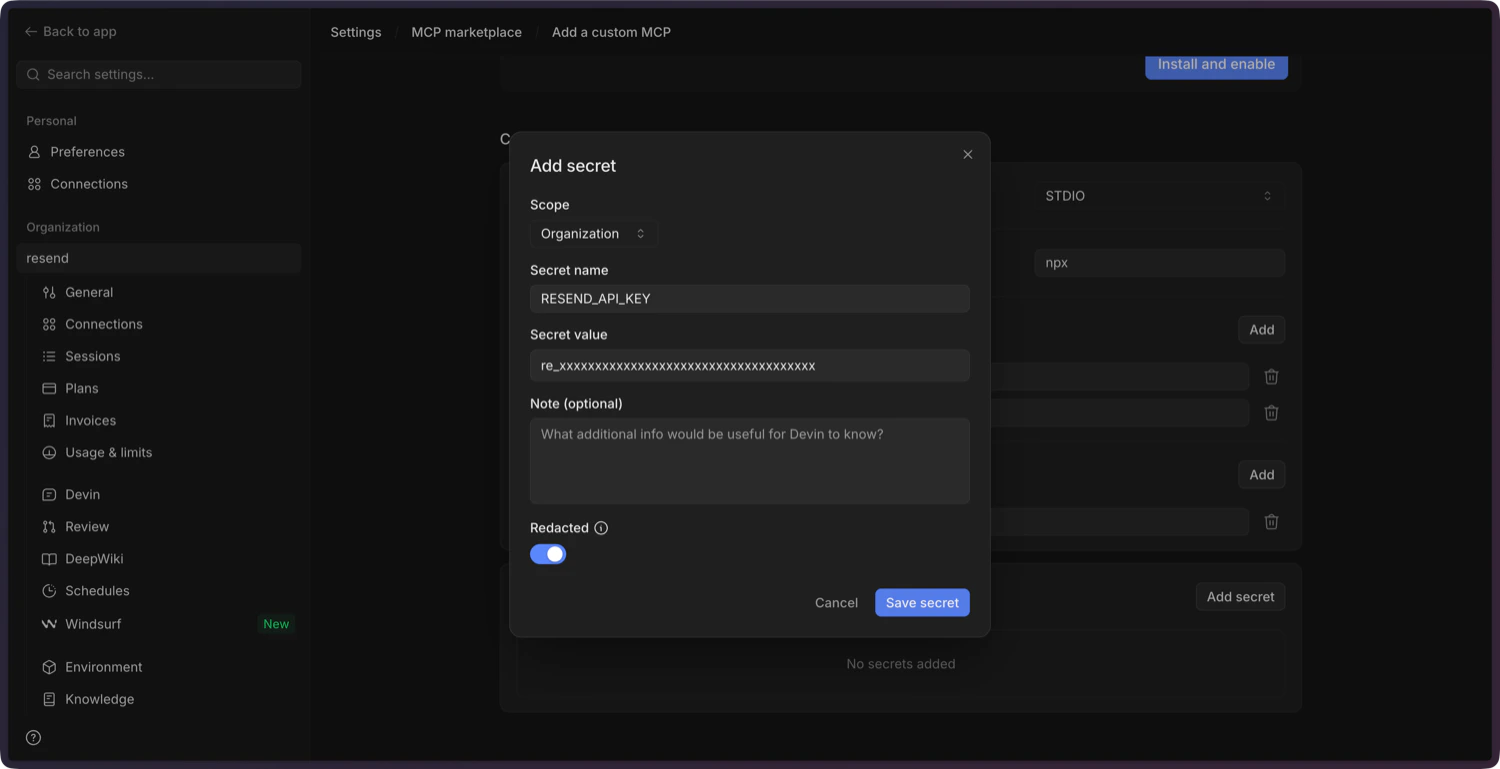
Add the `RESEND_API_KEY` as a secret. Click **Save secret** to confirm.
## 5. Add the Resend API key as a secret
Add the `RESEND_API_KEY` as a secret. Click **Save secret** to confirm.
 You can create a new API key in the [Resend
Dashboard](https://resend.com/api-keys).
## 6. Confirm and enable the MCP server
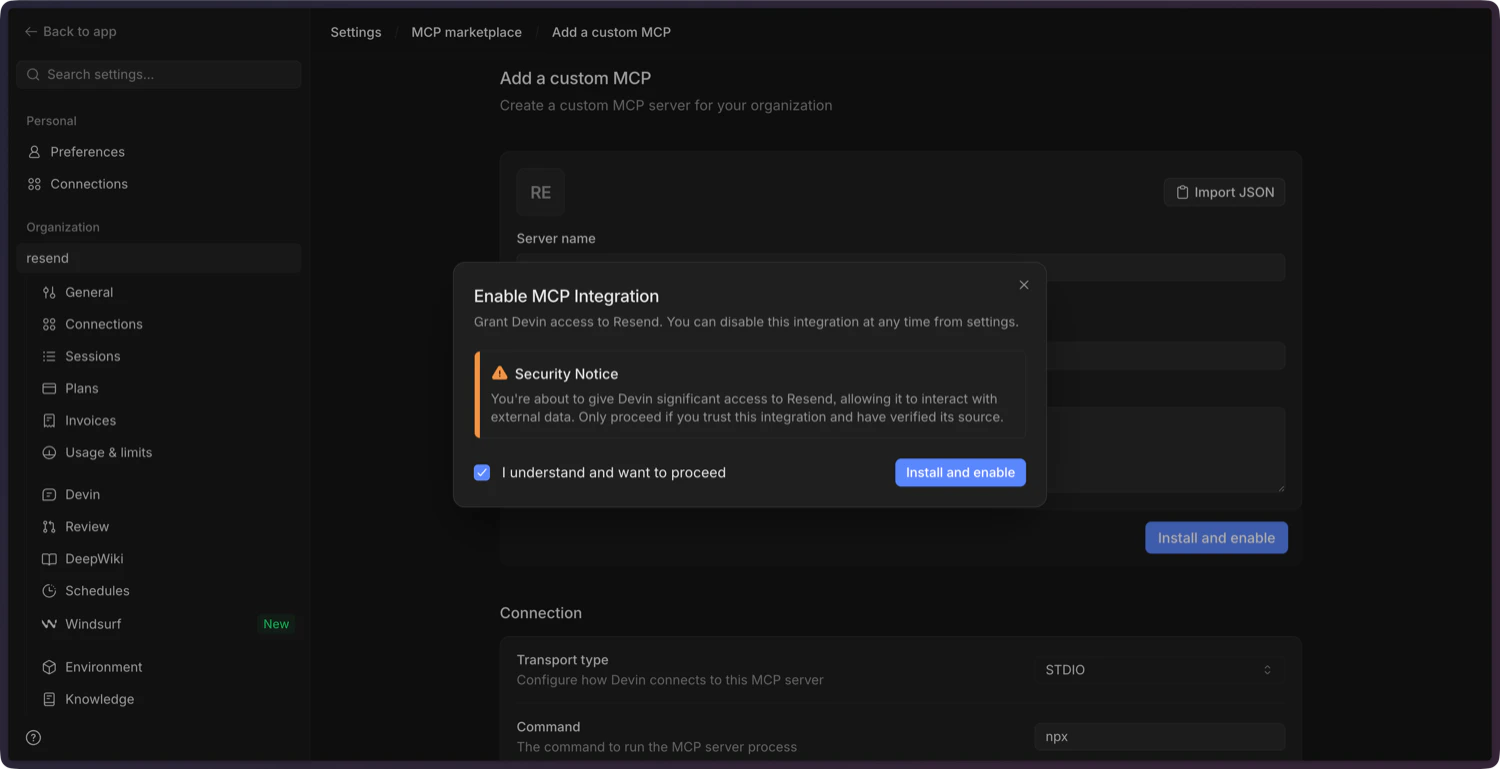
Add a description, click **Install and Enable**, and confirm in the dialog. Devin will install the server and mark it as connected.
You can create a new API key in the [Resend
Dashboard](https://resend.com/api-keys).
## 6. Confirm and enable the MCP server
Add a description, click **Install and Enable**, and confirm in the dialog. Devin will install the server and mark it as connected.
 ## 7. Test the connection
Ask Devin to send a test email. For example:
```text theme={"theme":{"light":"github-light","dark":"vesper"}}
Send a test email to delivered@resend.dev using the Resend MCP server. Subject: "Hello from Devin".
```
Devin will call the Resend MCP server and confirm the send.
## 7. Test the connection
Ask Devin to send a test email. For example:
```text theme={"theme":{"light":"github-light","dark":"vesper"}}
Send a test email to delivered@resend.dev using the Resend MCP server. Subject: "Hello from Devin".
```
Devin will call the Resend MCP server and confirm the send.