> ## Documentation Index
> Fetch the complete documentation index at: https://resend.com/docs/llms.txt
> Use this file to discover all available pages before exploring further.
# Resend Forge
> Send your email through Resend's new sending infrastructure.
Resend Forge is Resend's next-generation sending infrastructure.
It's faster than the old engine on every percentile and has best-in-class delivery rates. It also enables new features that aren't possible with the current infrastructure.
It's fully managed by Resend, using our own IPs and our own sending engine, with no third party in the middle. That gives us full visibility into every hop, so we can better help you with any deliverability or support request.
You can read the [full announcement](https://resend.com/features/forge) on our website.
Your domain keeps sending at all times while we verify the new DNS record, and
nothing else changes: your API calls, SMTP credentials, and webhooks all stay
the same.
## Activate Resend Forge
Activating Forge takes one CNAME record. No code changes, nothing to redeploy.
1. Go to [Domains](https://resend.com/domains) and select your domain.
2. Under **Configuration**, click **Activate Resend Forge**.
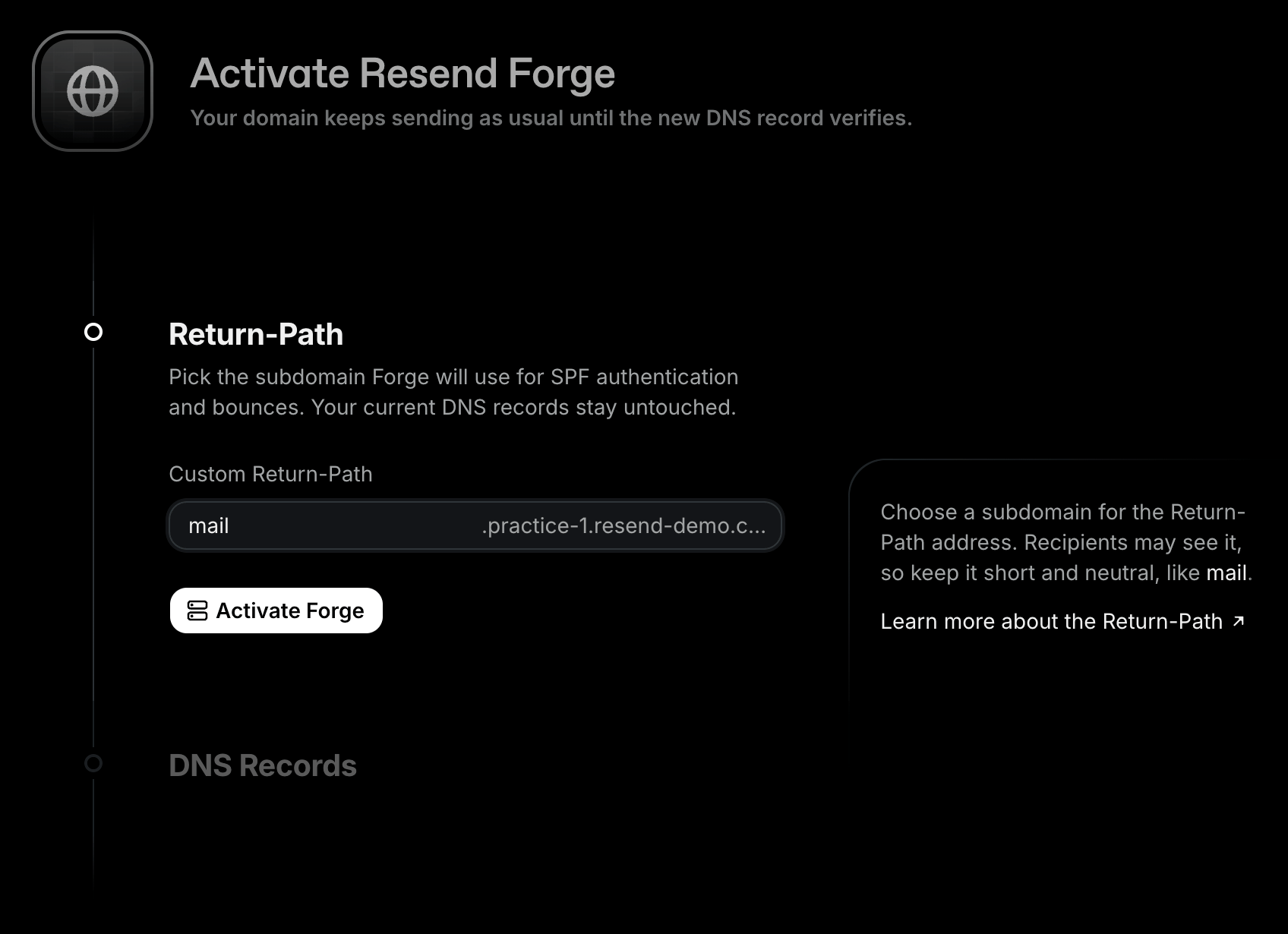
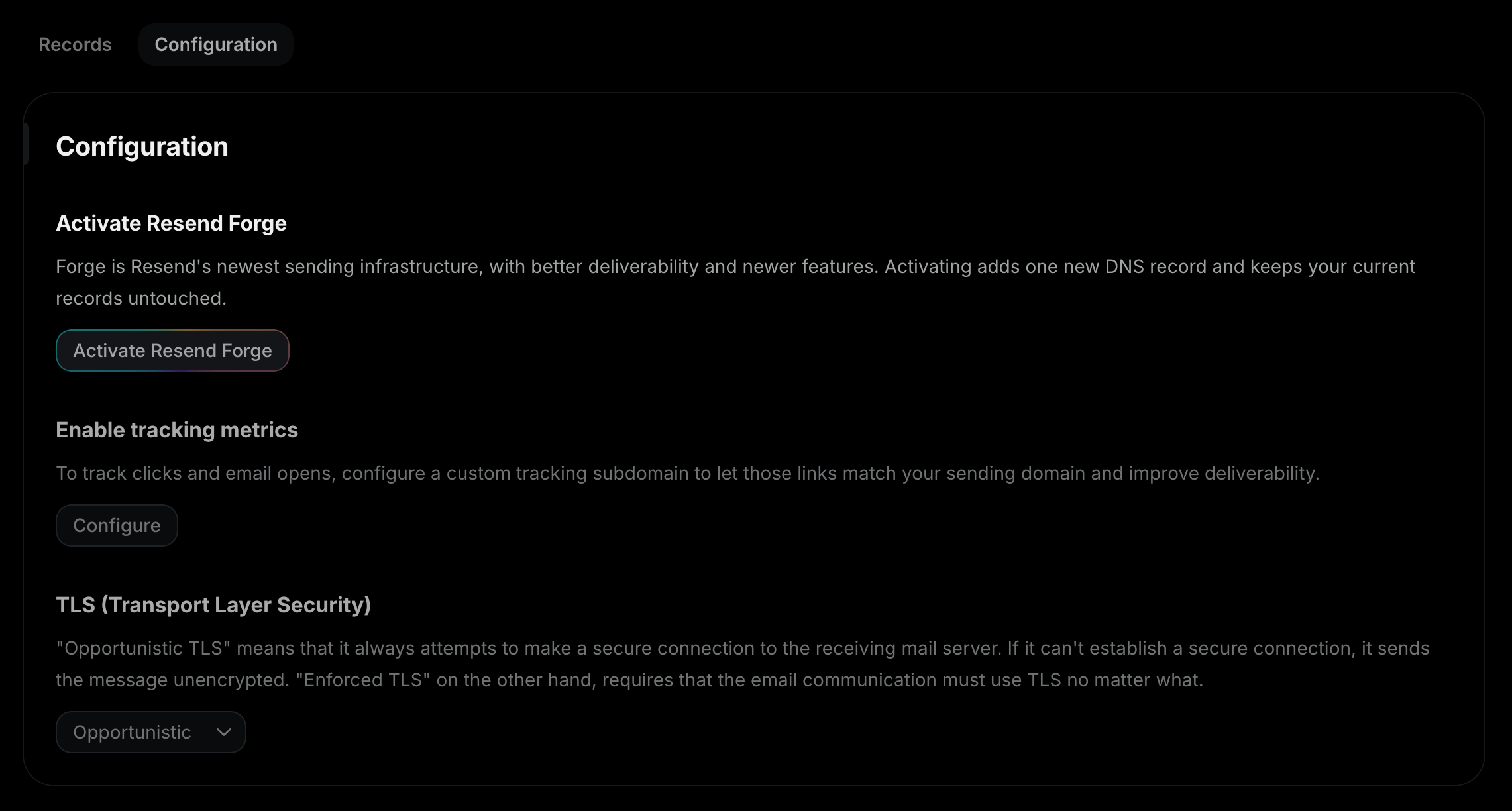 Forge uses a new subdomain as the Return-Path (e.g. `mail.yourdomain.com`).
We suggest an available one by default. You can type a different one, and the
field checks that the subdomain is free before you continue.
Click **Activate Forge**.
Forge uses a new subdomain as the Return-Path (e.g. `mail.yourdomain.com`).
We suggest an available one by default. You can type a different one, and the
field checks that the subdomain is free before you continue.
Click **Activate Forge**.
 If your DNS provider supports [Domain Connect](#domain-connect), click **Auto
configure** and authorize Resend to add the record for you. The domain
verifies on its own after that.
Otherwise, click **Manual setup** and add the CNAME record shown on the page
at your DNS provider, then click **I've added the records**. Your existing
DNS records stay untouched. Don't remove them.
If your DNS provider supports [Domain Connect](#domain-connect), click **Auto
configure** and authorize Resend to add the record for you. The domain
verifies on its own after that.
Otherwise, click **Manual setup** and add the CNAME record shown on the page
at your DNS provider, then click **I've added the records**. Your existing
DNS records stay untouched. Don't remove them.
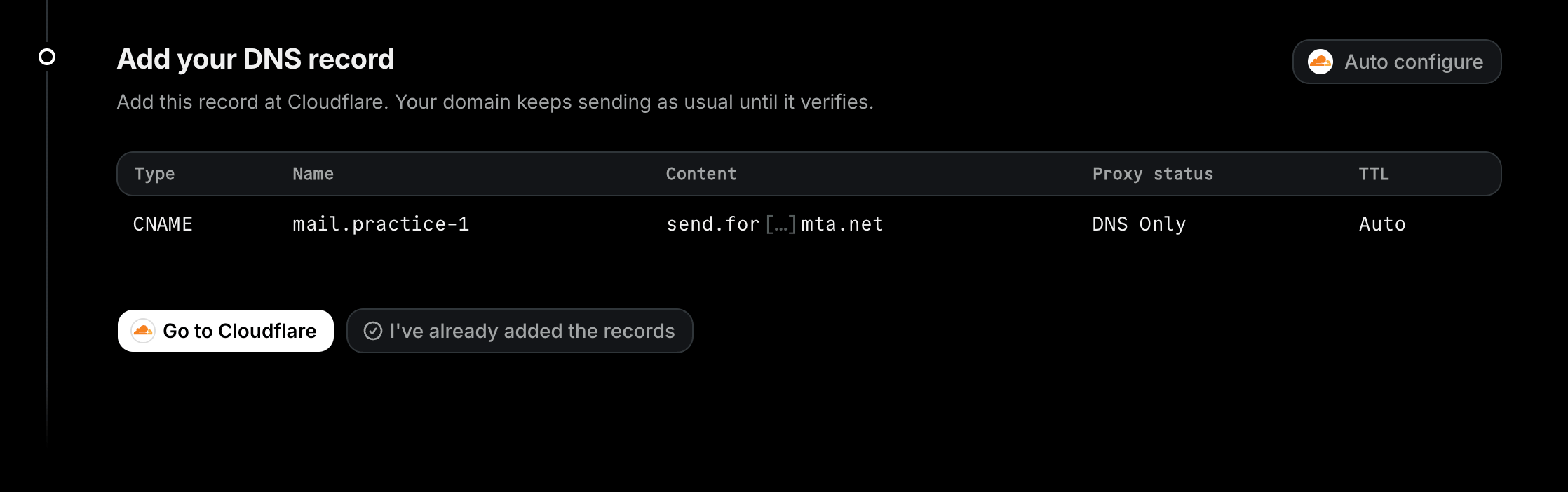 Pay attention to the record's proxy status. If you use Cloudflare, set the
record to **DNS only**, not proxied (the cloud icon is gray, not orange).
Proxied records don't resolve as CNAMEs, so verification will fail.
Once the record verifies, the Forge section of your domain's page shows an
**Enabled** tag and your email starts going through Forge. Your domain keeps
sending as usual until then.
## Domain Connect
[Domain Connect](https://www.domainconnect.org/) lets Resend add the Forge
record to your DNS for you. If your domain's DNS provider supports it, the DNS
Records step shows an **Auto configure** button.
1. Click **Auto configure**.
2. Sign in to your DNS provider in the window that opens and authorize the change.
3. Resend adds the CNAME record and starts verifying it. You're sent back to your domain's page.
Domain Connect is only available on this page for domains that already existed
before activating Forge. If you prefer to add the record yourself, click
**Manual setup**.
## Troubleshooting
If the Forge record doesn't verify, these are some common troubleshooting methods.
A CNAME can't coexist with other records at the same name. If the subdomain
you chose already has records (e.g., an A, TXT, or MX record), pick a
different Return-Path: under **Configuration**, click **Finish Forge
setup**, then click **Change** next to the Return-Path and choose another
name.
DNS changes can take up to 72 hours to propagate, though they're usually much
faster. Check that the record name and value match exactly what the Dashboard
shows, and rule out copy and paste errors. Some DNS providers auto-append
your domain name to record values; if the record value shows your domain
twice, add a trailing period to the value.
If you use Cloudflare, check the record's proxy status: it must be **DNS
only**, not proxied (the cloud icon is gray, not orange). Proxied records
don't resolve as CNAMEs, so verification will fail.
Also confirm you added the record at the DNS provider that actually controls
your domain's DNS. If your DNS is managed in multiple places (e.g., your
registrar and Cloudflare), run a nameserver lookup with a tool like
[dns.email](https://dns.email) to see which provider to use.
1. Open your domain's page. Under **Configuration**, click **Finish Forge setup**.
2. The page shows your CNAME record again. Confirm it matches what's in your DNS provider and click **I've added the records** to restart verification.
Unless you change the Return-Path, the record stays the same. You're
re-verifying the existing record and don't need to change anything at your DNS
provider.
Hover over the button to see the reason. Your domain doesn't meet one of the
[requirements](#requirements) below.
## Requirements
* Domains on a Dedicated IP can't activate Forge. Contact [support@resend.com](mailto:support@resend.com).
* The domain must have sending enabled. Receive-only domains can't activate Forge.
* Open and click tracking aren't supported on Forge yet. You can activate Forge on a domain that has tracking turned on, but its email keeps going through the current infrastructure until you turn tracking off.
## FAQ
Your email still goes out. If Forge can't complete a delivery, we route it
through the engine Resend has used for years. The fallback is automatic and
you don't need to do anything.
When the receiving server asks to try again later, for example with
greylisting or a temporary rate limit, Forge keeps retrying for up to 48
hours. Other temporary failures go back to the engine Resend has used for
years, which retries for up to 14 hours. An email that still isn't accepted
when its retry window ends is marked as `bounced`.
No. Forge sits behind the same send path, so your API calls, SMTP
credentials, and webhook events keep working exactly as today.
The Return-Path is the address receivers use to return bounces and to check
SPF. Forge delivers from infrastructure Resend owns, so the CNAME points
that subdomain at Forge. This keeps SPF aligned with your domain and lets us
process bounces. Your existing DNS records stay as they are.
Forge runs only in North Virginia (`us-east-1`). Data residency is the same
as for every other region. See [Data
Residency](/docs/dashboard/domains/regions#data-residency) for details.
Pay attention to the record's proxy status. If you use Cloudflare, set the
record to **DNS only**, not proxied (the cloud icon is gray, not orange).
Proxied records don't resolve as CNAMEs, so verification will fail.
Once the record verifies, the Forge section of your domain's page shows an
**Enabled** tag and your email starts going through Forge. Your domain keeps
sending as usual until then.
## Domain Connect
[Domain Connect](https://www.domainconnect.org/) lets Resend add the Forge
record to your DNS for you. If your domain's DNS provider supports it, the DNS
Records step shows an **Auto configure** button.
1. Click **Auto configure**.
2. Sign in to your DNS provider in the window that opens and authorize the change.
3. Resend adds the CNAME record and starts verifying it. You're sent back to your domain's page.
Domain Connect is only available on this page for domains that already existed
before activating Forge. If you prefer to add the record yourself, click
**Manual setup**.
## Troubleshooting
If the Forge record doesn't verify, these are some common troubleshooting methods.
A CNAME can't coexist with other records at the same name. If the subdomain
you chose already has records (e.g., an A, TXT, or MX record), pick a
different Return-Path: under **Configuration**, click **Finish Forge
setup**, then click **Change** next to the Return-Path and choose another
name.
DNS changes can take up to 72 hours to propagate, though they're usually much
faster. Check that the record name and value match exactly what the Dashboard
shows, and rule out copy and paste errors. Some DNS providers auto-append
your domain name to record values; if the record value shows your domain
twice, add a trailing period to the value.
If you use Cloudflare, check the record's proxy status: it must be **DNS
only**, not proxied (the cloud icon is gray, not orange). Proxied records
don't resolve as CNAMEs, so verification will fail.
Also confirm you added the record at the DNS provider that actually controls
your domain's DNS. If your DNS is managed in multiple places (e.g., your
registrar and Cloudflare), run a nameserver lookup with a tool like
[dns.email](https://dns.email) to see which provider to use.
1. Open your domain's page. Under **Configuration**, click **Finish Forge setup**.
2. The page shows your CNAME record again. Confirm it matches what's in your DNS provider and click **I've added the records** to restart verification.
Unless you change the Return-Path, the record stays the same. You're
re-verifying the existing record and don't need to change anything at your DNS
provider.
Hover over the button to see the reason. Your domain doesn't meet one of the
[requirements](#requirements) below.
## Requirements
* Domains on a Dedicated IP can't activate Forge. Contact [support@resend.com](mailto:support@resend.com).
* The domain must have sending enabled. Receive-only domains can't activate Forge.
* Open and click tracking aren't supported on Forge yet. You can activate Forge on a domain that has tracking turned on, but its email keeps going through the current infrastructure until you turn tracking off.
## FAQ
Your email still goes out. If Forge can't complete a delivery, we route it
through the engine Resend has used for years. The fallback is automatic and
you don't need to do anything.
When the receiving server asks to try again later, for example with
greylisting or a temporary rate limit, Forge keeps retrying for up to 48
hours. Other temporary failures go back to the engine Resend has used for
years, which retries for up to 14 hours. An email that still isn't accepted
when its retry window ends is marked as `bounced`.
No. Forge sits behind the same send path, so your API calls, SMTP
credentials, and webhook events keep working exactly as today.
The Return-Path is the address receivers use to return bounces and to check
SPF. Forge delivers from infrastructure Resend owns, so the CNAME points
that subdomain at Forge. This keeps SPF aligned with your domain and lets us
process bounces. Your existing DNS records stay as they are.
Forge runs only in North Virginia (`us-east-1`). Data residency is the same
as for every other region. See [Data
Residency](/docs/dashboard/domains/regions#data-residency) for details.