> ## Documentation Index
> Fetch the complete documentation index at: https://resend.com/docs/llms.txt
> Use this file to discover all available pages before exploring further.
# Topics
> Give your users more control over their subscription preferences.
Managing subscribers and unsubscribers is a critical part of any email implementation. Topics are used by your contacts to manage their email preferences.
When you send [Broadcasts](/dashboard/broadcasts/introduction), you can optionally scope sending to a particular Topic. Not only does scoping your sending help you send more precisely, but it also allows your users to manage their preferences with more control.
New to Topics? Learn [why and when to use
them](/knowledge-base/why-use-topics), including how they improve
deliverability and differ from Segments.
## Add a Topic
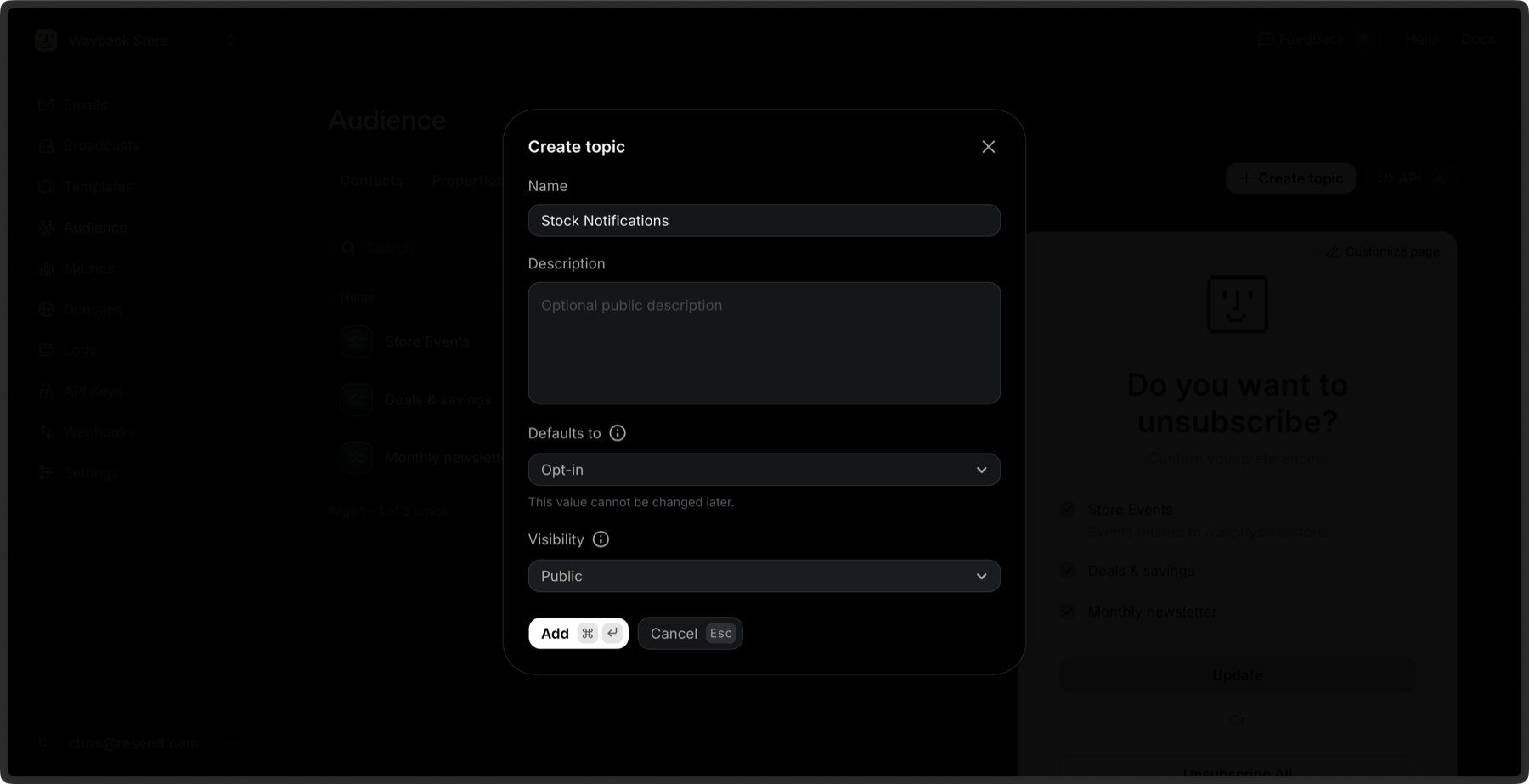
You can create a new Topic from the [dashboard](https://resend.com/audience/topics) or [via the API](/api-reference/topics/create-topic).
1. Click **Create Topic**.
2. Give your Topic a name.
3. Give your Topic a description (optional).
4. Select **Opt-in** or **Opt-out** as the default subscription. This value **cannot** be changed later.
* **Opt-in**: all Contacts will receive the email unless they have explicitly unsubscribed from that Topic.
* **Opt-out**: subscribers will not receive the email unless they have explicitly subscribed to that Topic.
5. Select **Public** or **Private** as the visibility.
* **Private**: only Contacts who are opted in to the Topic can see it on the unsubscribe page.
* **Public**: all Contacts can see the Topic on the unsubscribe page.
 ## View all Topics
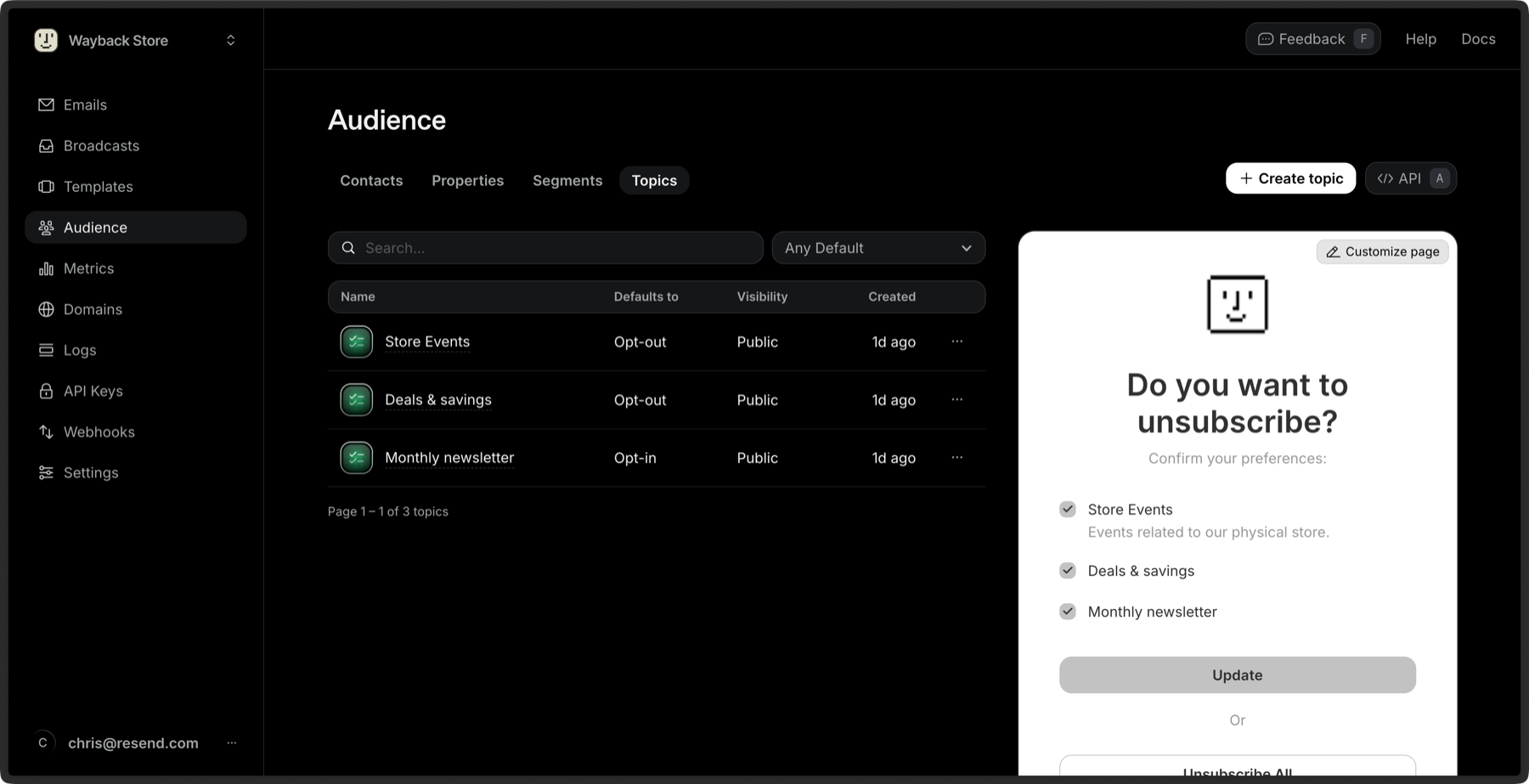
The [dashboard](https://resend.com/audience/topics) shows you all the Topics you have created along with their details.
## View all Topics
The [dashboard](https://resend.com/audience/topics) shows you all the Topics you have created along with their details.
 You can also [retrieve a single Topic](/api-reference/topics/get-topic) or [list all your Topics](/api-reference/topics/list-topics) via the API.
## Edit Topic details
After creating a Topic, you can edit the following details:
* Name
* Description
* Visibility
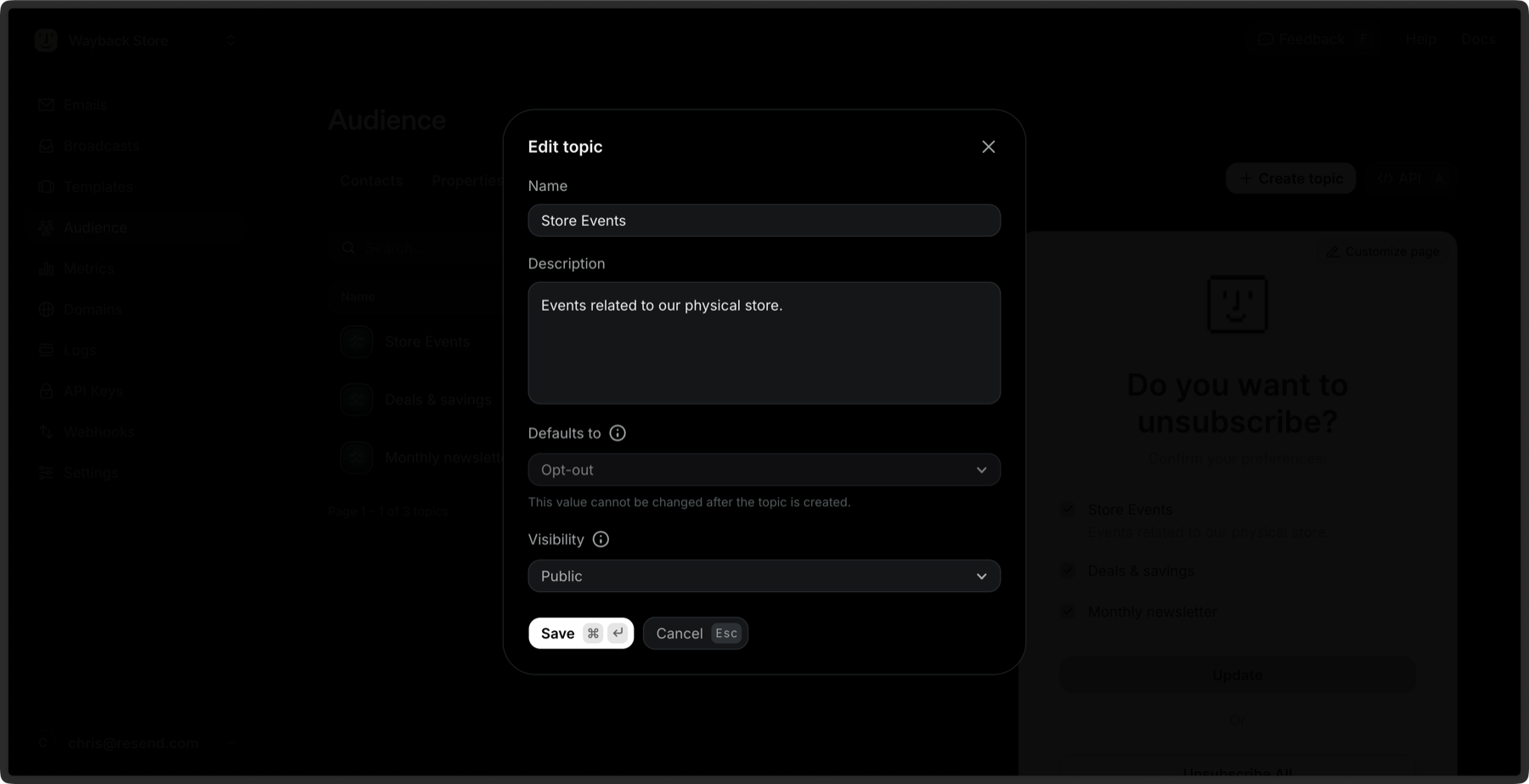
To edit a Topic, click the **More options** button and then **Edit Topic**.
You can also [retrieve a single Topic](/api-reference/topics/get-topic) or [list all your Topics](/api-reference/topics/list-topics) via the API.
## Edit Topic details
After creating a Topic, you can edit the following details:
* Name
* Description
* Visibility
To edit a Topic, click the **More options** button and then **Edit Topic**.
 You can also [update a Topic](/api-reference/topics/update-topic) via the API.
You cannot edit the default subscription value after it has been created.
## Delete a Topic
You can delete a Topic by clicking the **More options** button and then **Remove Topic**.
You can also [update a Topic](/api-reference/topics/update-topic) via the API.
You cannot edit the default subscription value after it has been created.
## Delete a Topic
You can delete a Topic by clicking the **More options** button and then **Remove Topic**.
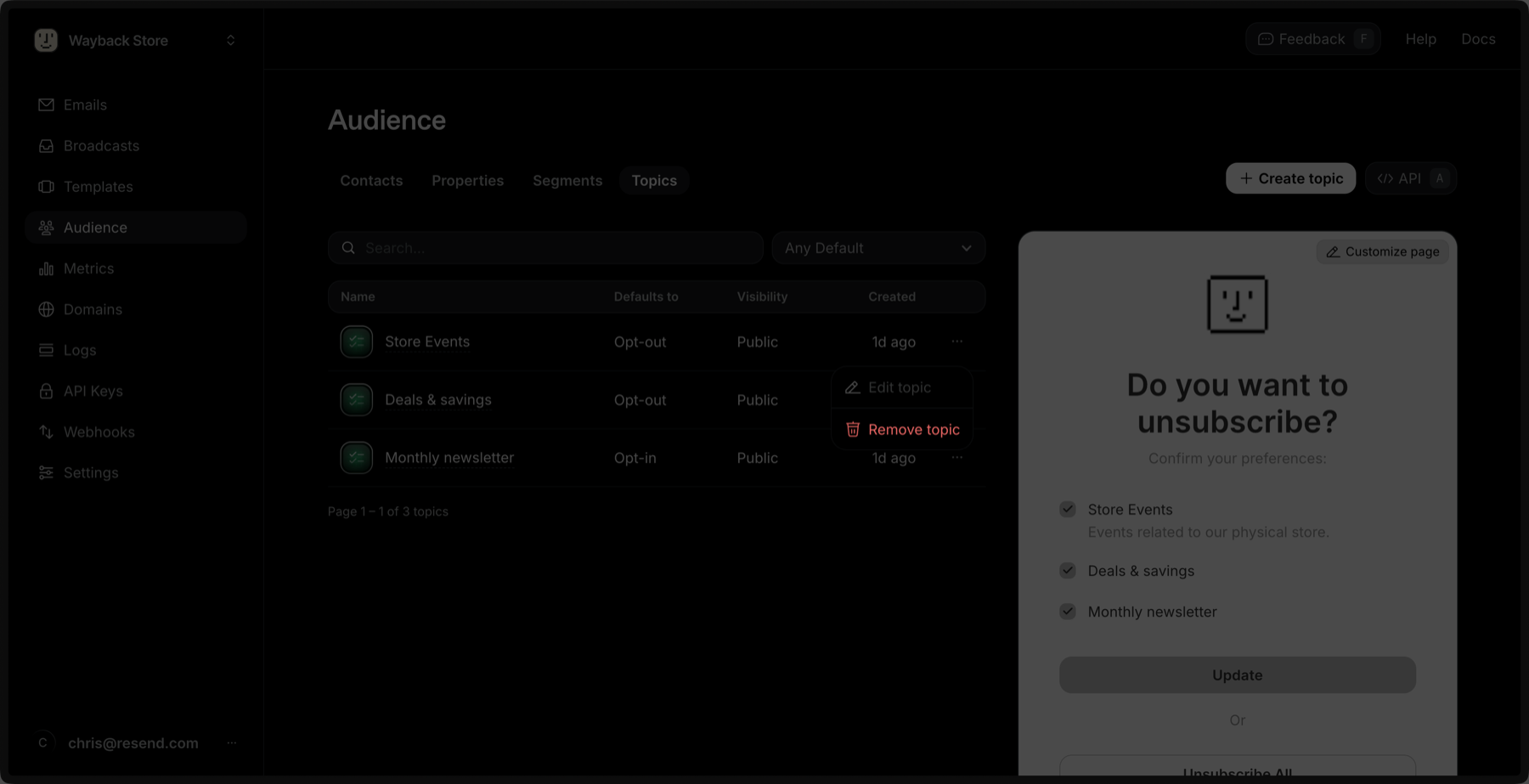 You can also [delete a Topic](/api-reference/topics/delete-topic) via the API.
## Editing Topics for a Contact
As you receive [proper consent to email Contacts](/knowledge-base/what-counts-as-email-consent), add the Contact to a given Topic. A Contact can belong to multiple Topics.
You can add a Contact to a Topic via the dashboard by expanding the **More options** and then **Edit Contact**. Add or remove Topics for a given Contact.
You can also [delete a Topic](/api-reference/topics/delete-topic) via the API.
## Editing Topics for a Contact
As you receive [proper consent to email Contacts](/knowledge-base/what-counts-as-email-consent), add the Contact to a given Topic. A Contact can belong to multiple Topics.
You can add a Contact to a Topic via the dashboard by expanding the **More options** and then **Edit Contact**. Add or remove Topics for a given Contact.
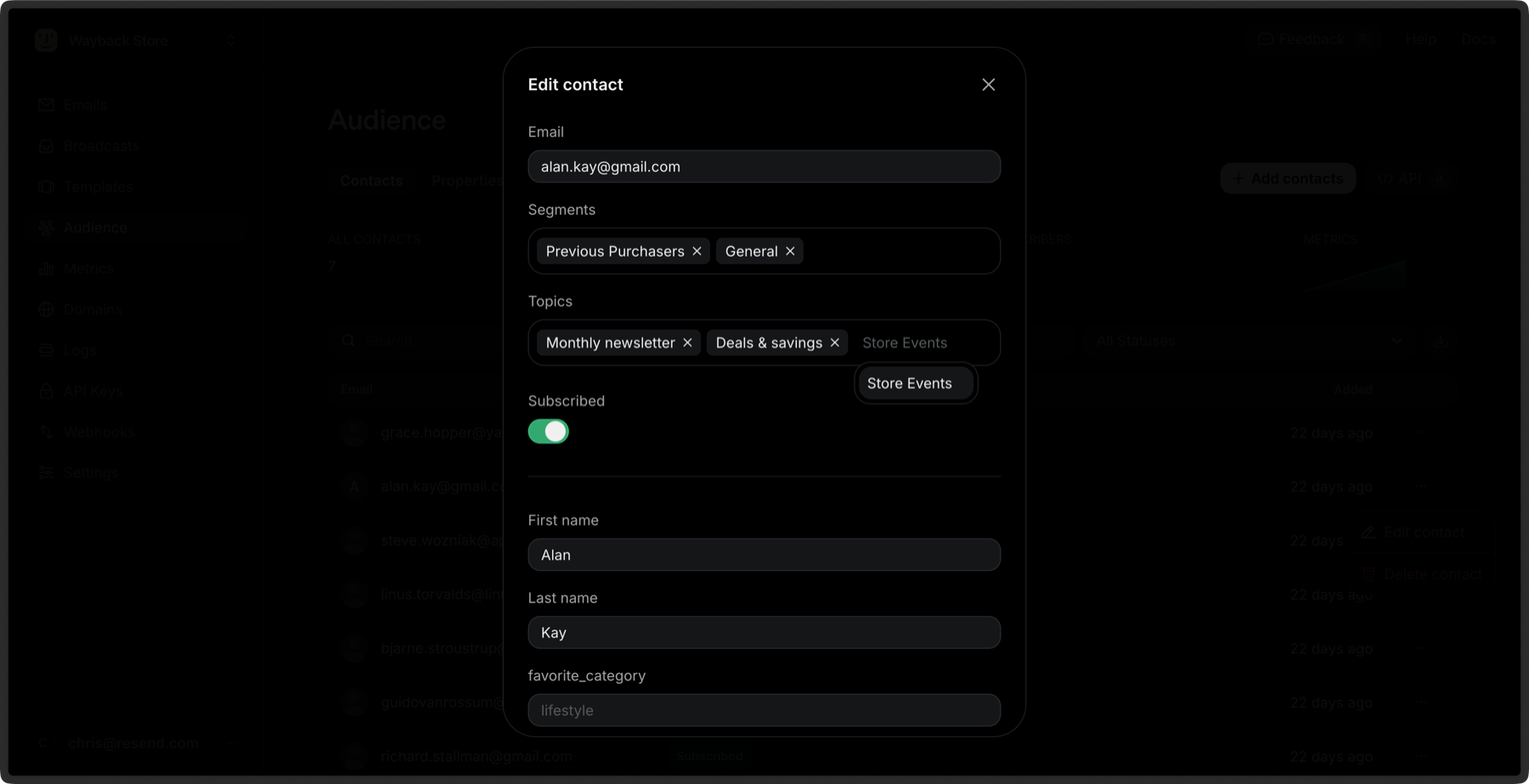 The **Subscribed** status is a global setting that enables or disables sending to a Contact for Broadcasts.
* If a Contact's **Subscribed** status is
**false**, they will not receive emails from your account, even if they have
opted-in to a specific Topic.
* If the **Subscribed** status is **true**, they
can receive emails from your account.
Learn more about [managing your unsubscribe list](/dashboard/audiences/managing-unsubscribe-list).
## Sending Broadcast with a Topic
You can send with a Topic in the Broadcast editor from the Topics dropdown menu.
The **Subscribed** status is a global setting that enables or disables sending to a Contact for Broadcasts.
* If a Contact's **Subscribed** status is
**false**, they will not receive emails from your account, even if they have
opted-in to a specific Topic.
* If the **Subscribed** status is **true**, they
can receive emails from your account.
Learn more about [managing your unsubscribe list](/dashboard/audiences/managing-unsubscribe-list).
## Sending Broadcast with a Topic
You can send with a Topic in the Broadcast editor from the Topics dropdown menu.
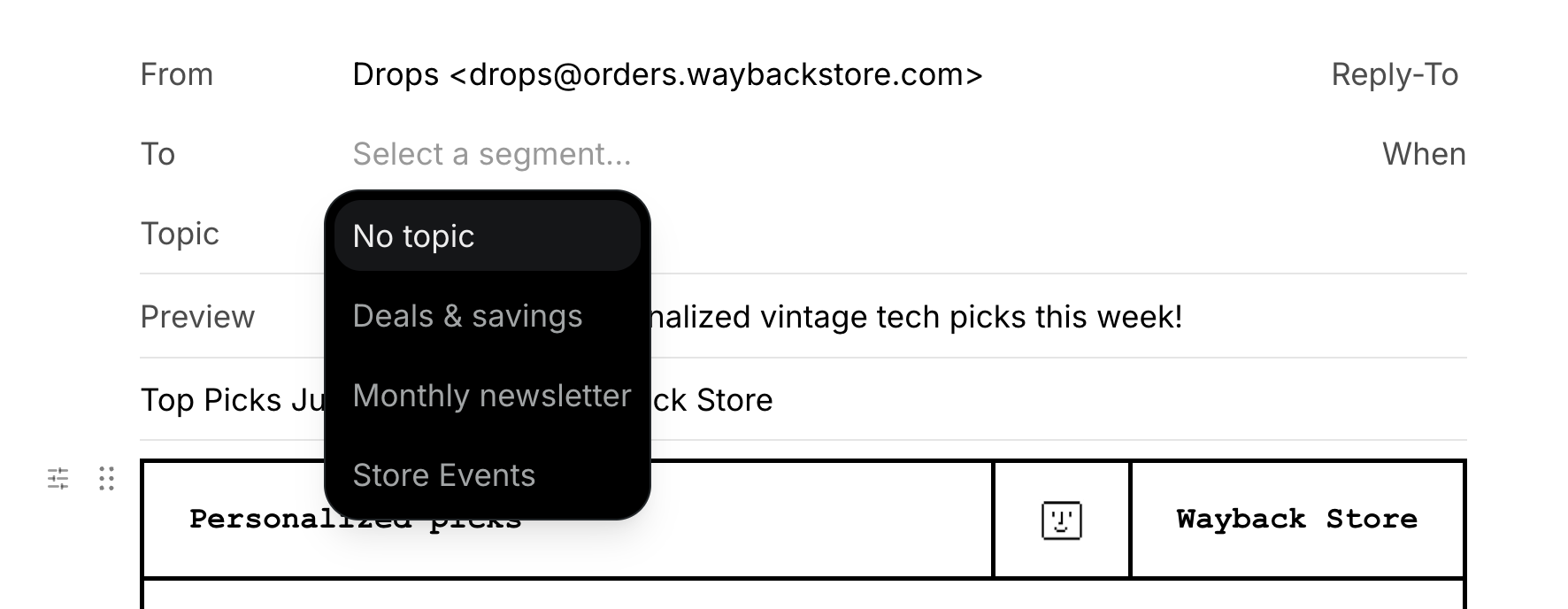 You can also send with a Topic via the [Broadcast API](/api-reference/broadcasts/create-broadcast).
## Unsubscribing from a Topic
If a Contact clicks a Broadcast unsubscribe link, they will see a preference page where they can:
* Unsubscribe from certain **Topics** (types of email)
* Or unsubscribe from **everything** you send
If they unsubscribe from a Topic or several Topics, they will no longer receive emails for those Topics. If they unsubscribe from all emails from your account, Broadcasts will no longer send to them.
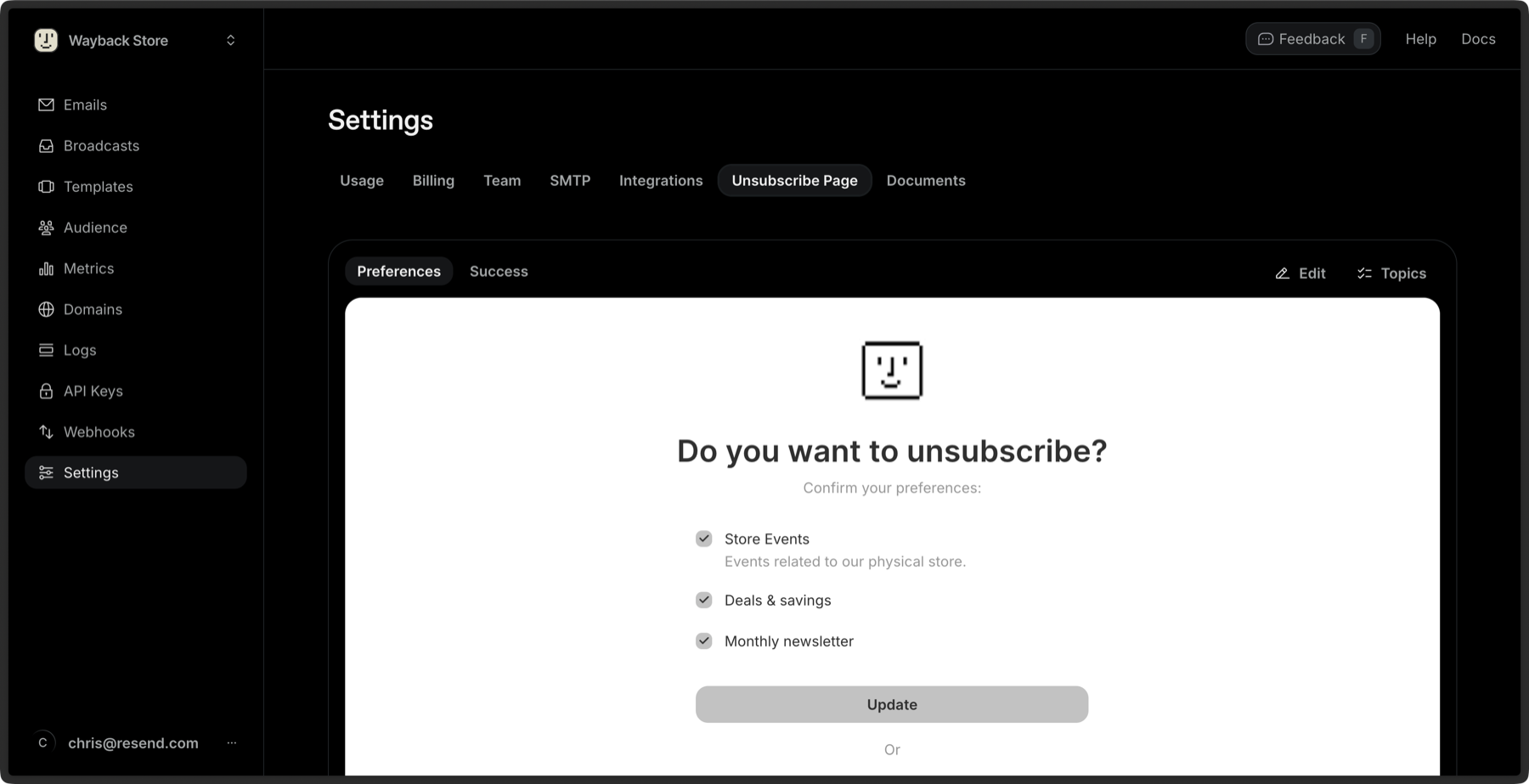
You can [customize your unsubscribe page with your branding](/dashboard/settings/unsubscribe-page) from your team settings.
You can also send with a Topic via the [Broadcast API](/api-reference/broadcasts/create-broadcast).
## Unsubscribing from a Topic
If a Contact clicks a Broadcast unsubscribe link, they will see a preference page where they can:
* Unsubscribe from certain **Topics** (types of email)
* Or unsubscribe from **everything** you send
If they unsubscribe from a Topic or several Topics, they will no longer receive emails for those Topics. If they unsubscribe from all emails from your account, Broadcasts will no longer send to them.
You can [customize your unsubscribe page with your branding](/dashboard/settings/unsubscribe-page) from your team settings.