> ## Documentation Index
> Fetch the complete documentation index at: https://resend.com/docs/llms.txt
> Use this file to discover all available pages before exploring further.
# Managing Segments
> Learn how to create, retrieve, and delete segments.
Segments are used to group and manage your [Contacts](/dashboard/audiences/contacts). Segments are not visible to your Contacts, but are used for your own internal Contact organization.
## Send emails to your Segment
Segments were designed to be used in conjunction with [Broadcasts](/dashboard/broadcasts/introduction). You can send a Broadcast to an Segment from the Resend dashboard or from the Broadcast API.
### From Resend's no-code editor
You can send emails to your Segment by creating a new Broadcast and selecting the Segment you want to send it to.
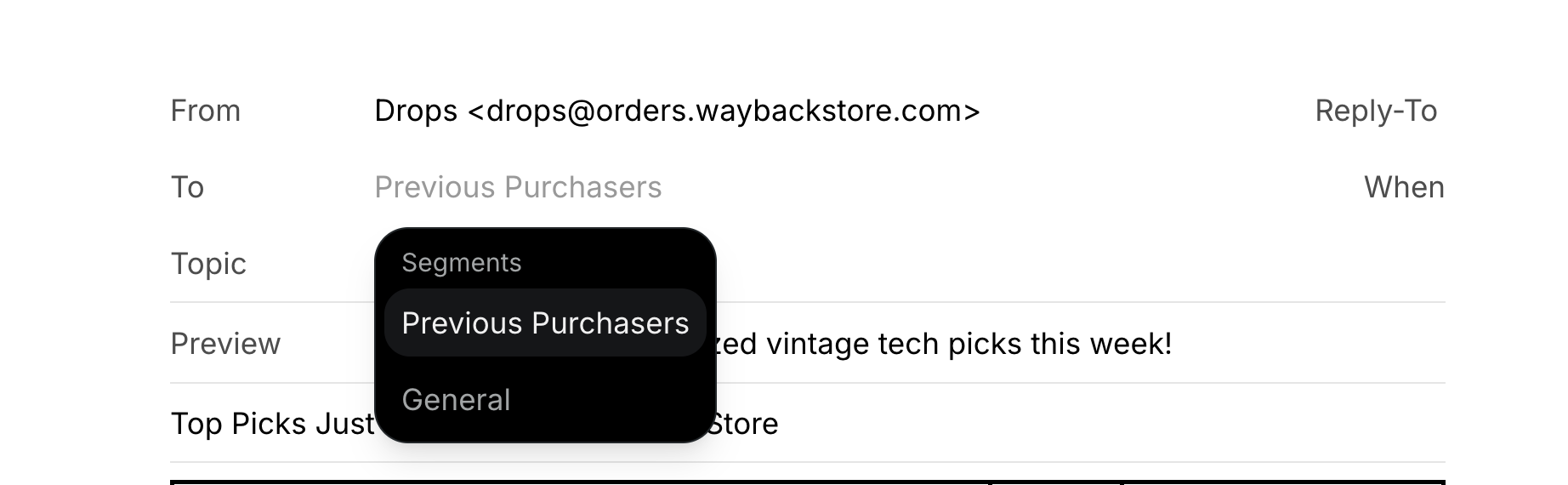 You can include the Unsubscribe Footer in your Broadcasts, which will be automatically replaced with the correct link for each Contact.
### From the Broadcast API
You can also use our [Broadcast API](/api-reference/broadcasts/create-broadcast) to create and send a Broadcast to your Segment.
```ts Node.js theme={"theme":{"light":"github-light","dark":"vesper"}}
import { Resend } from 'resend';
const resend = new Resend('re_xxxxxxxxx');
const { data, error } = await resend.broadcasts.create({
segmentId: '78261eea-8f8b-4381-83c6-79fa7120f1cf',
from: 'Acme ',
subject: 'hello world',
html: 'Hi {{{contact.first_name|there}}}, you can unsubscribe here: {{{RESEND_UNSUBSCRIBE_URL}}}',
});
```
```php PHP theme={"theme":{"light":"github-light","dark":"vesper"}}
$resend = Resend::client('re_xxxxxxxxx');
$resend->broadcasts->create([
'segment_id' => '78261eea-8f8b-4381-83c6-79fa7120f1cf',
'from' => 'Acme ',
'subject' => 'hello world',
'html' => 'Hi {{{contact.first_name|there}}}, you can unsubscribe here: {{{RESEND_UNSUBSCRIBE_URL}}}',
]);
```
```py Python theme={"theme":{"light":"github-light","dark":"vesper"}}
import resend
resend.api_key = "re_xxxxxxxxx"
params: resend.Broadcasts.CreateParams = {
"segment_id": "78261eea-8f8b-4381-83c6-79fa7120f1cf",
"from": "Acme ",
"subject": "Hello, world!",
"html": "Hi {{{contact.first_name|there}}}, you can unsubscribe here: {{{RESEND_UNSUBSCRIBE_URL}}}",
}
resend.Broadcasts.create(params)
```
```ruby Ruby theme={"theme":{"light":"github-light","dark":"vesper"}}
require "resend"
Resend.api_key = "re_xxxxxxxxx"
params = {
"segment_id": "78261eea-8f8b-4381-83c6-79fa7120f1cf",
"from": "Acme ",
"subject": "hello world",
"html": "Hi {{{contact.first_name|there}}}, you can unsubscribe here: {{{RESEND_UNSUBSCRIBE_URL}}}",
}
Resend::Broadcasts.create(params)
```
```go Go theme={"theme":{"light":"github-light","dark":"vesper"}}
import "fmt"
import "github.com/resend/resend-go/v3"
client := resend.NewClient("re_xxxxxxxxx")
params := &resend.CreateBroadcastRequest{
SegmentId: "78261eea-8f8b-4381-83c6-79fa7120f1cf",
From: "Acme ",
Html: "Hi {{{contact.first_name|there}}}, you can unsubscribe here: {{{RESEND_UNSUBSCRIBE_URL}}}",
Subject: "Hello, world!",
}
broadcast, _ := client.Broadcasts.Create(params)
```
```rust Rust theme={"theme":{"light":"github-light","dark":"vesper"}}
use resend_rs::{types::CreateBroadcastOptions, Resend, Result};
#[tokio::main]
async fn main() -> Result<()> {
let resend = Resend::new("re_xxxxxxxxx");
let segment_id = "78261eea-8f8b-4381-83c6-79fa7120f1cf";
let from = "Acme ";
let subject = "hello world";
let html = "Hi {{{contact.first_name|there}}}, you can unsubscribe here: {{{RESEND_UNSUBSCRIBE_URL}}}";
let opts = CreateBroadcastOptions::new(segment_id, from, subject).with_html(html);
let _broadcast = resend.broadcasts.create(opts).await?;
Ok(())
}
```
```java Java theme={"theme":{"light":"github-light","dark":"vesper"}}
Resend resend = new Resend("re_xxxxxxxxx");
CreateBroadcastOptions params = CreateBroadcastOptions.builder()
.segmentId("78261eea-8f8b-4381-83c6-79fa7120f1cf")
.from("Acme ")
.subject("hello world")
.html("Hi {{{contact.first_name|there}}}, you can unsubscribe here: {{{RESEND_UNSUBSCRIBE_URL}}}")
.build();
CreateBroadcastResponseSuccess data = resend.broadcasts().create(params);
```
```csharp .NET theme={"theme":{"light":"github-light","dark":"vesper"}}
using Resend;
IResend resend = ResendClient.Create( "re_xxxxxxxxx" ); // Or from DI
var resp = await resend.BroadcastAddAsync(
new BroadcastData()
{
DisplayName = "Example Broadcast",
SegmentId = new Guid( "78261eea-8f8b-4381-83c6-79fa7120f1cf" ),
From = "Acme ",
Subject = "Hello, world!",
HtmlBody = "Hi {{{contact.first_name|there}}}, you can unsubscribe here: {{{RESEND_UNSUBSCRIBE_URL}}}",
}
);
Console.WriteLine( "Broadcast Id={0}", resp.Content );
```
```bash cURL theme={"theme":{"light":"github-light","dark":"vesper"}}
curl -X POST 'https://api.resend.com/broadcasts' \
-H 'Authorization: Bearer re_xxxxxxxxx' \
-H 'Content-Type: application/json' \
-d $'{
"segment_id": "78261eea-8f8b-4381-83c6-79fa7120f1cf",
"from": "Acme ",
"subject": "hello world",
"html": "Hi {{{contact.first_name|there}}}, you can unsubscribe here: {{{RESEND_UNSUBSCRIBE_URL}}}"
}'
```
## How to customize the unsubscribe link in my Broadcast?
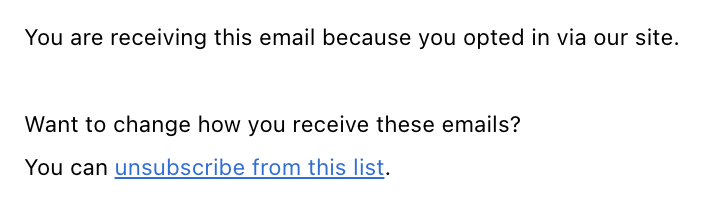
Resend generates a unique link for each recipient and each Broadcast. You can use `{{{RESEND_UNSUBSCRIBE_URL}}}` as the link target.
You can include the Unsubscribe Footer in your Broadcasts, which will be automatically replaced with the correct link for each Contact.
### From the Broadcast API
You can also use our [Broadcast API](/api-reference/broadcasts/create-broadcast) to create and send a Broadcast to your Segment.
```ts Node.js theme={"theme":{"light":"github-light","dark":"vesper"}}
import { Resend } from 'resend';
const resend = new Resend('re_xxxxxxxxx');
const { data, error } = await resend.broadcasts.create({
segmentId: '78261eea-8f8b-4381-83c6-79fa7120f1cf',
from: 'Acme ',
subject: 'hello world',
html: 'Hi {{{contact.first_name|there}}}, you can unsubscribe here: {{{RESEND_UNSUBSCRIBE_URL}}}',
});
```
```php PHP theme={"theme":{"light":"github-light","dark":"vesper"}}
$resend = Resend::client('re_xxxxxxxxx');
$resend->broadcasts->create([
'segment_id' => '78261eea-8f8b-4381-83c6-79fa7120f1cf',
'from' => 'Acme ',
'subject' => 'hello world',
'html' => 'Hi {{{contact.first_name|there}}}, you can unsubscribe here: {{{RESEND_UNSUBSCRIBE_URL}}}',
]);
```
```py Python theme={"theme":{"light":"github-light","dark":"vesper"}}
import resend
resend.api_key = "re_xxxxxxxxx"
params: resend.Broadcasts.CreateParams = {
"segment_id": "78261eea-8f8b-4381-83c6-79fa7120f1cf",
"from": "Acme ",
"subject": "Hello, world!",
"html": "Hi {{{contact.first_name|there}}}, you can unsubscribe here: {{{RESEND_UNSUBSCRIBE_URL}}}",
}
resend.Broadcasts.create(params)
```
```ruby Ruby theme={"theme":{"light":"github-light","dark":"vesper"}}
require "resend"
Resend.api_key = "re_xxxxxxxxx"
params = {
"segment_id": "78261eea-8f8b-4381-83c6-79fa7120f1cf",
"from": "Acme ",
"subject": "hello world",
"html": "Hi {{{contact.first_name|there}}}, you can unsubscribe here: {{{RESEND_UNSUBSCRIBE_URL}}}",
}
Resend::Broadcasts.create(params)
```
```go Go theme={"theme":{"light":"github-light","dark":"vesper"}}
import "fmt"
import "github.com/resend/resend-go/v3"
client := resend.NewClient("re_xxxxxxxxx")
params := &resend.CreateBroadcastRequest{
SegmentId: "78261eea-8f8b-4381-83c6-79fa7120f1cf",
From: "Acme ",
Html: "Hi {{{contact.first_name|there}}}, you can unsubscribe here: {{{RESEND_UNSUBSCRIBE_URL}}}",
Subject: "Hello, world!",
}
broadcast, _ := client.Broadcasts.Create(params)
```
```rust Rust theme={"theme":{"light":"github-light","dark":"vesper"}}
use resend_rs::{types::CreateBroadcastOptions, Resend, Result};
#[tokio::main]
async fn main() -> Result<()> {
let resend = Resend::new("re_xxxxxxxxx");
let segment_id = "78261eea-8f8b-4381-83c6-79fa7120f1cf";
let from = "Acme ";
let subject = "hello world";
let html = "Hi {{{contact.first_name|there}}}, you can unsubscribe here: {{{RESEND_UNSUBSCRIBE_URL}}}";
let opts = CreateBroadcastOptions::new(segment_id, from, subject).with_html(html);
let _broadcast = resend.broadcasts.create(opts).await?;
Ok(())
}
```
```java Java theme={"theme":{"light":"github-light","dark":"vesper"}}
Resend resend = new Resend("re_xxxxxxxxx");
CreateBroadcastOptions params = CreateBroadcastOptions.builder()
.segmentId("78261eea-8f8b-4381-83c6-79fa7120f1cf")
.from("Acme ")
.subject("hello world")
.html("Hi {{{contact.first_name|there}}}, you can unsubscribe here: {{{RESEND_UNSUBSCRIBE_URL}}}")
.build();
CreateBroadcastResponseSuccess data = resend.broadcasts().create(params);
```
```csharp .NET theme={"theme":{"light":"github-light","dark":"vesper"}}
using Resend;
IResend resend = ResendClient.Create( "re_xxxxxxxxx" ); // Or from DI
var resp = await resend.BroadcastAddAsync(
new BroadcastData()
{
DisplayName = "Example Broadcast",
SegmentId = new Guid( "78261eea-8f8b-4381-83c6-79fa7120f1cf" ),
From = "Acme ",
Subject = "Hello, world!",
HtmlBody = "Hi {{{contact.first_name|there}}}, you can unsubscribe here: {{{RESEND_UNSUBSCRIBE_URL}}}",
}
);
Console.WriteLine( "Broadcast Id={0}", resp.Content );
```
```bash cURL theme={"theme":{"light":"github-light","dark":"vesper"}}
curl -X POST 'https://api.resend.com/broadcasts' \
-H 'Authorization: Bearer re_xxxxxxxxx' \
-H 'Content-Type: application/json' \
-d $'{
"segment_id": "78261eea-8f8b-4381-83c6-79fa7120f1cf",
"from": "Acme ",
"subject": "hello world",
"html": "Hi {{{contact.first_name|there}}}, you can unsubscribe here: {{{RESEND_UNSUBSCRIBE_URL}}}"
}'
```
## How to customize the unsubscribe link in my Broadcast?
Resend generates a unique link for each recipient and each Broadcast. You can use `{{{RESEND_UNSUBSCRIBE_URL}}}` as the link target.
 ## Automatic Unsubscribes
When you send emails to your Segment, Resend will automatically handle the unsubscribe flow for you.
## Automatic Unsubscribes
When you send emails to your Segment, Resend will automatically handle the unsubscribe flow for you.
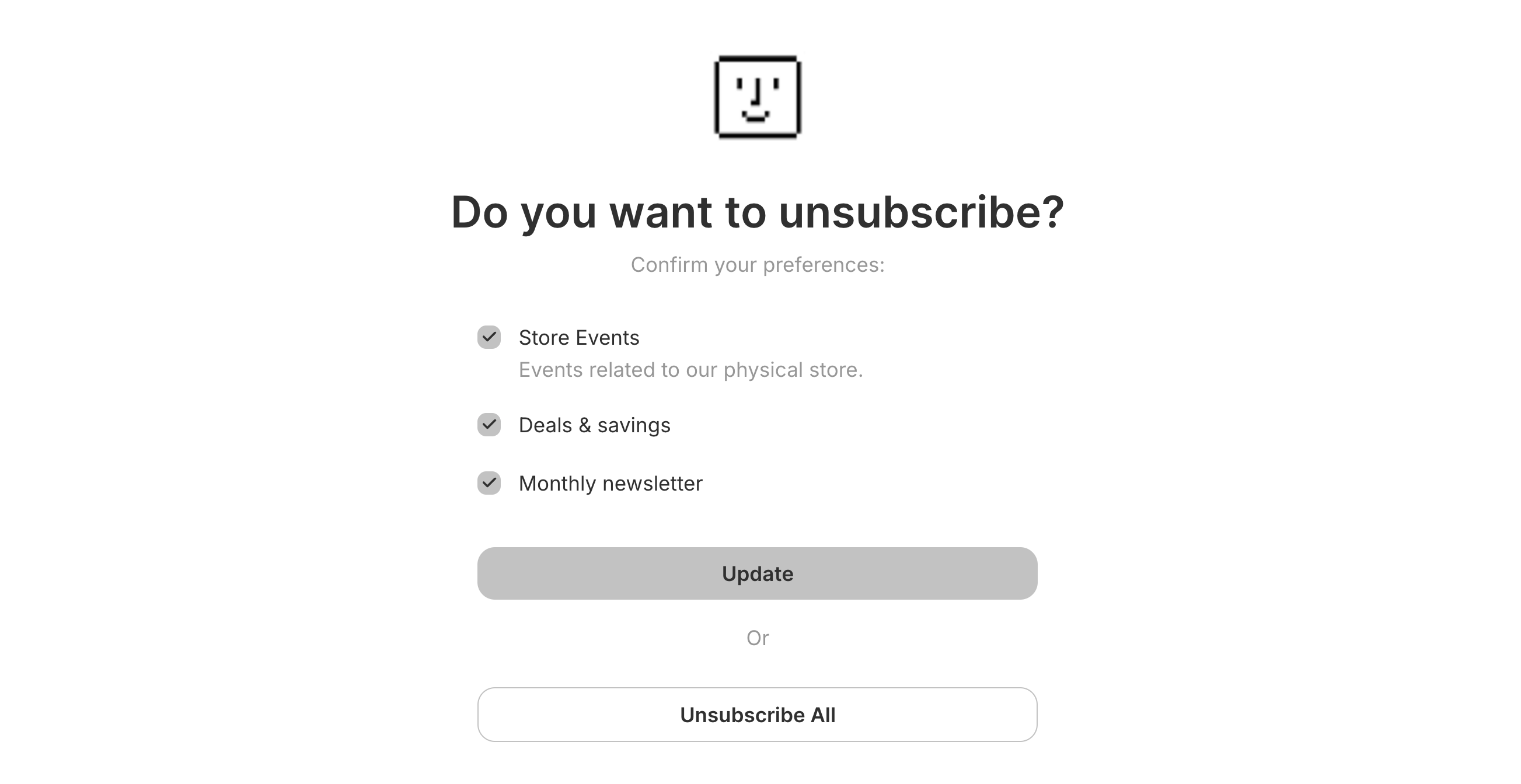 If a Contact unsubscribes from your emails, they will be presented with a preference page.
* If you don't have any [Topics](/dashboard/topics/introduction) configured, the Contact will be unsubscribed from all emails from your account.
* If you have [Topics](/dashboard/topics/introduction) configured, the Contact will be presented with a preference page where they can subscribe or unsubscribe from specific types of emails (all `public` Topics will be shown).
Learn more about [managing your unsubscribe list](/dashboard/audiences/managing-unsubscribe-list) or [customizing your unsubscribe page](/dashboard/settings/unsubscribe-page).
Whenever possible, you should add a [Topic to your
Broadcast](/dashboard/topics/introduction), as this will allow your Contacts
to unsubscribe from specific types of emails (instead of unsubscribing from
all emails from your account). Learn more about [why and when to use
Topics](/knowledge-base/why-use-topics).
## Export your data
Admins can download your data in CSV format for the following resources:
* Emails
* Broadcasts
* Contacts
* Segments
* Domains
* Logs
* API keys
Currently, exports are limited to admin users of your team.
To start, apply filters to your data and click on the "Export" button. Confirm your filters before exporting your data.
If your exported data includes 1,000 items or less, the export will download immediately. For larger exports, you'll receive an email with a link to download your data.
All admins on your team can securely access the export for 7 days. Unavailable exports are marked as "Expired."
All exports your team creates are listed in the
[Exports](https://resend.com/exports) page under **Settings** > **Team** >
**Exports**. Select any export to view its details page. All members of your
team can view your exports, but only admins can download the data.
If a Contact unsubscribes from your emails, they will be presented with a preference page.
* If you don't have any [Topics](/dashboard/topics/introduction) configured, the Contact will be unsubscribed from all emails from your account.
* If you have [Topics](/dashboard/topics/introduction) configured, the Contact will be presented with a preference page where they can subscribe or unsubscribe from specific types of emails (all `public` Topics will be shown).
Learn more about [managing your unsubscribe list](/dashboard/audiences/managing-unsubscribe-list) or [customizing your unsubscribe page](/dashboard/settings/unsubscribe-page).
Whenever possible, you should add a [Topic to your
Broadcast](/dashboard/topics/introduction), as this will allow your Contacts
to unsubscribe from specific types of emails (instead of unsubscribing from
all emails from your account). Learn more about [why and when to use
Topics](/knowledge-base/why-use-topics).
## Export your data
Admins can download your data in CSV format for the following resources:
* Emails
* Broadcasts
* Contacts
* Segments
* Domains
* Logs
* API keys
Currently, exports are limited to admin users of your team.
To start, apply filters to your data and click on the "Export" button. Confirm your filters before exporting your data.
If your exported data includes 1,000 items or less, the export will download immediately. For larger exports, you'll receive an email with a link to download your data.
All admins on your team can securely access the export for 7 days. Unavailable exports are marked as "Expired."
All exports your team creates are listed in the
[Exports](https://resend.com/exports) page under **Settings** > **Team** >
**Exports**. Select any export to view its details page. All members of your
team can view your exports, but only admins can download the data.