> ## Documentation Index
> Fetch the complete documentation index at: https://resend.com/docs/llms.txt
> Use this file to discover all available pages before exploring further.
# Receiving Emails
> Learn how to receive emails via webhooks.
Resend supports receiving emails (commonly called inbound) in addition to sending emails. This is useful for:
* Receiving support emails from users
* Processing forwarded attachments
* Replying to emails from customers
## How does it work
Resend processes all incoming emails for your receiving domain, parses the contents and attachments, and then sends a `POST` request to an endpoint that you choose.
To receive emails, you can either use a domain managed by Resend, or [set up a custom domain](/dashboard/receiving/custom-domains).
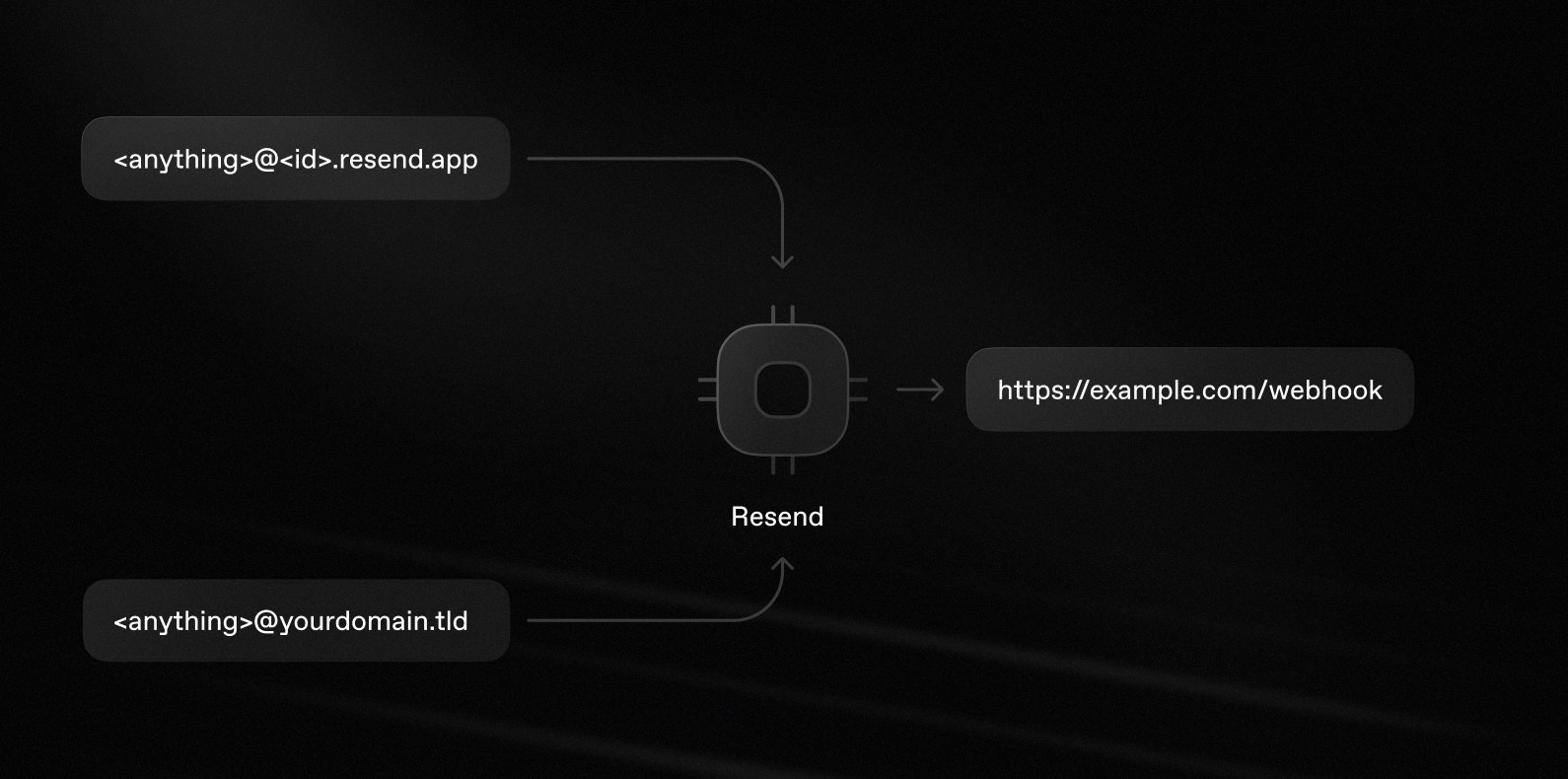 Importantly, *any email* sent to your receiving domain will be received by Resend and forwarded to your webhook. You can intelligently route based on the `to` field in the webhook event.
For example, if your domain is `cool-hedgehog.resend.app`, you will receive
emails sent to `anything@cool-hedgehog.resend.app`.
The same applies to [custom domains](/dashboard/receiving/custom-domains). If
your domain is `yourdomain.tld`, you will receive emails sent to
`anything@yourdomain.tld`.
Here's how to start receiving emails using a domain managed by Resend.
## 1. Get your `.resend.app` domain
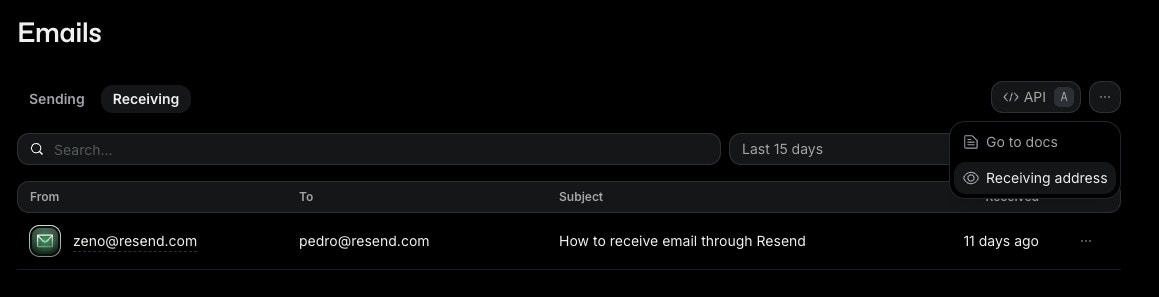
Any emails sent to an `@.resend.app` address will be received by Resend and forwarded to your webhook.
To see your Resend domain:
1. Go to the [emails page](https://resend.com/emails).
2. Select the ["Receiving" tab](https://resend.com/emails/receiving).
3. Click the three dots button and select "Receiving address."
Importantly, *any email* sent to your receiving domain will be received by Resend and forwarded to your webhook. You can intelligently route based on the `to` field in the webhook event.
For example, if your domain is `cool-hedgehog.resend.app`, you will receive
emails sent to `anything@cool-hedgehog.resend.app`.
The same applies to [custom domains](/dashboard/receiving/custom-domains). If
your domain is `yourdomain.tld`, you will receive emails sent to
`anything@yourdomain.tld`.
Here's how to start receiving emails using a domain managed by Resend.
## 1. Get your `.resend.app` domain
Any emails sent to an `@.resend.app` address will be received by Resend and forwarded to your webhook.
To see your Resend domain:
1. Go to the [emails page](https://resend.com/emails).
2. Select the ["Receiving" tab](https://resend.com/emails/receiving).
3. Click the three dots button and select "Receiving address."
 ## 2. Configure webhooks
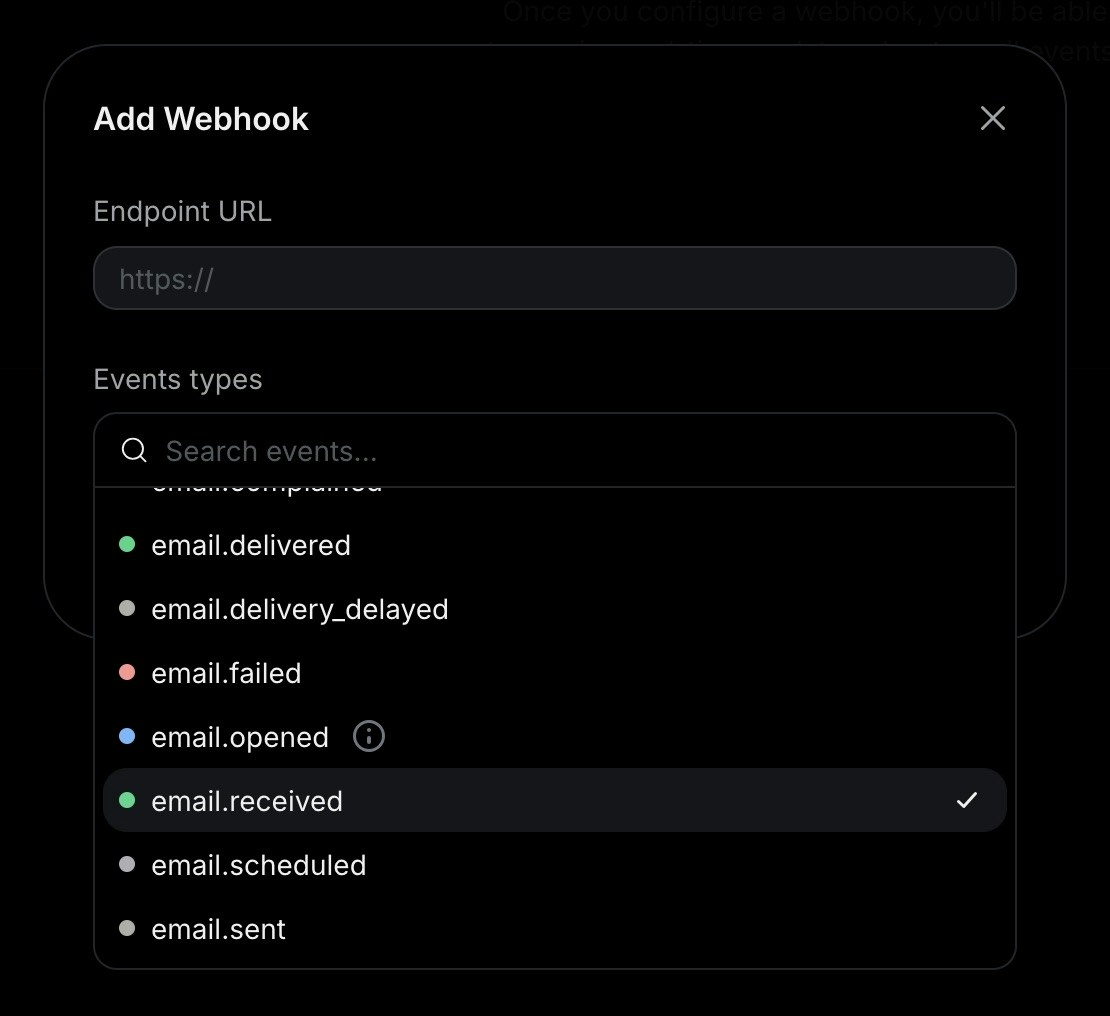
1. Go to the [Webhooks](https://resend.com/webhooks) page.
2. Click `Add Webhook`.
3. Enter the URL of your webhook endpoint.
4. Select the event type `email.received`.
5. Click `Add`.
For development, you can create a tunnel to your localhost server using a tool like
[ngrok](https://ngrok.com/download) or [VS Code Port Forwarding](https://code.visualstudio.com/docs/debugtest/port-forwarding). These tools serve your local dev environment at a public URL you can use to test your local webhook endpoint.
Example: `https://example123.ngrok.io/api/webhook`
The [Resend CLI](/cli) also has a built-in `emails receiving listen` command
that polls for new inbound emails and displays them as they arrive. See the
[CLI reference](/cli#receiving) for setup instructions.
## 2. Configure webhooks
1. Go to the [Webhooks](https://resend.com/webhooks) page.
2. Click `Add Webhook`.
3. Enter the URL of your webhook endpoint.
4. Select the event type `email.received`.
5. Click `Add`.
For development, you can create a tunnel to your localhost server using a tool like
[ngrok](https://ngrok.com/download) or [VS Code Port Forwarding](https://code.visualstudio.com/docs/debugtest/port-forwarding). These tools serve your local dev environment at a public URL you can use to test your local webhook endpoint.
Example: `https://example123.ngrok.io/api/webhook`
The [Resend CLI](/cli) also has a built-in `emails receiving listen` command
that polls for new inbound emails and displays them as they arrive. See the
[CLI reference](/cli#receiving) for setup instructions.
 ## 3. Receive email events
In your application, create a new route that can accept `POST` requests.
Here's how you can implement this:
```js Next.js theme={"theme":{"light":"github-light","dark":"vesper"}}
// app/api/events/route.ts
import type { NextRequest } from 'next/server';
import { NextResponse } from 'next/server';
export const POST = async (request: NextRequest) => {
const event = await request.json();
if (event.type === 'email.received') {
return NextResponse.json(event);
}
return NextResponse.json({});
};
```
```php Laravel theme={"theme":{"light":"github-light","dark":"vesper"}}
// routes/api.php
use Illuminate\Http\Request;
use Illuminate\Support\Facades\Route;
Route::post('/events', function (Request $request) {
$event = $request->json()->all();
if ($event['type'] === 'email.received') {
return response()->json($event);
}
return response()->json([]);
});
```
```php PHP theme={"theme":{"light":"github-light","dark":"vesper"}}
// index.php
header('Content-Type: application/json');
if ($_SERVER['REQUEST_METHOD'] !== 'POST') {
http_response_code(405);
echo json_encode(['error' => 'Method Not Allowed']);
exit;
}
$body = file_get_contents('php://input');
$event = json_decode($body, true);
if (json_last_error() !== JSON_ERROR_NONE) {
http_response_code(400);
echo json_encode(['error' => 'Invalid JSON']);
exit;
}
if ($event['type'] === 'email.received') {
echo json_encode($event);
exit;
}
echo json_encode([]);
```
```rust Rust theme={"theme":{"light":"github-light","dark":"vesper"}}
#[derive(Serialize)]
struct Empty {}
async fn example(Json(event): Json) -> Response {
if matches!(
event.r#type,
resend_rs::events::EmailEventType::EmailReceived
) {
Json(event).into_response()
} else {
Json(Empty {}).into_response()
}
}
```
Once you receive the email event, you can process the email body and attachments. We also recommend implementing [webhook request verification](/webhooks/verify-webhooks-requests) to secure your webhook endpoint.
```json theme={"theme":{"light":"github-light","dark":"vesper"}}
{
"type": "email.received",
"created_at": "2026-02-22T23:41:12.126Z",
"data": {
"email_id": "56761188-7520-42d8-8898-ff6fc54ce618",
"created_at": "2026-02-22T23:41:11.894719+00:00",
"from": "onboarding@resend.dev",
"to": ["delivered@resend.dev"],
"bcc": [],
"cc": [],
"message_id": "",
"subject": "Sending this example",
"attachments": [
{
"id": "2a0c9ce0-3112-4728-976e-47ddcd16a318",
"filename": "avatar.png",
"content_type": "image/png",
"content_disposition": "inline",
"content_id": "img001"
}
]
}
}
```
## What can you do with Receiving emails
Once you receive an email, you can process it in a variety of ways. Here are some common actions you can take:
* [Get email content](/dashboard/receiving/get-email-content)
* [Process attachments](/dashboard/receiving/attachments)
* [Forward emails to another address](/dashboard/receiving/forward-emails)
* [Reply to emails in the same thread](/dashboard/receiving/reply-to-emails)
Webhooks do not include the email body, headers, or attachments, only their
metadata. You must call the [Received emails
API](/api-reference/emails/retrieve-received-email) or the [Attachments
API](/api-reference/emails/list-received-email-attachments) to retrieve them.
This design choice supports large attachments in serverless environments that
have limited request body sizes.
## FAQ
Yes. Once you add the MX record to your [custom domains](/dashboard/receiving/custom-domains), you will receive emails for
any address at that domain.
For example, if your domain is `yourdomain.tld`, you will receive
emails sent to `@yourdomain.tld`. You can then filter or
route based on the `to` field in the webhook event.
The same applies if you use the domain managed by Resend. If the domain given to you is `cool-hedgehog.resend.app`,
you'll receive any email send to `@cool-hedgehog.resend.app`.
Yes. You can add the MX record to any subdomain (e.g.
`subdomain.yourdomain.tld`) and receive emails there.
If you already have existing MX records for your root domain, we recommend
that you create a subdomain (e.g. `subdomain.yourdomain.tld`) and add the MX
record there. This way, you can use Resend for receiving emails without
affecting your existing email service.
If you still want to use the same domain both in for Resend and your day-to-day
email service, you can also set up forwarding rules in your existing email service
to forward emails to an address that's configured in Resend or forward them directly
to the SMTP server address that appears in the receiving `MX` record.
No, you will not lose your emails. Resend stores emails as soon as they come
in.
Even if your webhook endpoint is down, you can still see your emails in
the dashboard and retrieve them using the [Receiving
API](/api-reference/emails/retrieve-received-email).
Additionally, we will retry delivering the webhook event on the schedule
described in our [webhooks documentation](/webhooks/introduction#faq)
and you can also replay individual webhook events from the
[webhooks](/webhooks/introduction) page in the dashboard.
All of Resend's webhooks include a secret and headers that you can use to verify
the authenticity of the request.
In our SDKs, you can verify webhooks using
`resend.webhooks.verify()`, as shown below.
```js theme={"theme":{"light":"github-light","dark":"vesper"}}
// throws an error if the webhook is invalid
// otherwise, returns the parsed payload object
const result = resend.webhooks.verify({
payload: JSON.stringify(req.body),
headers: {
id: req.headers['svix-id'],
timestamp: req.headers['svix-timestamp'],
signature: req.headers['svix-signature'],
},
webhookSecret: process.env.RESEND_WEBHOOK_SECRET,
})
```
You can find more code samples and instructions on how to verify webhooks in our
[webhook verification documentation](/webhooks/verify-webhooks-requests).
## Try it yourself
See the full source code.
See the full source code.
See the full source code.
See the full source code.
See the full source code.
See the full source code.
## 3. Receive email events
In your application, create a new route that can accept `POST` requests.
Here's how you can implement this:
```js Next.js theme={"theme":{"light":"github-light","dark":"vesper"}}
// app/api/events/route.ts
import type { NextRequest } from 'next/server';
import { NextResponse } from 'next/server';
export const POST = async (request: NextRequest) => {
const event = await request.json();
if (event.type === 'email.received') {
return NextResponse.json(event);
}
return NextResponse.json({});
};
```
```php Laravel theme={"theme":{"light":"github-light","dark":"vesper"}}
// routes/api.php
use Illuminate\Http\Request;
use Illuminate\Support\Facades\Route;
Route::post('/events', function (Request $request) {
$event = $request->json()->all();
if ($event['type'] === 'email.received') {
return response()->json($event);
}
return response()->json([]);
});
```
```php PHP theme={"theme":{"light":"github-light","dark":"vesper"}}
// index.php
header('Content-Type: application/json');
if ($_SERVER['REQUEST_METHOD'] !== 'POST') {
http_response_code(405);
echo json_encode(['error' => 'Method Not Allowed']);
exit;
}
$body = file_get_contents('php://input');
$event = json_decode($body, true);
if (json_last_error() !== JSON_ERROR_NONE) {
http_response_code(400);
echo json_encode(['error' => 'Invalid JSON']);
exit;
}
if ($event['type'] === 'email.received') {
echo json_encode($event);
exit;
}
echo json_encode([]);
```
```rust Rust theme={"theme":{"light":"github-light","dark":"vesper"}}
#[derive(Serialize)]
struct Empty {}
async fn example(Json(event): Json) -> Response {
if matches!(
event.r#type,
resend_rs::events::EmailEventType::EmailReceived
) {
Json(event).into_response()
} else {
Json(Empty {}).into_response()
}
}
```
Once you receive the email event, you can process the email body and attachments. We also recommend implementing [webhook request verification](/webhooks/verify-webhooks-requests) to secure your webhook endpoint.
```json theme={"theme":{"light":"github-light","dark":"vesper"}}
{
"type": "email.received",
"created_at": "2026-02-22T23:41:12.126Z",
"data": {
"email_id": "56761188-7520-42d8-8898-ff6fc54ce618",
"created_at": "2026-02-22T23:41:11.894719+00:00",
"from": "onboarding@resend.dev",
"to": ["delivered@resend.dev"],
"bcc": [],
"cc": [],
"message_id": "",
"subject": "Sending this example",
"attachments": [
{
"id": "2a0c9ce0-3112-4728-976e-47ddcd16a318",
"filename": "avatar.png",
"content_type": "image/png",
"content_disposition": "inline",
"content_id": "img001"
}
]
}
}
```
## What can you do with Receiving emails
Once you receive an email, you can process it in a variety of ways. Here are some common actions you can take:
* [Get email content](/dashboard/receiving/get-email-content)
* [Process attachments](/dashboard/receiving/attachments)
* [Forward emails to another address](/dashboard/receiving/forward-emails)
* [Reply to emails in the same thread](/dashboard/receiving/reply-to-emails)
Webhooks do not include the email body, headers, or attachments, only their
metadata. You must call the [Received emails
API](/api-reference/emails/retrieve-received-email) or the [Attachments
API](/api-reference/emails/list-received-email-attachments) to retrieve them.
This design choice supports large attachments in serverless environments that
have limited request body sizes.
## FAQ
Yes. Once you add the MX record to your [custom domains](/dashboard/receiving/custom-domains), you will receive emails for
any address at that domain.
For example, if your domain is `yourdomain.tld`, you will receive
emails sent to `@yourdomain.tld`. You can then filter or
route based on the `to` field in the webhook event.
The same applies if you use the domain managed by Resend. If the domain given to you is `cool-hedgehog.resend.app`,
you'll receive any email send to `@cool-hedgehog.resend.app`.
Yes. You can add the MX record to any subdomain (e.g.
`subdomain.yourdomain.tld`) and receive emails there.
If you already have existing MX records for your root domain, we recommend
that you create a subdomain (e.g. `subdomain.yourdomain.tld`) and add the MX
record there. This way, you can use Resend for receiving emails without
affecting your existing email service.
If you still want to use the same domain both in for Resend and your day-to-day
email service, you can also set up forwarding rules in your existing email service
to forward emails to an address that's configured in Resend or forward them directly
to the SMTP server address that appears in the receiving `MX` record.
No, you will not lose your emails. Resend stores emails as soon as they come
in.
Even if your webhook endpoint is down, you can still see your emails in
the dashboard and retrieve them using the [Receiving
API](/api-reference/emails/retrieve-received-email).
Additionally, we will retry delivering the webhook event on the schedule
described in our [webhooks documentation](/webhooks/introduction#faq)
and you can also replay individual webhook events from the
[webhooks](/webhooks/introduction) page in the dashboard.
All of Resend's webhooks include a secret and headers that you can use to verify
the authenticity of the request.
In our SDKs, you can verify webhooks using
`resend.webhooks.verify()`, as shown below.
```js theme={"theme":{"light":"github-light","dark":"vesper"}}
// throws an error if the webhook is invalid
// otherwise, returns the parsed payload object
const result = resend.webhooks.verify({
payload: JSON.stringify(req.body),
headers: {
id: req.headers['svix-id'],
timestamp: req.headers['svix-timestamp'],
signature: req.headers['svix-signature'],
},
webhookSecret: process.env.RESEND_WEBHOOK_SECRET,
})
```
You can find more code samples and instructions on how to verify webhooks in our
[webhook verification documentation](/webhooks/verify-webhooks-requests).
## Try it yourself
See the full source code.
See the full source code.
See the full source code.
See the full source code.
See the full source code.
See the full source code.