> ## Documentation Index
> Fetch the complete documentation index at: https://resend.com/docs/llms.txt
> Use this file to discover all available pages before exploring further.
# Custom Receiving Domains
> Receive emails using your own domain.
Besides [using Resend-managed domains](/dashboard/receiving/introduction), you can also receive emails using your own custom domain, such as `yourdomain.tld`.
Here's how to receive emails using a *new* custom domain.
## 1. Add the DNS record
First, [verify your domain](/dashboard/domains/introduction).
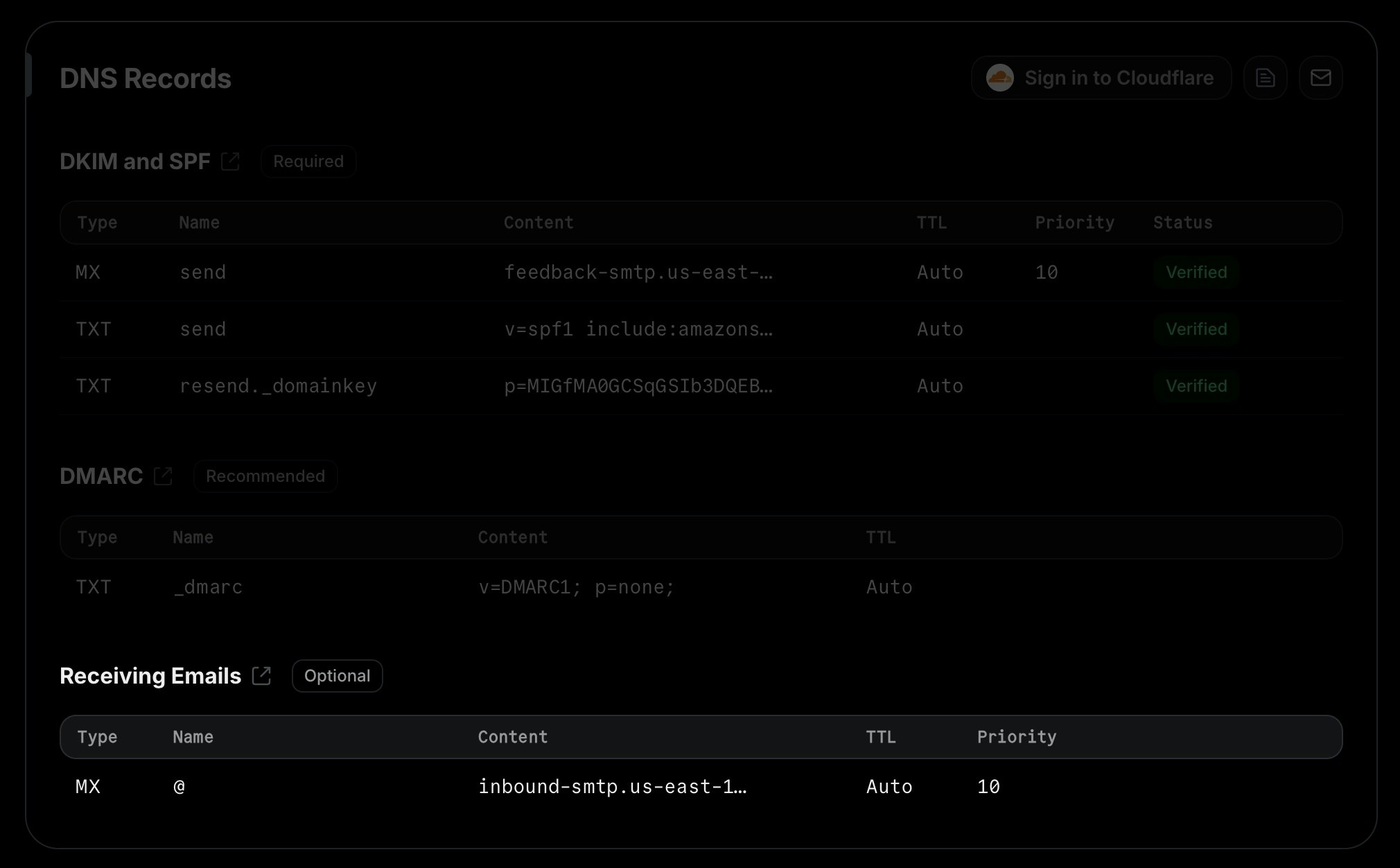
Receiving emails requires an extra [MX record](https://resend.com/knowledge-base/how-do-i-avoid-conflicting-with-my-mx-records) to work. You'll need to add this record to your DNS provider.
1. Go to the [Domains](https://resend.com/domains) page
2. Copy the MX record
3. Paste the MX record into your domain's DNS service
 If you already have existing MX records for your domain (because you're already
using it for a real inbox, for example), we recommend that you
create a subdomain (e.g. `subdomain.yourdomain.tld`) and add the MX record
there. This way, you can use Resend for receiving emails without affecting
your existing email service. Note that you will *not* receive emails at Resend
if the required `MX` record is not the lowest priority value for the domain.
Alternatively, you can configure your email service to forward emails to an address
that's configured in Resend or forward them directly to the SMTP server address
that appears in the receiving `MX` record.
## 2. Configure webhooks
Next, create a new webhook endpoint to receive email events.
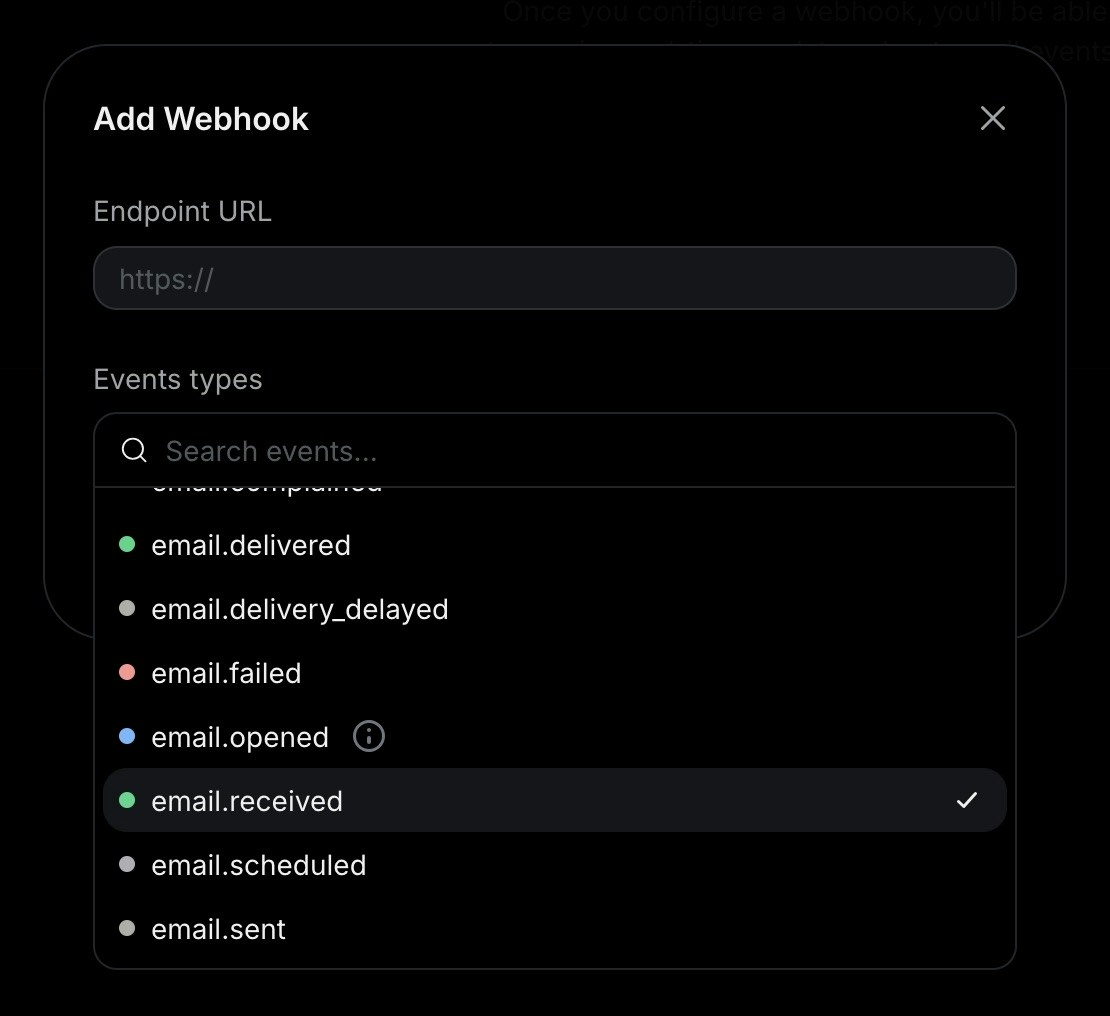
1. Go to the [Webhooks](https://resend.com/webhooks) page
2. Click "Add Webhook"
3. Enter the URL of your webhook endpoint
4. Select the event type `email.received`
5. Click "Add"
If you already have existing MX records for your domain (because you're already
using it for a real inbox, for example), we recommend that you
create a subdomain (e.g. `subdomain.yourdomain.tld`) and add the MX record
there. This way, you can use Resend for receiving emails without affecting
your existing email service. Note that you will *not* receive emails at Resend
if the required `MX` record is not the lowest priority value for the domain.
Alternatively, you can configure your email service to forward emails to an address
that's configured in Resend or forward them directly to the SMTP server address
that appears in the receiving `MX` record.
## 2. Configure webhooks
Next, create a new webhook endpoint to receive email events.
1. Go to the [Webhooks](https://resend.com/webhooks) page
2. Click "Add Webhook"
3. Enter the URL of your webhook endpoint
4. Select the event type `email.received`
5. Click "Add"
 ## 3. Receive email events
In your application, create a new route that can accept `POST` requests.
Here's how you can implement this:
```js Next.js theme={"theme":{"light":"github-light","dark":"vesper"}}
// app/api/events/route.ts
import type { NextRequest } from 'next/server';
import { NextResponse } from 'next/server';
export const POST = async (request: NextRequest) => {
const event = await request.json();
if (event.type === 'email.received') {
return NextResponse.json(event);
}
return NextResponse.json({});
};
```
```php Laravel theme={"theme":{"light":"github-light","dark":"vesper"}}
// routes/api.php
use Illuminate\Http\Request;
use Illuminate\Support\Facades\Route;
Route::post('/events', function (Request $request) {
$event = $request->json()->all();
if ($event['type'] === 'email.received') {
return response()->json($event);
}
return response()->json([]);
});
```
```php PHP theme={"theme":{"light":"github-light","dark":"vesper"}}
// index.php
header('Content-Type: application/json');
if ($_SERVER['REQUEST_METHOD'] !== 'POST') {
http_response_code(405);
echo json_encode(['error' => 'Method Not Allowed']);
exit;
}
$body = file_get_contents('php://input');
$event = json_decode($body, true);
if (json_last_error() !== JSON_ERROR_NONE) {
http_response_code(400);
echo json_encode(['error' => 'Invalid JSON']);
exit;
}
if ($event['type'] === 'email.received') {
echo json_encode($event);
exit;
}
echo json_encode([]);
```
```rust Rust theme={"theme":{"light":"github-light","dark":"vesper"}}
#[derive(Serialize)]
struct Empty {}
async fn example(Json(event): Json) -> Response {
if matches!(
event.r#type,
resend_rs::events::EmailEventType::EmailReceived
) {
Json(event).into_response()
} else {
Json(Empty {}).into_response()
}
}
```
Once you receive the email event, you can process the email body and attachments. We also recommend implementing [webhook request verification](/webhooks/verify-webhooks-requests) to secure your webhook endpoint.
```json theme={"theme":{"light":"github-light","dark":"vesper"}}
{
"type": "email.received",
"created_at": "2026-02-22T23:41:12.126Z",
"data": {
"email_id": "56761188-7520-42d8-8898-ff6fc54ce618",
"created_at": "2026-02-22T23:41:11.894719+00:00",
"from": "onboarding@resend.dev",
"to": ["delivered@resend.dev"],
"bcc": [],
"cc": [],
"message_id": "",
"subject": "Sending this example",
"attachments": [
{
"id": "2a0c9ce0-3112-4728-976e-47ddcd16a318",
"filename": "avatar.png",
"content_type": "image/png",
"content_disposition": "inline",
"content_id": "img001"
}
]
}
}
```
## Enabling receiving for an existing domain
If you already have a verified domain, you can enable receiving by using the toggle in the receiving section of the domain details page.
## 3. Receive email events
In your application, create a new route that can accept `POST` requests.
Here's how you can implement this:
```js Next.js theme={"theme":{"light":"github-light","dark":"vesper"}}
// app/api/events/route.ts
import type { NextRequest } from 'next/server';
import { NextResponse } from 'next/server';
export const POST = async (request: NextRequest) => {
const event = await request.json();
if (event.type === 'email.received') {
return NextResponse.json(event);
}
return NextResponse.json({});
};
```
```php Laravel theme={"theme":{"light":"github-light","dark":"vesper"}}
// routes/api.php
use Illuminate\Http\Request;
use Illuminate\Support\Facades\Route;
Route::post('/events', function (Request $request) {
$event = $request->json()->all();
if ($event['type'] === 'email.received') {
return response()->json($event);
}
return response()->json([]);
});
```
```php PHP theme={"theme":{"light":"github-light","dark":"vesper"}}
// index.php
header('Content-Type: application/json');
if ($_SERVER['REQUEST_METHOD'] !== 'POST') {
http_response_code(405);
echo json_encode(['error' => 'Method Not Allowed']);
exit;
}
$body = file_get_contents('php://input');
$event = json_decode($body, true);
if (json_last_error() !== JSON_ERROR_NONE) {
http_response_code(400);
echo json_encode(['error' => 'Invalid JSON']);
exit;
}
if ($event['type'] === 'email.received') {
echo json_encode($event);
exit;
}
echo json_encode([]);
```
```rust Rust theme={"theme":{"light":"github-light","dark":"vesper"}}
#[derive(Serialize)]
struct Empty {}
async fn example(Json(event): Json) -> Response {
if matches!(
event.r#type,
resend_rs::events::EmailEventType::EmailReceived
) {
Json(event).into_response()
} else {
Json(Empty {}).into_response()
}
}
```
Once you receive the email event, you can process the email body and attachments. We also recommend implementing [webhook request verification](/webhooks/verify-webhooks-requests) to secure your webhook endpoint.
```json theme={"theme":{"light":"github-light","dark":"vesper"}}
{
"type": "email.received",
"created_at": "2026-02-22T23:41:12.126Z",
"data": {
"email_id": "56761188-7520-42d8-8898-ff6fc54ce618",
"created_at": "2026-02-22T23:41:11.894719+00:00",
"from": "onboarding@resend.dev",
"to": ["delivered@resend.dev"],
"bcc": [],
"cc": [],
"message_id": "",
"subject": "Sending this example",
"attachments": [
{
"id": "2a0c9ce0-3112-4728-976e-47ddcd16a318",
"filename": "avatar.png",
"content_type": "image/png",
"content_disposition": "inline",
"content_id": "img001"
}
]
}
}
```
## Enabling receiving for an existing domain
If you already have a verified domain, you can enable receiving by using the toggle in the receiving section of the domain details page.
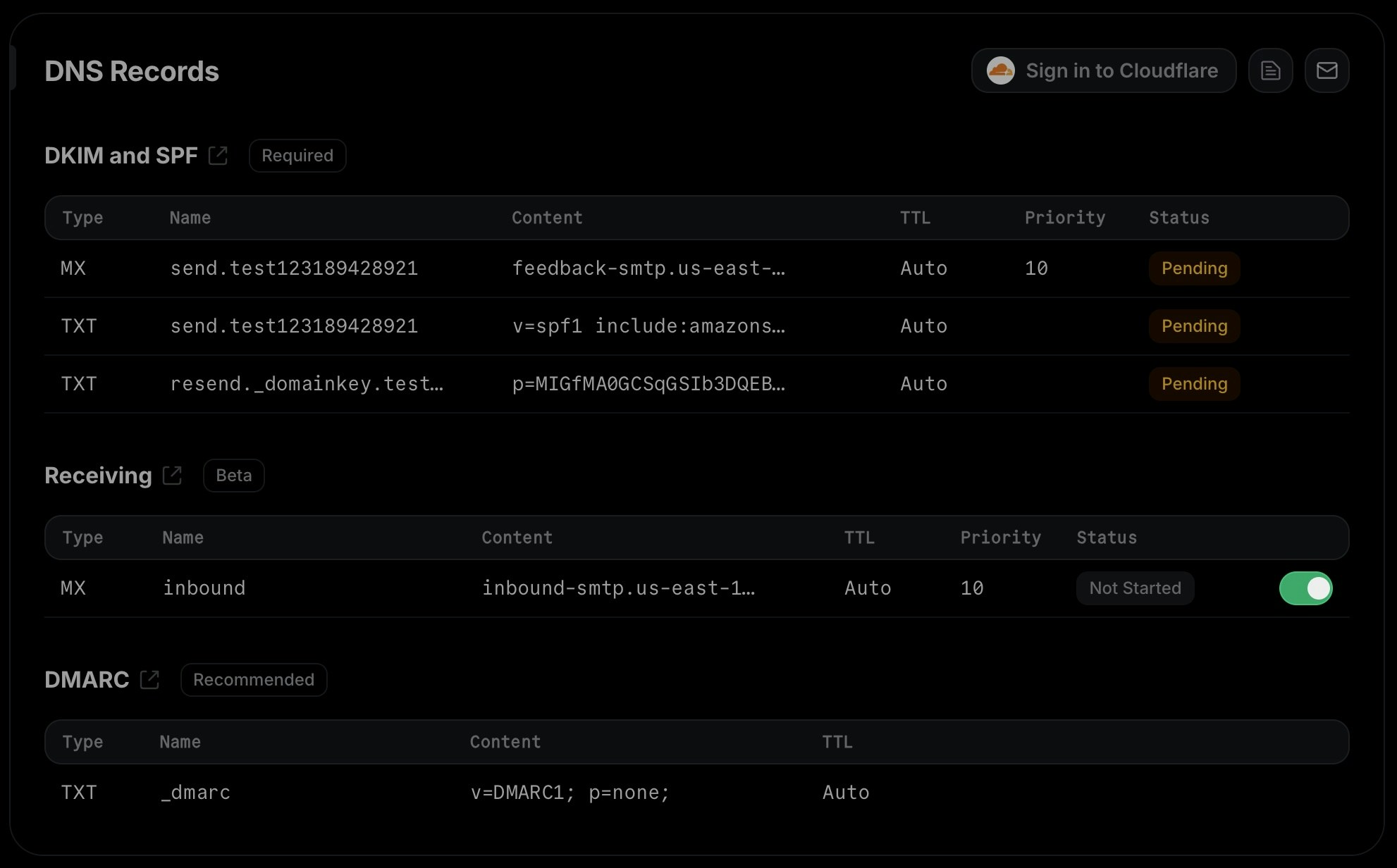 After enabling receiving, you'll see a modal showing the MX record that you need to add to your DNS provider to start receiving emails.
Once you add the MX record, confirm by clicking the "I've added the record" button and wait for the receiving record to show as "verified".
## FAQ
If you already have existing MX records for your domain, we recommend that you
create a subdomain (e.g. `subdomain.yourdomain.tld`) and add the MX record
there.
That's because emails will usually only be delivered to the MX record with the lowest
priority value. Therefore, if you add Resend's MX record to your root domain alongside existing MX records,
it will either not receive any emails at all (if the existing MX records have a lower priority),
or it will interfere with your existing email service (if Resend's MX record has a lower priority). If you
use the same priority, email delivery will be unpredictable and may hit either Resend or your existing email
service.
If you still want to use the same domain both in for Resend and your day-to-day
email service, you can also set up forwarding rules in your existing email service
to forward emails to an address that's configured in Resend or forward them directly
to the SMTP server address that appears in the receiving `MX` record.
No, you do not need to verify your entire domain again. If you already have a
verified domain for sending, you can simply enable receiving for that domain,
add the required MX record to your DNS provider, and click "I've added the record"
to start verifying *only* the MX record.
After enabling receiving, you'll see a modal showing the MX record that you need to add to your DNS provider to start receiving emails.
Once you add the MX record, confirm by clicking the "I've added the record" button and wait for the receiving record to show as "verified".
## FAQ
If you already have existing MX records for your domain, we recommend that you
create a subdomain (e.g. `subdomain.yourdomain.tld`) and add the MX record
there.
That's because emails will usually only be delivered to the MX record with the lowest
priority value. Therefore, if you add Resend's MX record to your root domain alongside existing MX records,
it will either not receive any emails at all (if the existing MX records have a lower priority),
or it will interfere with your existing email service (if Resend's MX record has a lower priority). If you
use the same priority, email delivery will be unpredictable and may hit either Resend or your existing email
service.
If you still want to use the same domain both in for Resend and your day-to-day
email service, you can also set up forwarding rules in your existing email service
to forward emails to an address that's configured in Resend or forward them directly
to the SMTP server address that appears in the receiving `MX` record.
No, you do not need to verify your entire domain again. If you already have a
verified domain for sending, you can simply enable receiving for that domain,
add the required MX record to your DNS provider, and click "I've added the record"
to start verifying *only* the MX record.