> ## Documentation Index
> Fetch the complete documentation index at: https://resend.com/docs/llms.txt
> Use this file to discover all available pages before exploring further.
# Managing unsubscribed Contacts
> Learn how to check and remove recipients who have unsubscribed from your marketing emails.
## Managing unsubscribes
A Contact's [**Subscribed** status](#subscription-statuses) is a global setting that enables or disables sending [Broadcasts](/docs/dashboard/broadcasts/introduction).
When you include [Resend's unsubscribe link placeholder](/docs/dashboard/broadcasts/editor#broadcast-unsubscribe-link) in your Broadcasts or Automations, Resend will automatically handle your Contact's unsubscribe flow for you and ensure that your Contact subscription statuses are up to date.
However, unsubscribed Contacts will not be removed from your account. Manually or programmatically deleting Contacts who no longer want to receive your emails is a key part of [maintaining audience hygiene](/docs/knowledge-base/audience-hygiene) and keeping your Contact list clean, valid, and engaged.
It's essential to update your Contact list when someone unsubscribes to maintain a good sender reputation.
Benefits of managing your unsubscribe list:
* reduces the likelihood of your emails being marked as spam
* improves deliverability for any other marketing or transactional emails you send
Whenever possible, [add a Topic to your
Broadcast](/docs/dashboard/contacts/introduction#topics). This allows your Contact
to unsubscribe from only specific types of emails (instead of unsubscribing
from all emails from your account).
You can also [include an unsubscribe link in transactional emails](/docs/dashboard/emails/add-unsubscribe-to-transactional-emails) where Resend does not manage your Contacts.
## Subscription Statuses
The [**Contacts** Dashboard view](https://resend.com/audience) shows the global subscription status of each Contact. This status determines whether or not Resend will send email to the Contact.
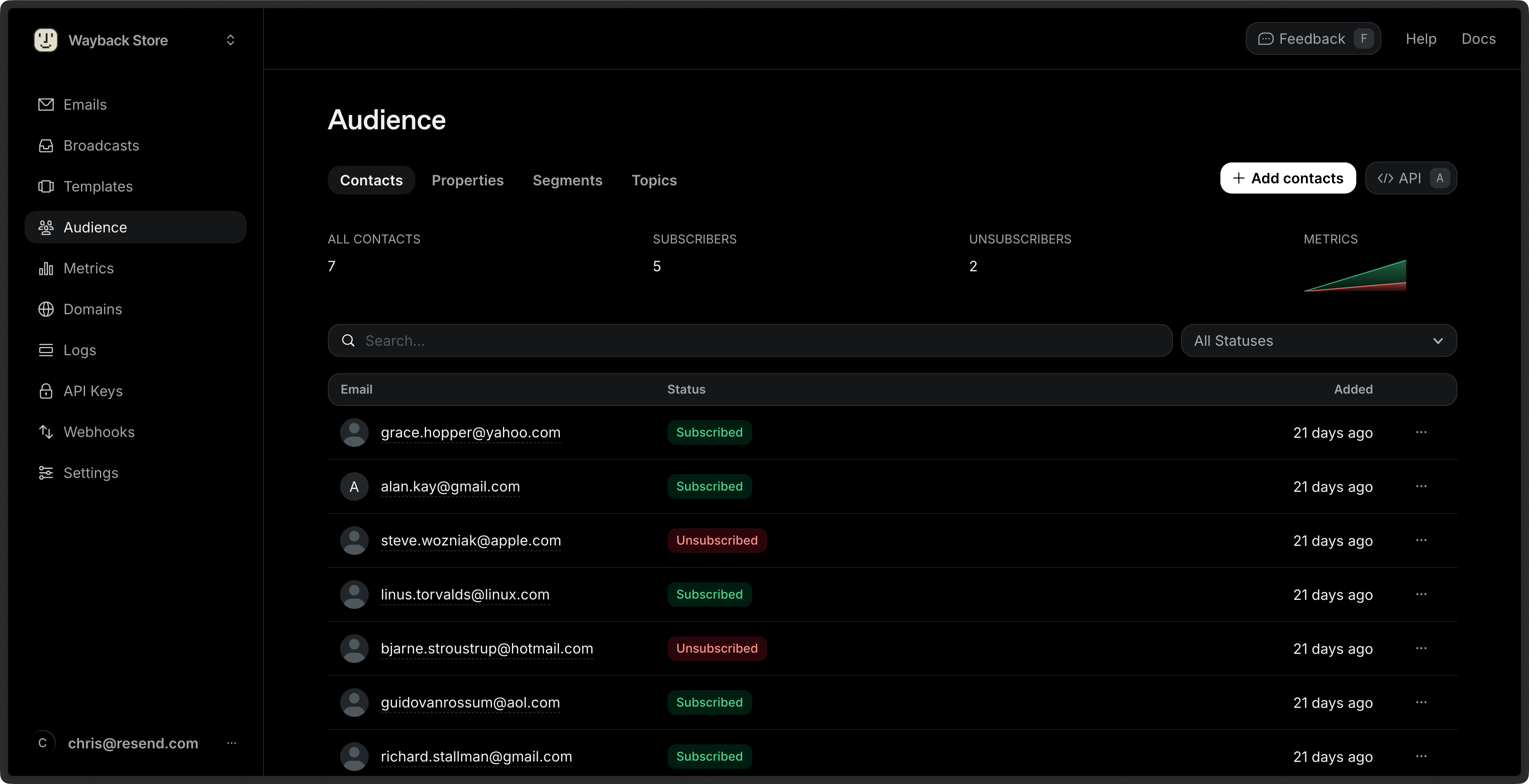 * **Subscribed**: The Contact will receive Broadcasts sent to any Segment they belong to, and to any Topics they are subscribed to.
* **Unsubscribed**: The Contact will not receive any emails from your account, even if they are subscribed to individual Topics.
## Delete unsubscribed Contacts
To delete your unsubscribed Contacts using the Dashboard:
Navigate to the [**Contacts** Dashboard view](https://resend.com/audience).
Click on the **All subscriptions** filter next to the search bar, then
select **Unsubscribed**.
Select all Contacts then click the **Delete** button in the bulk actions
bar.
You can also retrieve a list of unsubscribed Contacts to delete via the [Contacts API](/docs/api-reference/contacts/list-contacts) or with a [Contacts CLI command](/docs/cli#contacts).
## API Reference
For complete API documentation, see the [Contacts API reference](/docs/api-reference/contacts/list-contacts).
* **Subscribed**: The Contact will receive Broadcasts sent to any Segment they belong to, and to any Topics they are subscribed to.
* **Unsubscribed**: The Contact will not receive any emails from your account, even if they are subscribed to individual Topics.
## Delete unsubscribed Contacts
To delete your unsubscribed Contacts using the Dashboard:
Navigate to the [**Contacts** Dashboard view](https://resend.com/audience).
Click on the **All subscriptions** filter next to the search bar, then
select **Unsubscribed**.
Select all Contacts then click the **Delete** button in the bulk actions
bar.
You can also retrieve a list of unsubscribed Contacts to delete via the [Contacts API](/docs/api-reference/contacts/list-contacts) or with a [Contacts CLI command](/docs/cli#contacts).
## API Reference
For complete API documentation, see the [Contacts API reference](/docs/api-reference/contacts/list-contacts).