> ## Documentation Index
> Fetch the complete documentation index at: https://resend.com/docs/llms.txt
> Use this file to discover all available pages before exploring further.
# Introduction
> Visualize all the API Keys on the Resend Dashboard.
## What is an API Key
API Keys are secret tokens used to authenticate your requests. They are unique to your account and should be kept confidential.
You can use multiple keys to isolate different application actions to different API Keys. This allows you to [view logs per key](#view-api-key-logs), detect possible abuse, and control any damage that may be done accidentally or maliciously.
## API key management
You can view and manage your API keys from the [API Key Dashboard](https://resend.com/api-keys). You can also create, list, or delete your API keys using the [API](/api-reference/api-keys/create-api-key), or the [Resend CLI](/cli#api-keys).
## View all API Keys
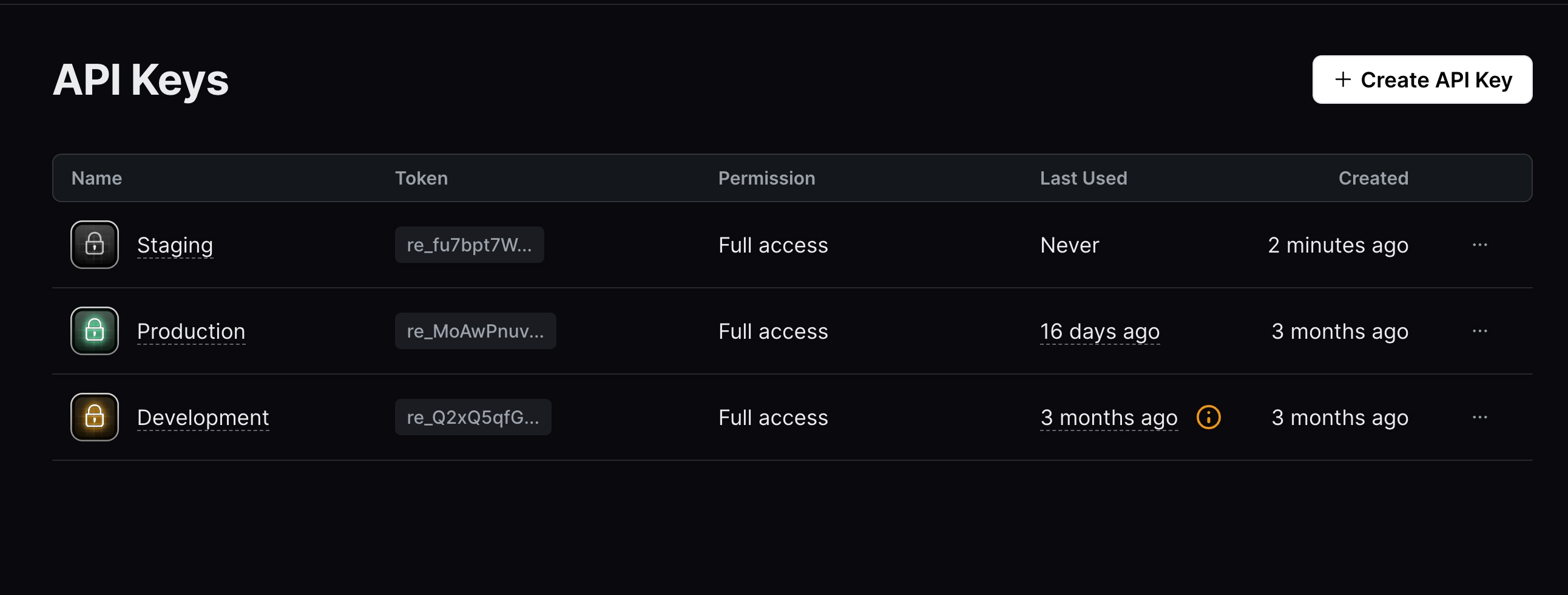
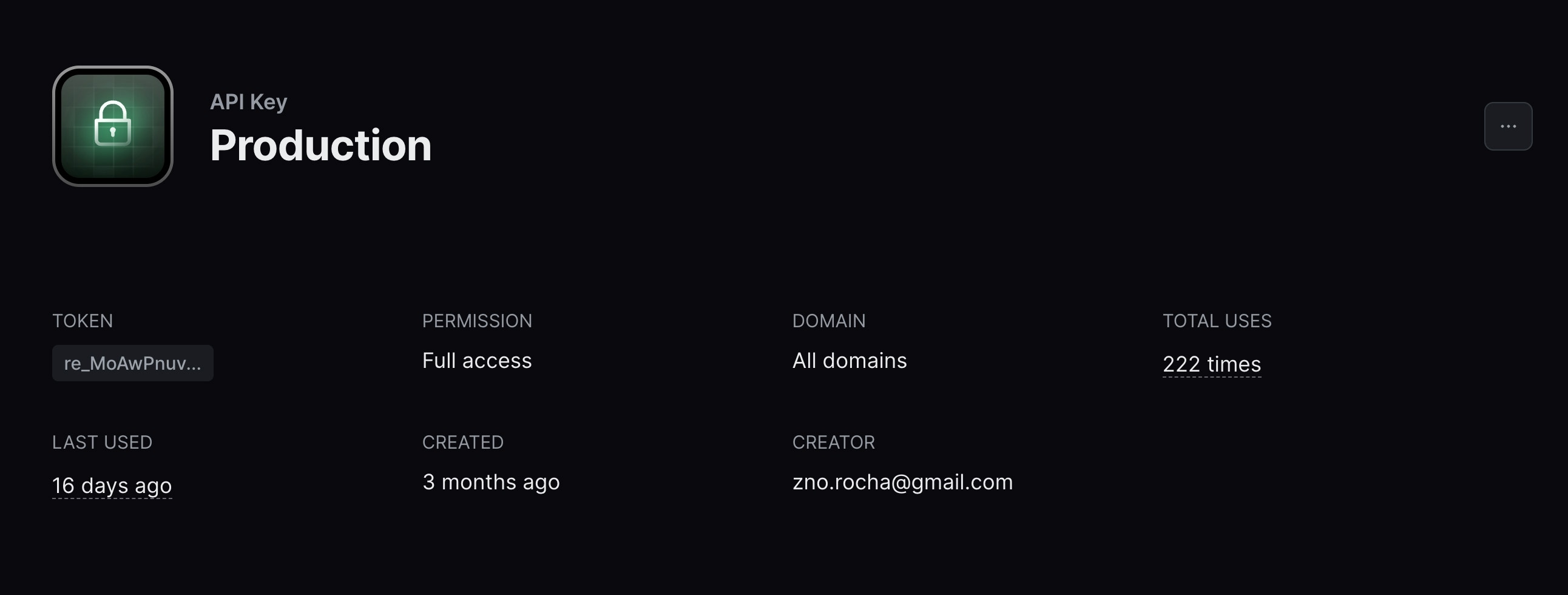
The [API Dashboard](https://resend.com/api-keys) shows you all the API Keys you have created along with their details, including the **last time you used** an API Key.
Different color indicators let you quickly scan and detect which API Keys are being used and which are not.
 ## Edit API Key details
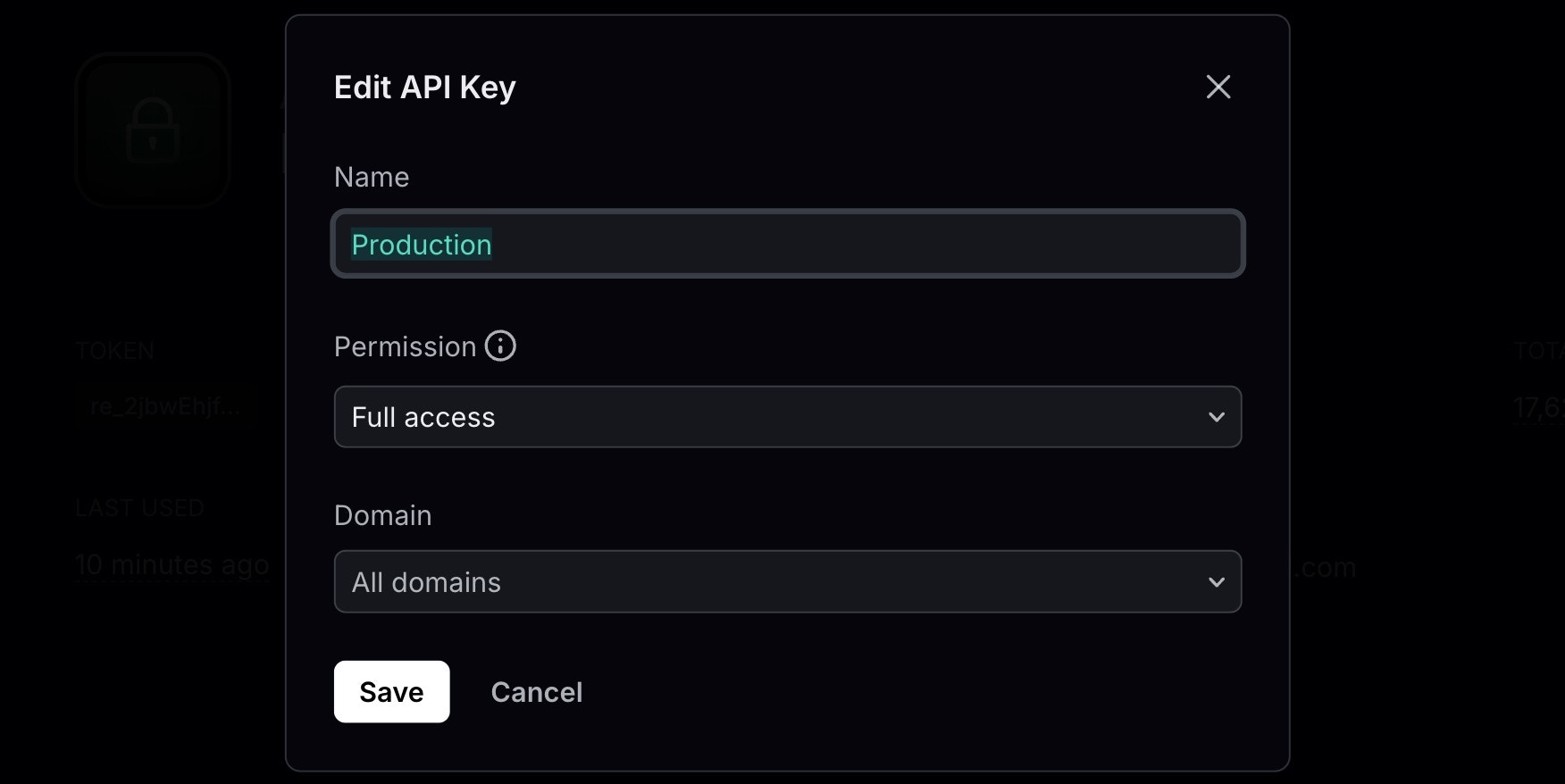
After [creating an API Key](/create-an-api-key), you can edit the following details:
* [Name](/api-reference/api-keys/create-api-key#param-name)
* [Permission](/api-reference/api-keys/create-api-key#param-permission)
* [Domain](/api-reference/api-keys/create-api-key#domain-id)
You cannot view or edit an API Key value after it has been created.
To edit an API key in the Resend Dashboard, click the **More options** button and then **Edit API Key**.
## Edit API Key details
After [creating an API Key](/create-an-api-key), you can edit the following details:
* [Name](/api-reference/api-keys/create-api-key#param-name)
* [Permission](/api-reference/api-keys/create-api-key#param-permission)
* [Domain](/api-reference/api-keys/create-api-key#domain-id)
You cannot view or edit an API Key value after it has been created.
To edit an API key in the Resend Dashboard, click the **More options** button and then **Edit API Key**.
 ## Delete inactive API Keys
If an API Key **hasn't been used in the last 30 days**, consider deleting it to keep your account secure.
## Delete inactive API Keys
If an API Key **hasn't been used in the last 30 days**, consider deleting it to keep your account secure.
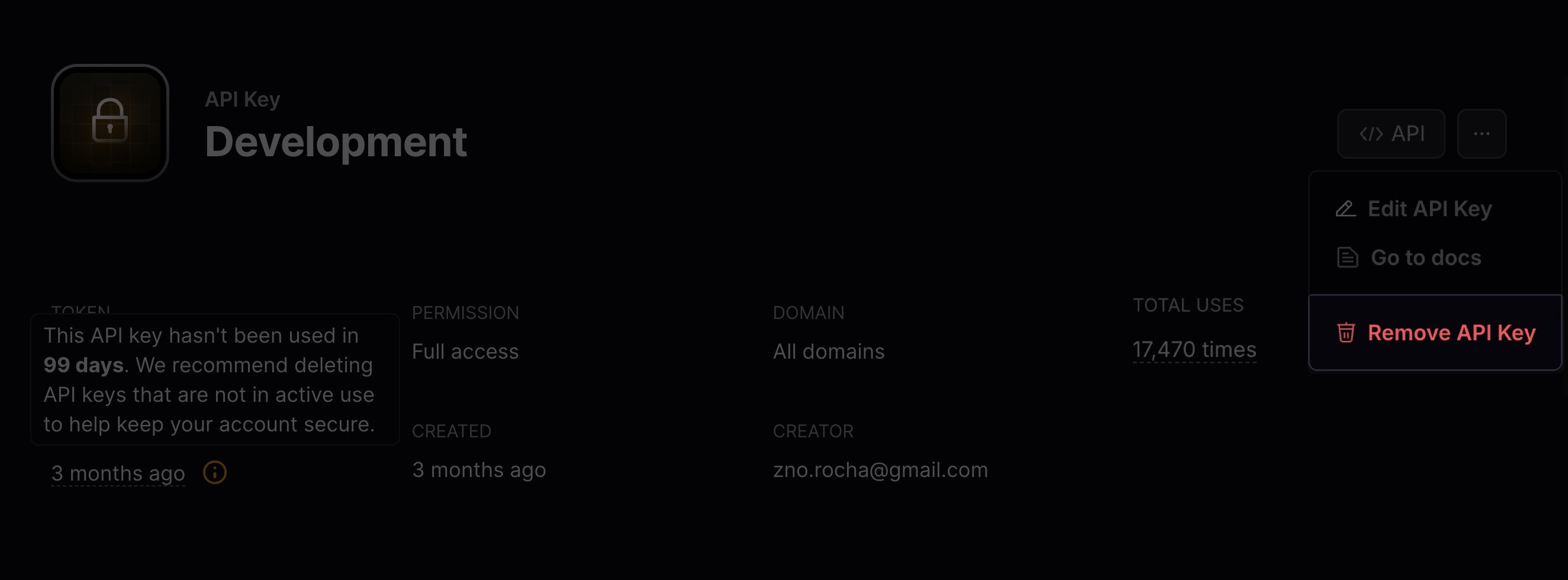
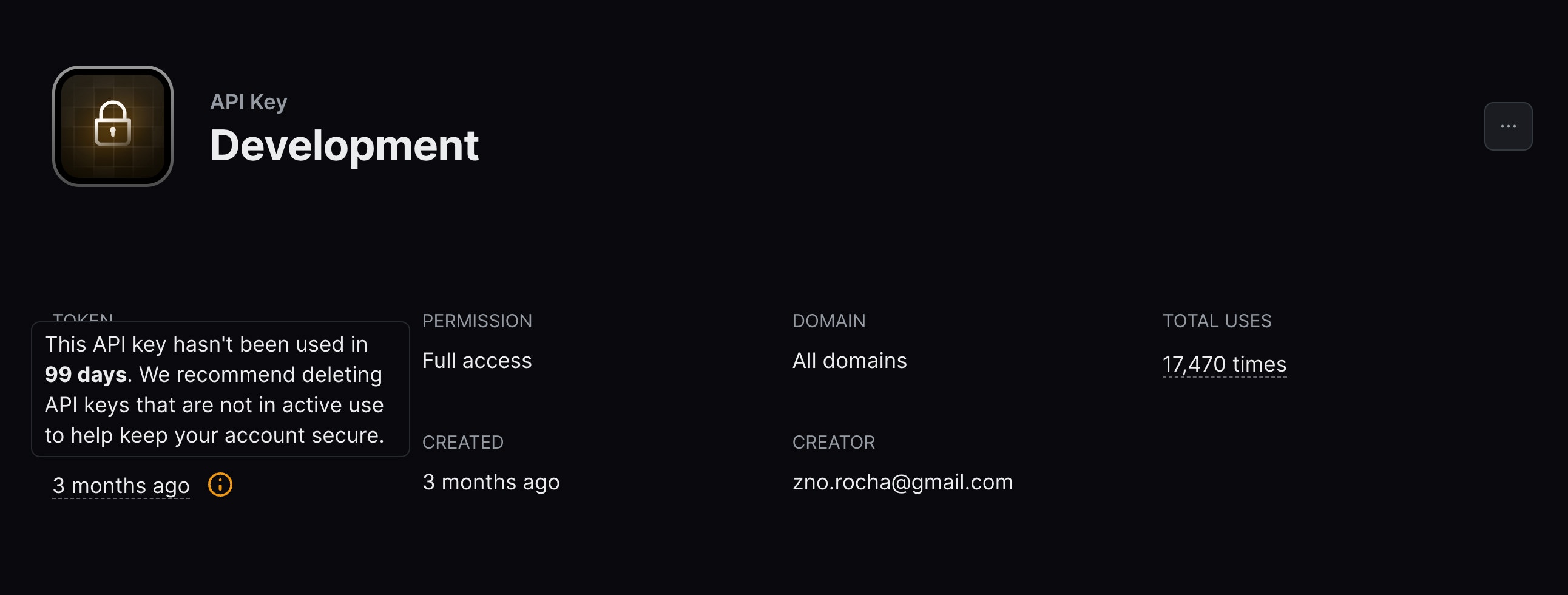 You can delete an API Key by clicking the **More options** button and then **Remove API Key**.
 ## View API Key logs
When visualizing an active API Key, you can see the **total number of requests** made to the key. For more detailed logging information, select the underlined number of requests to view all logs for that API Key.
## View API Key logs
When visualizing an active API Key, you can see the **total number of requests** made to the key. For more detailed logging information, select the underlined number of requests to view all logs for that API Key.
 ## Export your data
Admins can download your data in CSV format for the following resources:
* Emails
* Broadcasts
* Contacts
* Segments
* Domains
* Logs
* API keys
Currently, exports are limited to admin users of your team.
To start, apply filters to your data and click on the "Export" button. Confirm your filters before exporting your data.
If your exported data includes 1,000 items or less, the export will download immediately. For larger exports, you'll receive an email with a link to download your data.
All admins on your team can securely access the export for 7 days. Unavailable exports are marked as "Expired."
All exports your team creates are listed in the
[Exports](https://resend.com/exports) page under **Settings** > **Team** >
**Exports**. Select any export to view its details page. All members of your
team can view your exports, but only admins can download the data.
## Export your data
Admins can download your data in CSV format for the following resources:
* Emails
* Broadcasts
* Contacts
* Segments
* Domains
* Logs
* API keys
Currently, exports are limited to admin users of your team.
To start, apply filters to your data and click on the "Export" button. Confirm your filters before exporting your data.
If your exported data includes 1,000 items or less, the export will download immediately. For larger exports, you'll receive an email with a link to download your data.
All admins on your team can securely access the export for 7 days. Unavailable exports are marked as "Expired."
All exports your team creates are listed in the
[Exports](https://resend.com/exports) page under **Settings** > **Team** >
**Exports**. Select any export to view its details page. All members of your
team can view your exports, but only admins can download the data.