> ## Documentation Index
> Fetch the complete documentation index at: https://resend.com/docs/llms.txt
> Use this file to discover all available pages before exploring further.
# Send emails with Bolt.new and Resend
> Learn how to add the Resend integration to your Bolt.new project.
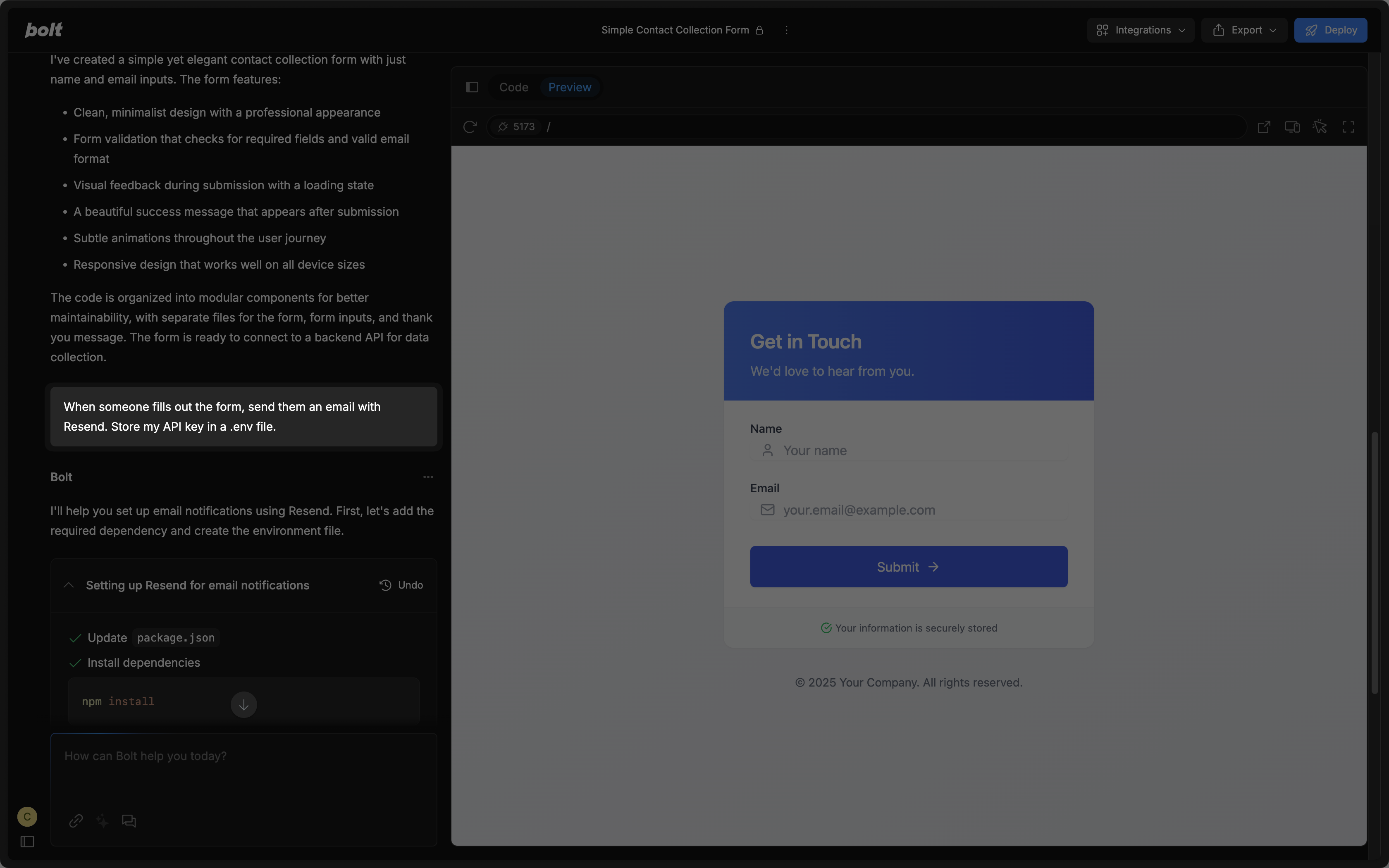
[Bolt.new](https://bolt.new) is a platform for building full-stack web and mobile apps via chat. You can add Resend in a Bolt.new project by asking the chat to add email sending with Resend.
 ## 1. Add your Resend API key
To use Resend with Bolt.new, you'll need to add a Resend API key, which you can create in the [Resend Dashboard](https://resend.com/api-keys). Do not share your API key with others or expose it in the browser or other client-side code.
To safely store your Resend API key, use a `.env` file. You may need to
include this instruction in your prompt to bolt.new. Learn more about
[handling API keys](/knowledge-base/how-to-handle-api-keys).
## 2. Add a custom domain to your Resend account
By default, you can only send emails to your own email address.
To send emails to other email addresses:
1. Add a [custom domain to your Resend account](https://resend.com/domains).
2. Add the custom domain to the `from` field in the `resend` function in Bolt.new (or ask the chat to update these fields).
Get more help adding a custom domain in [Resend's documentation](/dashboard/domains/introduction).
## 1. Add your Resend API key
To use Resend with Bolt.new, you'll need to add a Resend API key, which you can create in the [Resend Dashboard](https://resend.com/api-keys). Do not share your API key with others or expose it in the browser or other client-side code.
To safely store your Resend API key, use a `.env` file. You may need to
include this instruction in your prompt to bolt.new. Learn more about
[handling API keys](/knowledge-base/how-to-handle-api-keys).
## 2. Add a custom domain to your Resend account
By default, you can only send emails to your own email address.
To send emails to other email addresses:
1. Add a [custom domain to your Resend account](https://resend.com/domains).
2. Add the custom domain to the `from` field in the `resend` function in Bolt.new (or ask the chat to update these fields).
Get more help adding a custom domain in [Resend's documentation](/dashboard/domains/introduction).